
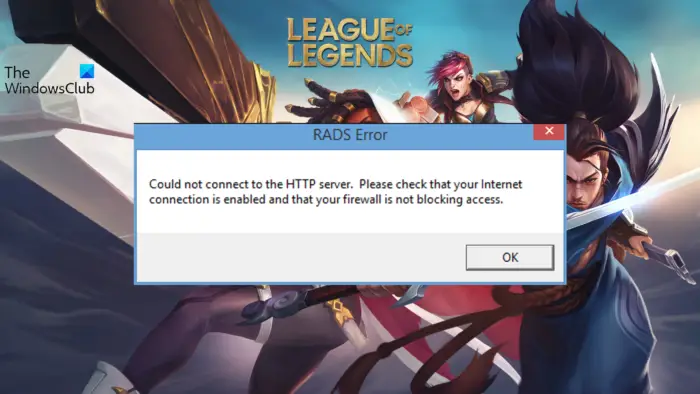
This post features different solutions to fix RADS Error on League of Legends effectively. League of Legends is a popular online multiplayer Battle Royale game. However, like any other BR, it isn’t free from issues. Among all, the one that has been in the talk lately is the RADS Error. The error message says,
RADS Error
Could not connect to the HTTP server. Please check that your internet connection is enabled and that your firewall is not blocking access.
Thankfully, it’s a cakewalk to get rid of this issue. Just try the solutions below to resolve the error message on your system.
What causes RADS Error on League of Legends?
There isn’t any specific reason behind the RADS Error on League of Legends. But according to the error message, the issue is mainly due to a weak or unstable internet connection. Additionally, below are some other culprits that can trigger the error message.
- If the Windows Firewall settings are blocking the game client, you are most likely to deal with the problem in question.
- If you haven’t granted the game client administrative rights, it’s no surprise you are facing the problem.
- DNS cache can be another primary reason behind the mentioned issue.
Now that you have prior knowledge about different reasons triggering the error message let’s check out how to get rid of them.
Fix RADS Error, Could not connect to the HTTP server on League of Legends
Below is the list of effective solutions to eliminate LoL RADS Error on Windows 11/10:
- Check internet connection
- Provide administrative rights
- Whitelist from Windows Firewall
- Flush the DNS cache
- Update Network Driver
- Edit System.cfg File
- Try the Hextech Repair Tool
Now, let’s check out all these solutions in detail.
1] Check internet connection
One of the primary reasons behind the issue is a weak or unstable internet connection. Thus, before trying any of the technical solutions below, make sure you are connected to an active internet connection. You can visit any connection-checking website to test your internet connection.
If the speed is comparatively lower than the plan you have opted for, contact your ISP and ask them to resolve the issue. Alternatively, you can even reboot your router if the problem is from your end rather than the ISP.
2] Provide administrative rights
Like any other client, Riot Client requires administrative rights to run without problems. If this isn’t the case, you will face different issues, including RADS Error. So, provide administrative rights and check if it solves the problem. Here’s how it’s done.
- Open the Start menu by pressing the Windows key.
- Type Riot Client and click the enter button.
- Right-click on the result and choose the Run as administrator option.
Check whether the problem is fixed. If not, try the next solution.
3] Whitelist from Windows Firewall
If Riot Client is blocked under the Windows Firewall settings, you are most likely to deal with the problem in the question. To solve the issue, you will have to whitelist the application from Windows Firewall.
Once you are done with the process, reboot your system and launch the client. Check if the problem continues. If yes, try the next solution on the list.
See: Fix Apex Legends won’t open on PC
4] Flush the DNS cache
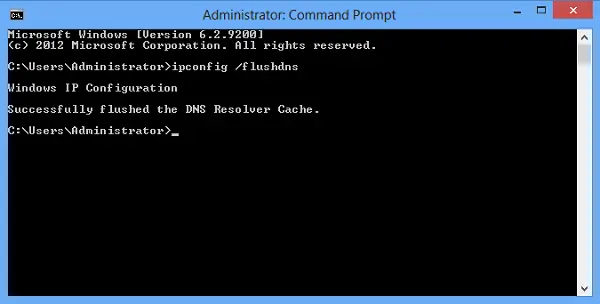
One of the best solutions to try if you are struggling with the error message is to flush the DNS cache. As it turns out, the problem can be caused by a corrupted local cache. You can flush the DNS cache by following the steps below.
- Open Command Prompt in administrator mode.
- Type ipconfig /flushdns and hit Enter
- You should see – Windows IP Configuration. Successfully flushed the DNS Resolver Cache.
Now, exit the CMD window and reboot your system. Check if it solves the problem.
4] Change the DNS server
The next thing to try is to connect to a different DNS server. By default, Windows automatically connects the system with your ISP’s DNS server. But in most cases, it isn’t ideal, especially for playing online multiplayer games. Currently, Google Public DNS is best for playing online BR games. So, change the DNS server and check if the problem is fixed or not.
5] Update Network Driver
The outdated network driver is another primary reason behind the issue. Thus, download the latest network driver update and check if it solves the problem. If not, try the next solution.
See: Error code 92: Cannot connect to server in World of Warships Legends
6] Edit System.cfg File
Another effective solution in this situation is to edit the System.cfg file. Here’s how it’s done.
Open the File Explorer, and navigate to the following location.
C:Riot Games/League of Legends/RADS system
Locate and right-click on the system.cfg file.
From the context, select Open with Notepad.
Delete everything inside the file and paste the following entries.
DownloadPath = /releases/live
DownloadURL = l3cdn.riotgames.com
Region = EUW
Save the changes and exit the window. Check whether the problem is fixed or not.
Read: Apex Legends Error 0x00000017, Error reading pak file on PC
7] Try the Hextech Repair Tool
You can run Hextech Repair Tool as a solution to the problem. After downloading the tool, run it in administrator mode. Follow the on-screen instructions to get rid of the mentioned issue.
How do I fix League of Legends error code 003?
It’s straightforward to troubleshoot error code 003 on League of Legends. You can try these solutions to solve the problem: Run the Hextech Repair Tool, delete content from the Releases folder, temporarily disable the security application, and turn off the proxy server. You can even configure Google Public DNS to solve the problem.
What causes ping spikes in League of Legends?
Sudden ping spike in League of Legends is often caused due to outdated network drivers. Additionally, the problem can occur due to DNS caching and an ongoing server issue. It’s very easy to troubleshoot this problem.
Read Next: Fix High Disk & Memory Usage when playing Games on Windows PC.
