
The Windows Task Manager displays a list of the running processes on your computer along with their resource utilization and other important details. If you wish to generate and print the list of processes that are running in your Task Manager in Windows 11 or Windows 10, here’s how to go about it.
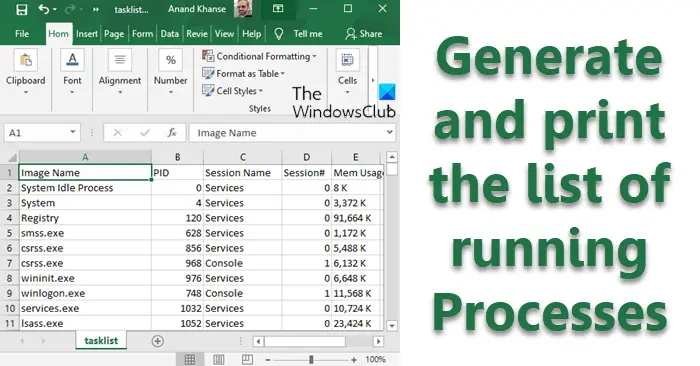
Generate a list of running Processes in Task Manager
To generate & print the list of all the running Processes in your Task Manager in Excel format on Windows 11/10, open an elevated command prompt and execute the following command:
tasklist /FO CSV>C:\tasklist.csv
The list output named tasklist.csv will be saved as an Excel file on your C Drive.
To generate the list in Text format, use the following command:
tasklist/SVC>C:\tasklist.txt
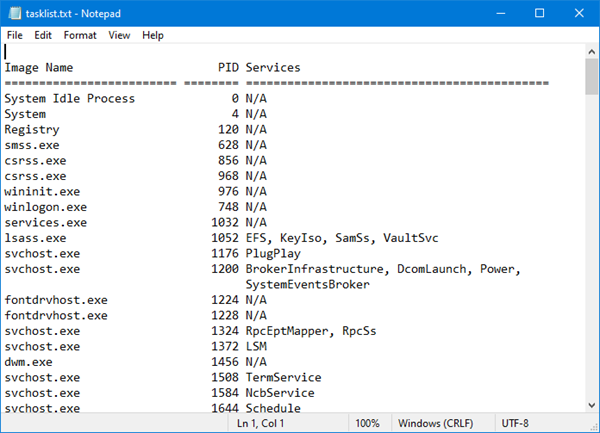
You will see the .txt file on your C Drive.
You can now print the saved Excel or Notepad file.
You can use any image editor that can capture images using the scrolling function. Save the image and use it to print the list of running processes in Task Manager.
What is the PowerShell command that returns a list of running processes?
The PowerShell command to list running processes is Get-Process. This command retrieves details about all processes currently active on the system. To filter processes by specific criteria, you can pipeline it with other cmdlets like Where-Object for further customization, such as filtering by memory usage or process name.
How do I see what processes are running in Task Manager?
To view running processes in Task Manager, press Ctrl + Shift + Esc to open it. Navigate to the “Processes” tab, where you’ll find a list of all active applications and background processes on your computer.
