
After upgrading to a Microsoft 365 (Office 365) plan, some users encounter unexpected issues in Outlook, such as “File Not Found” errors and calendar sync failures. These problems typically occur because Outlook is still referencing old data files or profile settings that no longer exist after the upgrade.
As a result, meetings may stop updating, shared calendars may disappear, or Outlook may fail to locate required files. While these issues can be frustrating, the good news is that they’re usually easy to fix. In most cases, simply reconfiguring Outlook restores normal functionality and resolves the errors quickly.
Fix Outlook File not found or Calendar sync failure errors
Let’s take a look at each of these issues one by one and figure out a solution for Outlook file not found or Calendar sync failure errors.
Outlook File Not Found
If Outlook is not able to find the PST file and throws File Not Found error after Microsoft 365 Plan Upgrade, follow these suggestions to resolve this issue:
- Verify and reconfigure the Outlook profile
- Rebuild the Outlook OST file
- Check and change account configuration
1] Verify and reconfigure Outlook profile
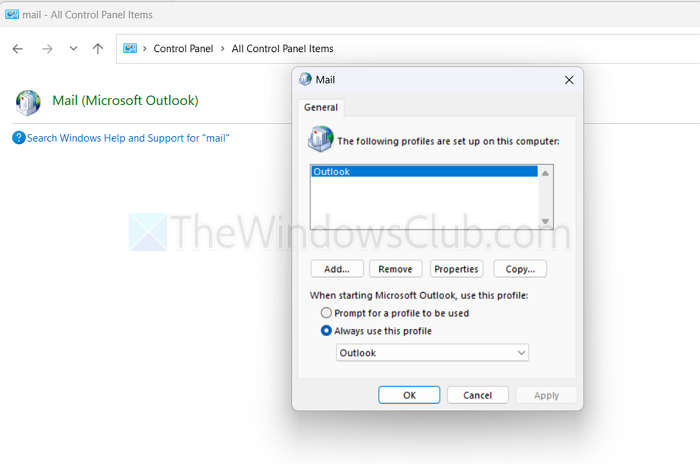
Outlook might still be using your old personal account profile. However, by reconfiguring your Outlook profile, you could fix the issue.
- First, close Outlook completely.
- Next, go to Windows search, type Control Panel, and open it.
- Click on Mail (Microsoft Outlook).
- Next, click on Show Profiles, and it will display a list of old Outlook profiles.
- Now, click on Add to create a new profile, enter a Profile Name, and click on OK.
- Next, follow the on-screen instructions to set up your business account.
- Once done, set the new profile as the default one by selecting Always use this profile in the Show Profiles window.
- Click on Apply > OK.
- Finally, open Outlook and check if the issue is resolved.
Read: Outlook disappears after importing PST file
2] Rebuild the Outlook OST file
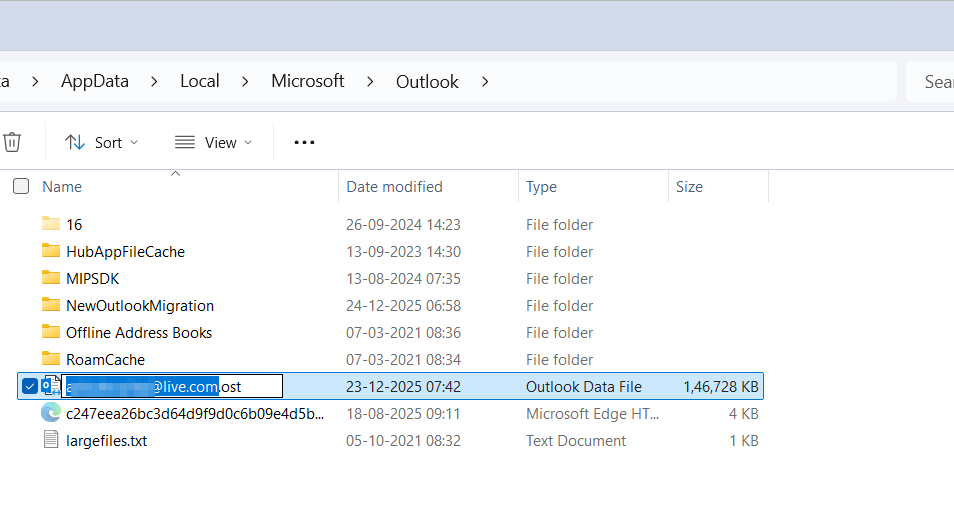
You can also try rebuilding the Outlook OST file. After upgrading to Office 365, Outlook may still attempt to locate the old OST file.
- For this, go to the following path via File Explorer: C:\Users\<username>\AppData\Local\Microsoft\Outlook
- Here, look for the OST file linked to your personal account and rename it.
- Once done, reopen Outlook, and it will automatically create a new OST file by syncing the mailbox on the server.
3] Check and change account configuration
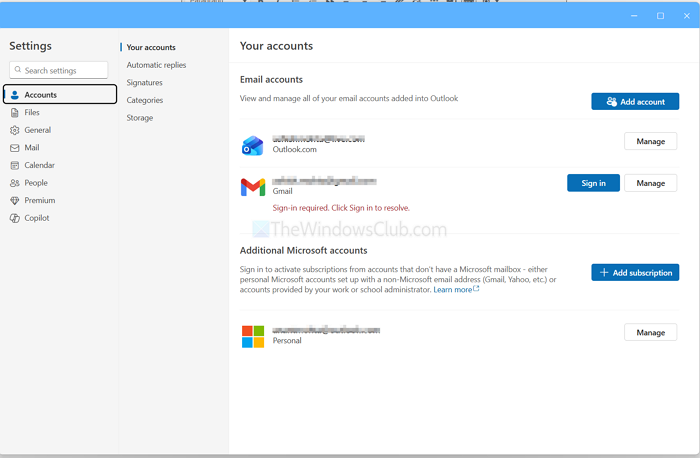
There is a good chance that Outlook is still using the old environment, leading to issues like sync failure or missing data. To rule this out, you can check and change your account configuration.
- Open Outlook and go to File > Settings > Accounts
- Here, you will see a list of accounts configured in Outlook. Ensure your business account is listed, active, and properly configured.
- In case your business account is missing, click on New in Account Settings. After that, enter your business account email address and password. Also, consider removing your personal account if you do not wish to use it.
- Finally, restart your PC and check if it has resolved the issue.
So, those were a few quick methods to fix the “File Not Found” error after an Office 365 plan upgrade. The issue can be easily resolved by reconfiguring Outlook, as outlined in the steps above. Go ahead and give them a try yourself.
Calendar Sync Failure After Office 365 Plan Upgrade
Upgrading to an Office 365 plan should offer you more features and better performance. However, some users have reported Outlook calendar sync failures right after the upgrade. As a result, your meetings stop updating, shared calendars disappear, and so on. But fixing the Outlook calendar sync failure error after an Office 365 plan upgrade is straightforward. Below, you will find the right fixes.
1] Rebuild the Outlook profile
There is a good chance that the current Outlook profile you are using is relying on cached calendar and authentication data. However, you can fix this issue by creating a new Outlook profile.
- First, close Outlook completely.
- Next, go to Windows search, type Control Panel, and open it.
- Click on User Accounts > Mail (Microsoft Outlook).
- Next, click on Show Profiles, and it will display a list of old Outlook profiles.
- Here, click on Add to create a new profile and follow the on-screen steps to create the profile.
- Once done, set the new profile as default.
- Finally, open Outlook using the newly created profile and wait for a while to allow Outlook to finish syncing.
2] Confirm the account is using Microsoft Exchange
Calendar syncing requires an Exchange connection, which might have switched to IMAP or POP after the plan upgrade. By restoring the Exchange account type, you can re-enable calendar synchronization.
- Start by opening Outlook.
- Go to File > Account Settings.
- Select Account Settings again.
- Here, choose the email account and confirm that the account type shows Microsoft Exchange.
- If it doesn’t, remove the account and add it again using automatic setup.
So those were a few quick ways to fix the Outlook calendar sync failure issue after an Office 365 plan upgrade. The issue mostly happens due to cache problems, and a simple reconfiguration should fix it.
How do I fix an Outlook data file not found?
This happens when it can’t locate your PST or OST file, usually because the file was moved, deleted, renamed, or the drive it’s stored on is disconnected. This can also happen after a Windows update, profile corruption, or if Outlook was reinstalled without reconnecting the original data file. Re-linking the correct data file or repairing the Outlook profile typically fixes the issue.
