
If when you attempt to install OneDrive on your Windows 11/10 computer and you receive a prompt indicating OneDrive couldn’t be installed, Error Code 0x80040c97, 0x80070070 or 0x80040d13 then this post is intended to help you. In this post, we will list potential causes, as well as offer the most suitable solutions to the issue.
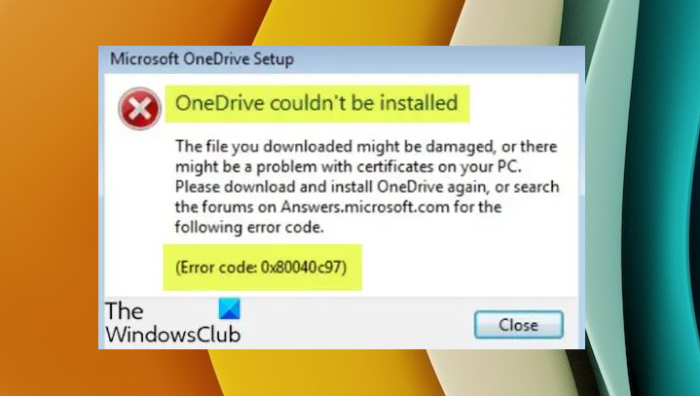
When you encounter this OneDrive error 0x80040c97 you’ll receive the following full error message;
Microsoft OneDrive Setup
OneDrive couldn’t be installed
The file you downloaded might be damaged, or there might be a problem with certificates on your PC. Please download and install OneDrive again, or search the forums on Answers.microsoft.com for the following error code.
(Error code: 0x80040c97)
Below are potential culprits:
- Damaged or corrupted setup file.
- Corrupt Certificates.
- Windows Registry.
- Third-party Software.
- Windows Firewall.
OneDrive couldn’t be installed, Error Code 0x80040c97
If you’re facing this issue, you can try our recommended solutions below, in no particular order and see if that helps resolve it.
- Reset OneDrive
- Reinstall OneDrive
- Downgrade to an earlier version of OneDrive
Let’s take a look at the description of the process involved concerning each of the listed solutions.
1] Reset OneDrive
This solution simply requires you to reset OneDrive and see if that helps to resolve the OneDrive couldn’t be installed, Error Code 0x80040c97 issue. Otherwise, try the next solution.
2] Reinstall OneDrive
Do the following:
- Press Windows key + X to open Power User Menu.
- Tap A on the keyboard to launch PowerShell in admin/elevated mode.
- In the PowerShell console, type in the command below and hit Enter to terminate all the hidden background OneDrive processes of any kind i.e. installation, execution, etc.
taskkill /f /im OneDrive.exe
- Once the command executes, you can exit PowerShell console.
- Next, press Windows key + R to invoke the Run dialog.
- In the Run dialog box, type appwiz.cpl and hit Enter to open the Programs and Features applet.
- Locate OneDrive (if available) in the list of installed programs.
- Select Microsoft OneDrive.
- Click Uninstall to completely remove OneDrive and its files from your PC.
- Once the uninstall process completes, clear Temp files and restart your computer.
On boot, download fresh OneDrive setup file and try the installation again. If the installation issue persists, try the next solution.
3] Install an earlier version of OneDrive
If resetting and reinstalling OneDrive did not work for you then the problem is most likely related to the version compatibility between Windows 11/10 Build & Microsoft OneDrive.
It has been reported that the recent updates to OneDrive may be causing the error in focus. In this case, you can download and install an earlier version of OneDrive. You can try an earlier version as far back as 19.152.0801.0008 and work your way up and see which works without issues.
How to fix OneDrive couldn’t be installed, Error Code 0x80040d13?
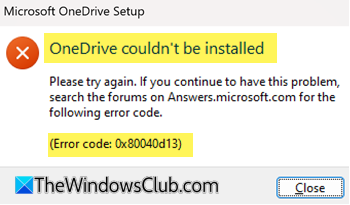
OneDrive Error Code 0x80040d13 indicates leftover configuration or registry issues blocking installation. To resolve this issue, open REGEDIT and go to HKEY_CURRENT_USER\SOFTWARE\Microsoft\Office\16.0\Common\Identity. Here, right-click on Identity and click on Delete. You should also delete these cached folders using File Explorer:
%localappdata%\Microsoft\OneAuth%localappdata%\Microsoft\IdentityCache
If this does not help,Reset OneDrive and then try again.
How to fix OneDrive couldn’t be installed, Error Code 0x80070070?
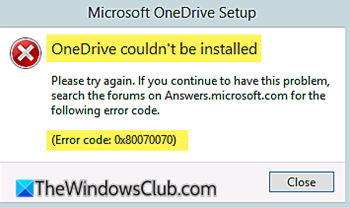
Error Code 0x80070070 in OneDrive means your system drive. To resolve this issue, run Disk Cleanup to clear up disk space. If OneDrive uninstall is stuck execute %localappdata%\Microsoft\OneDrive\OneDrive.exe /uninstall in CMD to uninstall it and then clear the contents of %localappdata%\Microsoft\OneDrive and C:\ProgramData\Microsoft OneDrive folders. Now try to install OneDrive and see.
I hope this helps!
Related post: Fix OneDrive error 0x8004de34 on Windows.
