
Here is a full guide to fix the “Not Enough Available Memory” message on God of War on your Windows 11/10 PC. God of War (GoW) is a popular action-adventure game loved by millions of gamers worldwide. However, while playing the game, some users have reported receiving an annoying “Not Enough Available Memory” error message. It keeps popping up, hindering your gaming experience. Now, if you are one of those getting the same message out of nowhere, this post is for you. In this article, we will discuss several fixes to help you resolve this message.
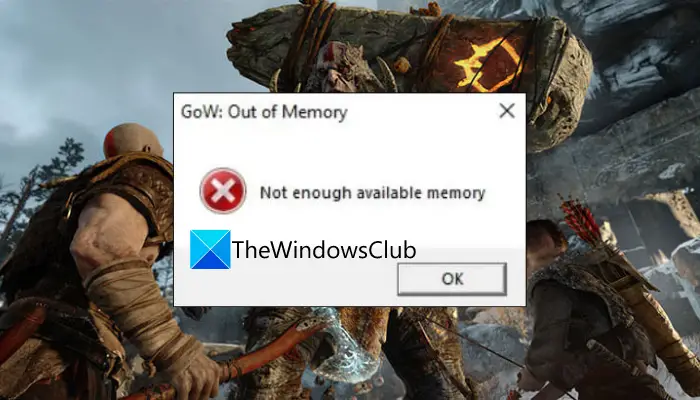
What am I getting Not Enough Available Memory message on God of War?
There can be multiple reasons why you might get the Not Enough Available Memory message on God of War:
- The error message may appear if your PC doesn’t meet the minimum system requirements. It may be caused by low RAM on your system. Please ensure your system meets the minimum specifications to play the game.
- There may be a temporary glitch causing the error message. In that case, relaunching the game should resolve the issue.
- If your system has outdated device drivers, they can cause the error in question. Ensure you have up-to-date device drivers installed on your system.
- In a few instances, corrupted system files may be one reason you are receiving the message. If the issue applies, you can try repairing system files by running an SFC scan.
Fix Not enough available memory error on God of War (GoW)
Here are the methods you can use to fix the “Not Enough Available Memory” error prompt on God of War:
- Make sure your PC meets the minimum system requirements.
- Relaunch the game.
- Update your drivers.
- Disable your integrated graphics.
- Install latest game patches.
- Run an SFC scan.
1] Make sure your PC meets the minimum system requirements
Before trying any other solution, make sure your PC meets the minimum system requirements to play God of War. The error prompt is most likely to be triggered if your system doesn’t meet the minimum requirements. Please check whether your PC meets the minimum specifications to play the game. Here are the minimum requirements:
- OS: Windows 11/10 64-bit or later
- Processor: Intel i5-2500k (4 core 3.3 GHz) or AMD Ryzen 3 1200 (4 core 3.1 GHz)
- Memory: 8 GB RAM
- Graphics: NVIDIA GTX 960 (4 GB) or AMD R9 290X (4 GB)
- DirectX: Version 11 (DirectX feature level 11_1 required)
- Storage: 70 GB available space
Also, you can check memory space using the below steps:
- Firstly, open the Settings app using the Windows + I hotkey.
- Now, click the About tab, then locate the Installed RAM option. From here, you can check whether you have enough memory.
If your PC meets the minimum requirements and has sufficient memory, but you still receive the same message, try the next fix.
2] Relaunch the game
You can also try relaunching the game to fix the issue. Simply save the game progress and then exit the game. Then restart the game and see if the issue is resolved. Before relaunching the game, you can also try closing unnecessary background apps and see if it works for you.
It is a workaround and may resolve the issue if a temporary glitch is causing it. However, if you keep receiving the same message, try the next potential fix to resolve the error.
Related: God of War not launching or opening.
3] Update your drivers
In many cases, the issue may be caused by outdated or corrupted drivers installed on your system. If the scenario applies, update all drivers and then relaunch the game to see if the issue is resolved.
Here are the methods to update your drivers on Windows PC:
- Users can simply go to the Settings > Windows Update section and use the Optional Updates feature to update drivers including graphics, network, and other drivers.
- Conventionally, you can visit the official website of the device manufacturer and download your drivers from there. And then, run the installer and follow the onscreen guide to install your drivers on your system.
- Another conventional method is to use the native Device Manager app to update your drivers. Here are the steps for that:
- Press Win+X and then select the Device Manager app from the menu.
- Expand the drop-down menu for your drivers.
- Right-click on your device.
- Choose the Update Driver option.
- Complete the update process using the onscreen guide.
- You can also use a free driver updater that lets you automatically update all your device drivers.
When you have updated all outdated drivers, restart the PC and try playing God of War. Please confirm whether the problem is now fixed. If not, proceed to the next method to resolve it.
4] Disable your integrated graphics
Some affected users have reportedly fixed the problem by disabling the integrated/ internal graphics. So, you can also try the same and see if it works for you or not.
Here are the steps to disable integrated graphics through NVIDIA Control Panel:
- Firstly, right-click anywhere on your desktop and select NVIDIA Control Panel from the context menu.
- Now, choose Manage 3D settings from the left panel.
- Next, select your graphics card as the preferred graphics processor under Global Settings.
- Finally, press the Apply button to save changes.
Follow the below steps to disable integrated graphics using Device Manager:
- Firstly, launch Device Manager from the Win+X menu.
- Now, expand the menu for Display adapters.
- Next, right-click on your integrated graphics driver and then select the Disable device option.
- After that, relaunch your game and check if the problem is fixed or not.
5] Install latest game patches
If the error message continues to appear, you can try updating the game. Santa Monica Studios keeps deploying new game patches that address previous bugs and issues. Please update the game and see if it resolves the memory leak issue. Steam users can follow the steps below to make sure they don’t miss out on the latest game patches:
- Firstly, launch the Steam client and go to LIBRARY.
- Now, select the God of War game title and press the right-click.
- Next, click on the Properties option.
- After that, go to the UPDATES section and under the Automatic Updates drop-down, select the Always keep this game updated option.
- Steam will then detect and install available updates for God of War automatically.
Hopefully, this method will fix the problem for you. If that doesn’t work, we have one more fix you can try.
6] Run an SFC scan
If nothing works, the last step is to run an SFC scan. This error message can also result from corrupted or damaged system files. So, you can try running a System File Checker (SFC) scan to fix the issue. Here are the steps to do that:
- Firstly, open Command Prompt with administrator privilege.
- Now, write the below command in CMD:
sfc /scannow
- Next, press the Enter button and let Windows detect and fix the corrupted system files.
After the scan is complete, restart your PC, then launch the game to see if the issue is resolved.
How much memory does God of War need?
To run God of War on your computer, it should have a minimum of 8 GB RAM. In addition to 8 GB RAM, your system should have a minimum of 70 GB ROM, a 64-bit processor, Windows 11 or Windows 10 OS, DirectX Version 11, and NVIDIA GTX 1060 (6 GB) or AMD RX 570 (4 GB) graphics card.
Now read: There isn’t enough memory available to create a ramdisk device.
