
Some PC users have reported that when they tried to scan files or documents with the Windows Fax and Scan applet on their Windows 11 or Windows 10 device, they received the error message “No scanners were detected.” This post offers the most suitable solutions you can try to successfully resolve this issue.
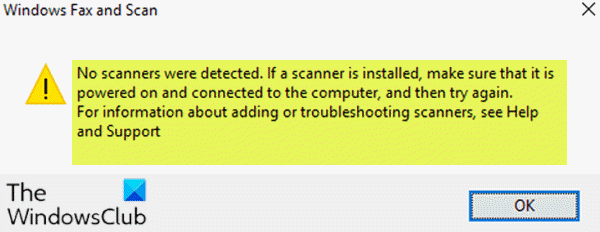
When you encounter this issue, you’ll receive the following full error message:
No scanners were detected. If a scanner is installed, make sure that it is powered on and connected to the computer, and then try again. For information about adding or troubleshooting scanners, see Help and Support.
The error usually arises when the computer fails to successfully detect a scanner to send or receive a job request. This error is caused by various reasons, including the incorrect installation of drivers, the scanner not being connected correctly, or problems in the wireless connection.
No scanners were detected on Windows 11/10
If you’re facing this issue, you can try our recommended solutions below, in no particular order and see if that helps resolve it.
- Check Scanner setup
- Run Hardware and Devices Troubleshooter
- Disable and Re-enable Windows Fax and Scan
- Reconfigure the Scanner
- Update the Scanner Drivers
Let’s take a look at the description of the process involved concerning each of the listed solutions.
1] Check Scanner setup
If you are prompted that Windows Fax and Scan is not detecting the scanner, there may be an issue with your scanner’s setup. Therefore, you should carefully check your scanner’s setup, paying attention to the following:
Check the cables and power supply
Make sure that the scanner is powered on. You need to check whether you have plugged the scanner into the power source, and then make sure the switch button is on to connect the scanner to the power supply. In addition, plug the cables in correctly and firmly at both ends to ensure they work properly. Also, you can try replacing the power cables to eliminate the possibility of a faulty cable.
Check the USB port
Sometimes the cause of this error may be a USB port issue. Therefore, if Windows Fax and Scan doesn’t detect any scanners, try disconnecting the scanner and plugging it into a different USB port to see if it works. Also, you can try replacing the USB cable to rule out a faulty one.
After you have completed these preliminary checks and the issue remains unresolved, you can try the next solution.
Read: How to install TWAIN driver.
2] Run Hardware and Devices Troubleshooter
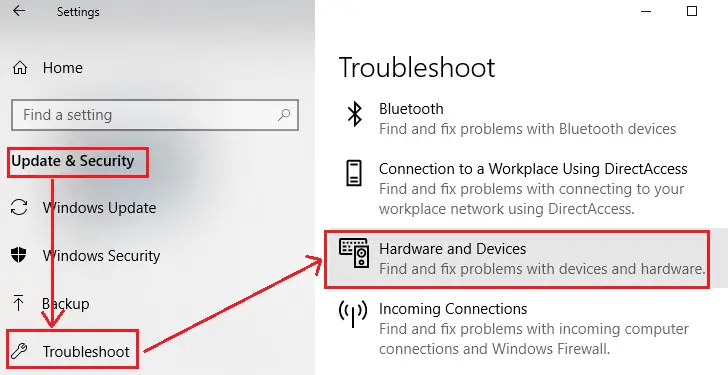
This solution requires you to run the Windows built-in Hardware and Devices troubleshooter to diagnose and fix the issue.
3] Disable and Re-enable Windows Fax and Scan
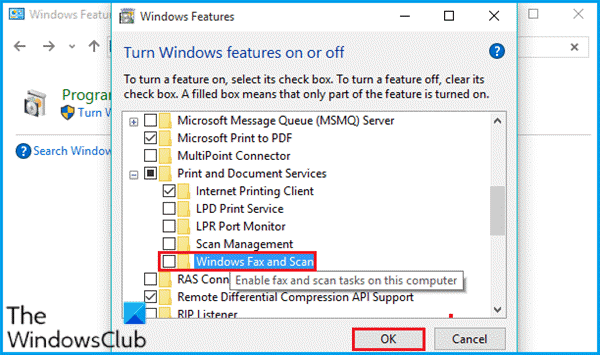
This solution requires you to disable the Windows Fax and Scan via Windows Features applet, restart your computer and then re-enable it again. This simple operation can resolve the issue.
Do the following:
- Press Windows key + R to invoke the Run dialog.
- In the Run dialog box, type
appwiz.cpland hit Enter to open the Programs and Features applet. - In the windows that opens, on the left side, click the Turn Windows features on or off link.
- In the Windows Features applet, scroll down to look for Print and Document Services and expand it.
- Uncheck the option of Windows Fax and Scan.
- Click OK to save changes and exit.
- Restart your computer to make the changes take effects and then re-enable Windows Fax and Scan by re-checking the box again.
If this doesn’t fix the issue, proceed with the next solution.
4] Reconfigure the Scanner
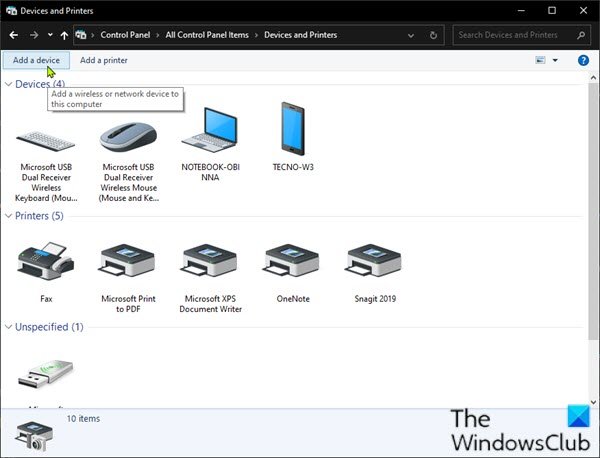
This error message primarily means that the scanner isn’t connected to your computer or Windows doesn’t detect a valid online scanner to send the job to. You can try reconfiguring the scanner and see if that resolves the issue.
Follow the below instructions to add the scanner as a new device on your Windows 10 computer.
To begin, make sure that the scanner is powered on during the process, then continue as follows:
- Press Windows key + R to invoke the Run dialog.
- In the Run dialog box, type
controland hit Enter to open Control Panel. - From the top right corner of the window, set the View by option to Large icons or Small icons.
- Select Devices and Printers.
- Click Add a device in the Devices and Printers window. And then it will start searching printers or scanners for you. You’ll see the devices listed in the box.
- Select the printer or scanner you intend to connect.
- Click Next to continue. Windows will start to install the printer or scanner for you, and wait for the process to finish.
Once done, try connecting to your scanner and scanning again to see if it works. Otherwise, try the next solution.
5] Update the Scanner Drivers
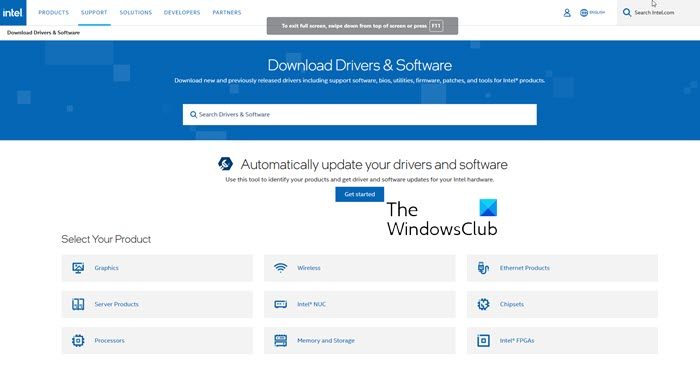
If all the above methods fail to fix the issue, it’s likely that the scanner driver is missing or outdated. In this case, you should try updating the scanner driver to fix this issue.
You can either update your drivers manually via the Device Manager, or you can get the driver updates on the Optional Updates section under Windows Update. You can download the latest version of the driver from the manufacturer’s website.
Bear in mind that there are a few cases where a newer driver doesn’t work. In that case, download an older version of the driver and install it.
I hope this helps!
Related posts:
How do I get Windows to recognize my scanner?
You must ensure your scanner is properly connected to your computer and powered on. Update your scanner drivers via the Device Manager or the manufacturer’s website. Run the Windows Troubleshooter for hardware and devices. If the problem persists, check if the scanner is compatible with your Windows version.
TIP: Suggestions to resolve Scanner problems, troubleshooting tips and solutions here.
How do I fix Windows Fax and Scan not working in Windows 11?
If the Windows Fax and Scan app isn’t working on your computer, start by running it as an administrator. If that doesn’t resolve the issue, try using the Hardware and Devices Troubleshooter, which can automatically detect and fix problems with hardware connected to your Windows system.
