
If the scanner is not working but the printer is working fine in Windows 11, here is what you can do to fix the issue. Whether you use a Canon, HP, Epson, or any other multifunction printer, you can use the same solutions to get it fixed.
Why is Scanner not working but Printer is working?
If the scanner is not working, one of these could be the reason:
- There are some problems with the driver.
- There are some physical or hardware issues.
- Windows Image Acquisition service is not working, or there are some problems with this service.
- There are some problems with the USB cable you attached to connect your scanner to your computer.
- Your third-party firewall is blocking the connection.
Scanner not working but Printer is working in Windows 11
If the scanner is not working but the printer is working, follow these solutions:
- Update and reinstall the printer driver
- Print directly to verify scanner stability
- Restart Windows Image Acquisition service
- Fix Windows Scan app
- Verify the USB connection
- Disable third-party firewall software
- Restart the Print Spooler service
- Call technician for hardware checking
To learn more about these solutions, continue reading.
1] Update and reinstall the printer driver
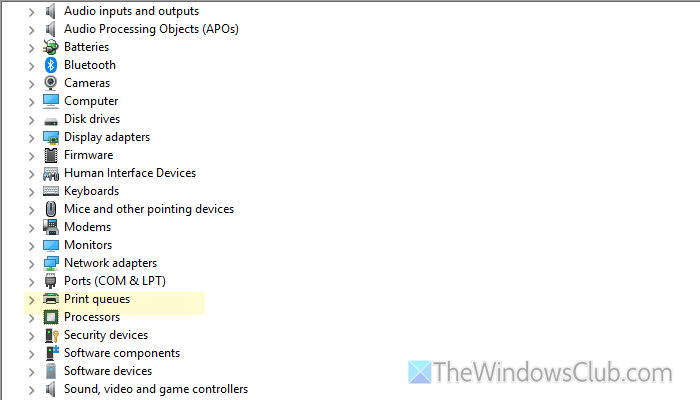
It is the very first thing you must do to fix this scanner issue in Windows 11. As drivers play a vital role in such cases, it is suggested to update the driver first if it has not been updated for a long time. You can find the driver update in the Windows Settings panel.
If updating the driver doesn’t resolve the issue, reinstalling the driver is recommended. For uninstallation, use Device Manager.
It is always highly recommended to download the driver only from the official website. No matter which manufacturer you use, you can download and install the printer driver for Windows 11 by following this article.
2] Print directly to verify scanner stability
Almost all multifunction printers have an option to print directly without using a computer. In other words, you can put a document in the scanner and print it directly. When you do this, your printer uses a scanner
It is recommended to go through that step to check whether your scanner is working. If not, it is time to visit the service center.
3] Restart Windows Image Acquisition service
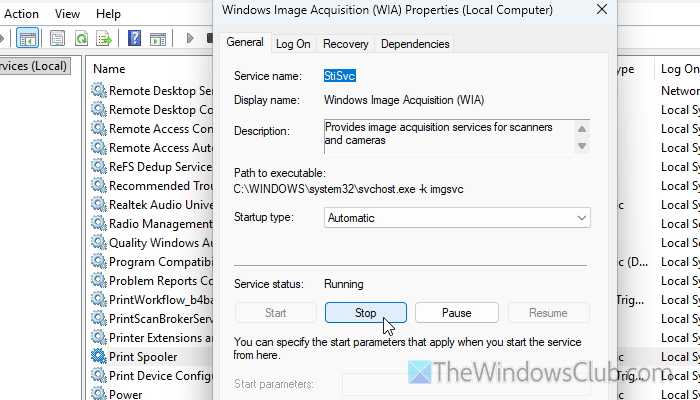
Windows Image Acquisition, or WIA, is responsible for scanners and camera images. If this service is not running, you won’t be able to use your scanner properly. That is why it is recommended to check and restart the Windows Image Acquisition service.
For that, press Win+R to open the Run prompt, type services.msc, and hit the Enter button. Next, double-click on the Windows Image Acquisition service and click the Stop button.
Then, choose Automatic from the Startup type menu and click the Start button.
Finally, click the OK button to save the change.
Read: Windows Image Acquisition High CPU and Disk usage
4] Fix Windows Scan app
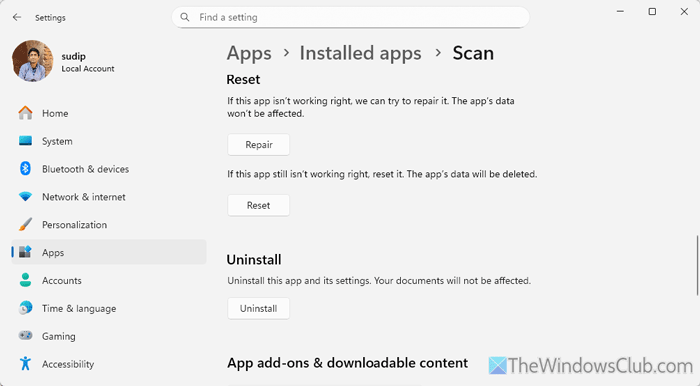
If you use the Windows Scan app to scan your documents, and this app has some issues, you won’t be able to use your scanner. Therefore, go through these instructions to get it working:
- Update the app if an update is available.
- Repair and reset it.
To update the Windows Scan app, open the Microsoft Store, search for windows scan, click on the corresponding search result, and download the update accordingly.
To repair and reset the Windows Scan app in Windows 11, open the Windows Settings panel, go to Apps > Installed apps > Click on the three-dotted icon of Scan, and select Advanced options.
Click on the Repair button. If it doesn’t work, click on the Reset button twice to start the reset process.
5] Verify the USB connection
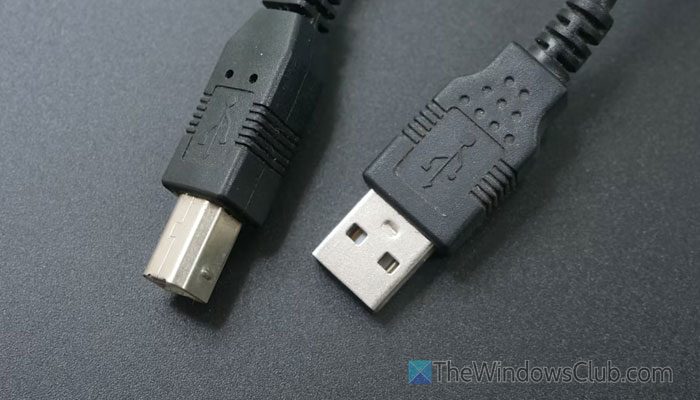
Nowadays, most of the printers and scanners use a USB connection. However, if the USB port or cable is faulty, you won’t be able to use the device. That is why it is recommended to verify whether the USB cable is fully functional. If not, change the cable.
You can connect the printer to another computer to verify if the USB port is working properly.
Read: USB ports are not working in Windows 11
6] Disable third-party firewall software
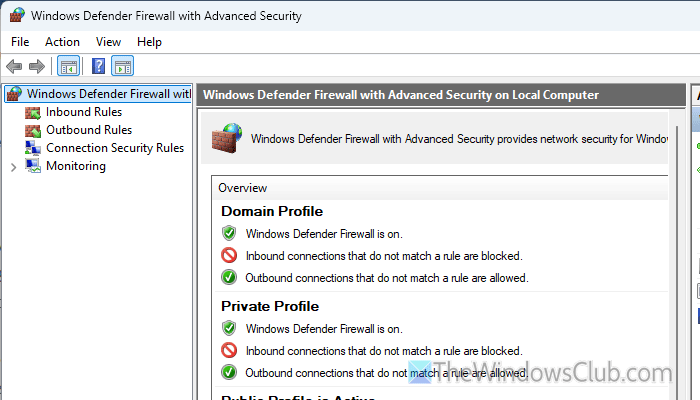
If you have installed third-party firewall software and use a Wi-Fi printer, it is recommended that you disable the firewall. At times, an incorrect setting in your firewall software could block incoming and outgoing traffic.
Therefore, disable the firewall temporarily and check whether it resolves the issue or not. If so, you can check the settings every minute and adjust them accordingly.
Read: Problem connecting to scanner in Windows 11.
7] Restart Print Spooler service
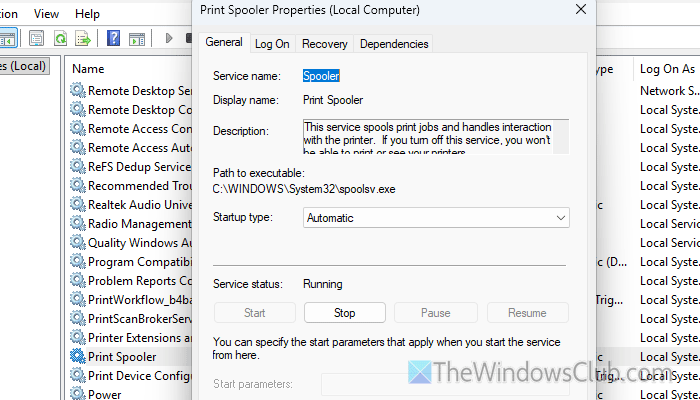
Print Spooler service is directly accountable for establishing a connection between your printer and computer. If this service is not running, you won’t be able to use your printer or scanner. Therefore, follow these steps to restart the Print Spooler service:
First, open the Service panel and find the Print Spooler service. Double-click on this service and click the Stop button.
Next, choose the Automatic option from the Startup type menu and click the Start button. Then, click on the OK button to save the change. After that, unplug and re-plug in your scanner.
8] Call technician for hardware checking

It is probably the last thing you will have to do when there is no other option for you and none of the aforementioned solutions have worked.
Read: Scanner problems, troubleshooting tips and solutions
Why is my scanner not working?
As there could be several reasons why the scanner is not working, some of them are mentioned below:
- The WIA service has stopped working.
- You have some issues with the driver.
- The USB cable is faulty.
- There are some hardware issues.
Why does my scanner not work but my printer does?
If there are some problems with the driver, your scanner may not work, but the printer will print fluently. Apart from that, if the Windows Image Acquisition service is down, you will find the same problem irrespective of the manufacturer.
