
If your HP, Canon, Epson, Brother or any other dedicated scanner is not working on Windows 11 or Windows 10, and you see a “Problem connecting to scanner” message box, this post will show you how to troubleshoot and fix scanner errors and issues. Upgrading to Windows 11 can also cause many devices, including your scanner, to stop working.
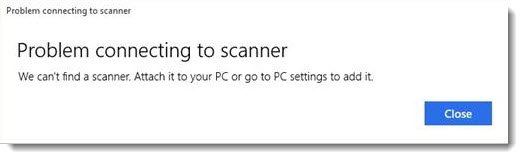
If you’re having problems with your Scanner, in particular, there is a way to set things straight.
Problem connecting to scanner in Windows 11
If it is your Epson Scanner that is not working, click on the Start button, locate the Epson folder, open the folder and select Epson Scan Settings. From here, click on Network, then click on Add, and watch as it searches for an IP address.
You now need to double-click on the IP address that comes up, choose Edit, rename it, and finally, click OK.
Apart from the above tip, which is meant especially for Epson scanners, the following suggestions should help you fix problems with scanners of any make.
The following fixes will help you if your Scanner is not working on Windows 11/10:
- Check the Compatibility Mode
- Check Windows Services
- Run Hardware Troubleshooter
- Update drivers for your scanner.
1] Check the Compatibility Mode
The first order of action is to make sure your scanner is not set in Compatibility Mode. This can be a big problem if it is, so follow the instructions below to determine if Compatibility Mode is connected with your scanner.
Right-click on your scanner’s icon then select Properties from the menu list. Click on the tab that says Compatibility, then look for the option that says Run this program in compatibility mode for. You’ll need to uncheck it, then click on OK to activate.
Related: Windows Fax and Scan not working in Windows 11
2] Check Windows Services
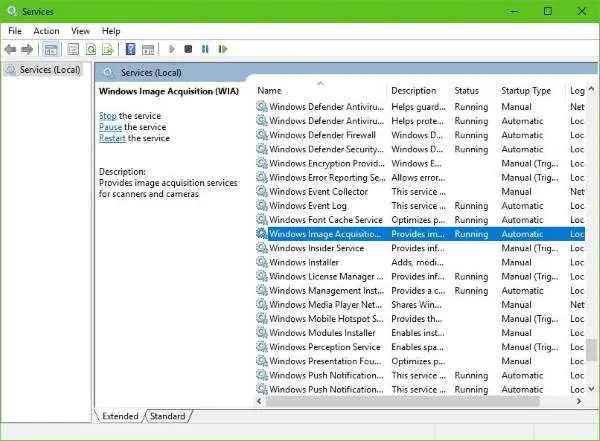
You’ll need to check the status of some required Windows Services. Launch the Run dialog box, so do this by pressing the Windows Key + R, then type services.msc into the box and click on OK.
The next step, then, is to locate Windows Image Acquisition (WIA) Service, right-click on it, and then select Properties. From here, it’s important to make sure that Startup Type is set to Automatic and Service Status is set to Running.
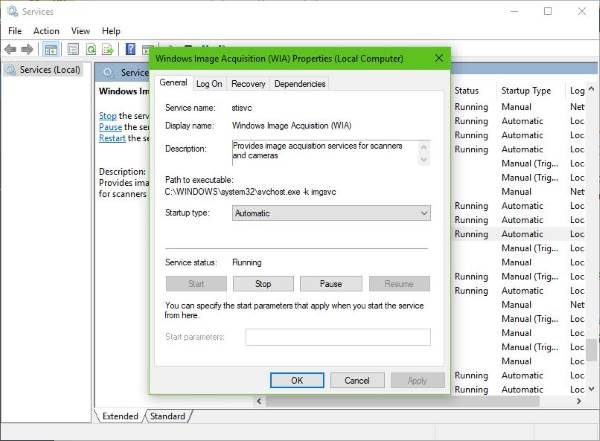
Finally, click the Apply button then move along and check if your scanner is working.
While there, you should also ensure that the DCOM Server Process Launcher, Shell Hardware Detection, Remote Procedure Call, and RPC Endpoint Mapper Services are Started and set to Automatic, as well.
Read: Epson scan not working
3] Run Hardware Troubleshooter
Run the Hardware and Devices Troubleshooter and see if that helps you. To run it, in the Start Search box, type the following and hit Enter:
msdt.exe /id DeviceDiagnostic
4] Update drivers for your scanner
Windows is sometimes known for removing third-party drivers in favor of its generic drivers after an update from a previous operating system. Chances are, this is why your scanner is no longer working.
To manually update the Scanner driver, you should visit the official website of your Scanner’s brand and seek out the driver download section. There, you should find the drivers for your particular scanner brand, which should be quite easy to accomplish.
Hope something here helps you.
Read: How to install TWAIN driver.
How do I get my scanner to work with Windows 11?
You must follow the official guidelines to get your scanner working on Windows 11 or Windows 10 computers. However, if it still doesn’t, you can follow the steps mentioned in this article. For example, you can check Compatibility mode, restart Windows Services and run the Hardware Troubleshooter. Before doing all these steps, you must check if your scanner has a power supply. Then, verify if the corrector cable is not faulty if it is a wired scanner.
Read: No scanners were detected error on Windows 11
Why is scanner not working?
Anything could be causing your scanner not to work with your PC, from a faulty cable to an incorrect setting. It is recommended that you follow all the steps mentioned in this article. However, if nothing works, you can contact the service center to have the problem fixed.
TIP: Suggestions to resolve Scanner problems, troubleshooting tips and solutions here.
There are several free driver updater software out on the web today designed to update drivers automatically. You may want to check them out too.
See this post if your Printer is not working on Windows 11.
