
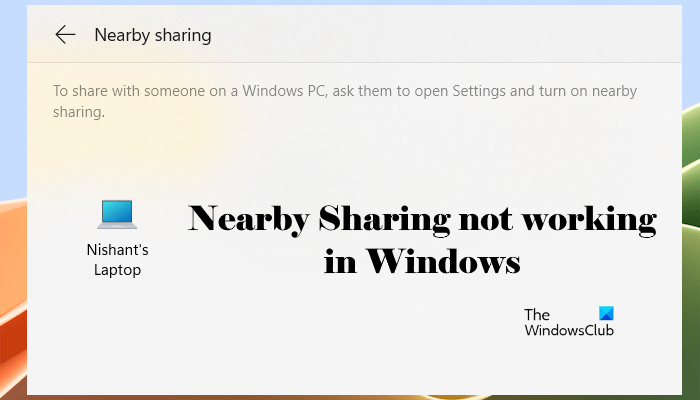
Windows 11/10 has several useful features, including Nearby Sharing. Nearby Sharing lets you quickly share your files with nearby Windows devices. If you find that Nearby Sharing is not working on your Windows 11/10 computer, then here are a few things you could try to fix the issue.
To use Nearby Sharing:
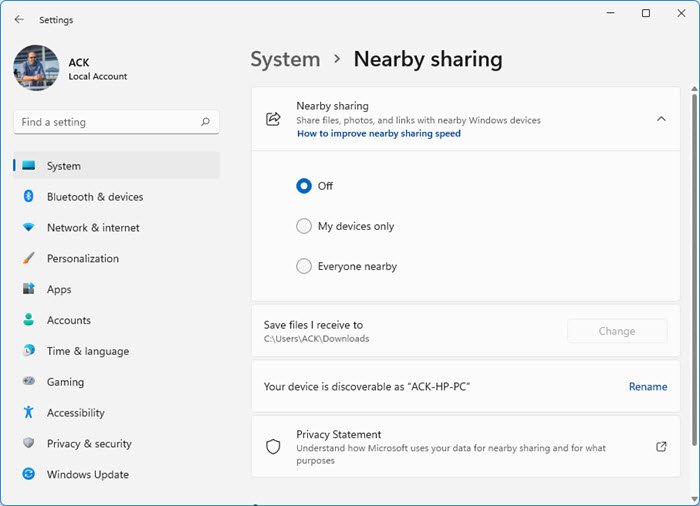
In Windows 11, open Settings > System > Nearby sharing > Select Everyone nearby. You can also select the My devices only option here. However, after selecting this option, you can share files only with the devices paired with your computer.
In Windows 10, you have to go to Start > Settings > System > Shared experiences.
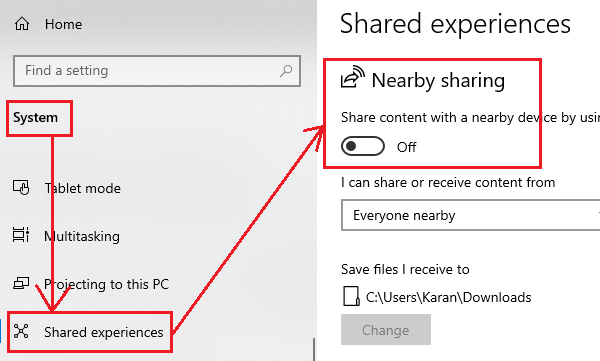
Switch ON the Nearby sharing option and select the folder to download the files to.
Nearby sharing not working in Windows 11
Some users have reported issues with the Nearby Sharing option. For them, this option does not work. If the Nearby Sharing is not working on your Windows 11/10 computer, the following solutions could be helpful:
- Turn on your Bluetooth
- Update Windows 11/10 to the latest version
- Check if the Bluetooth supports low energy mode
- Bring the devices closer
- Check if the adapter has Bluetooth version 4.0 or later
- Check other Nearby Sharing settings.
Below, we have explained all these fixes in detail.
1] Turn on your Bluetooth
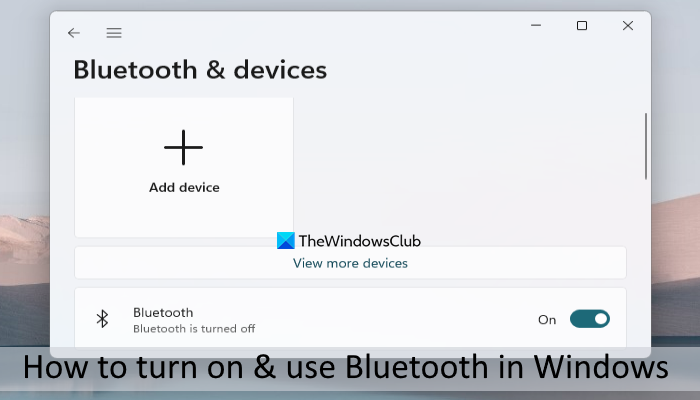
The Nearby Sharing technology on Windows devices works on Bluetooth connection. Therefore, you have to turn on Bluetooth on both your devices. If the Bluetooth is turned off on any of your Windows 11 computers, Nearby Sharing will not work.
2] Update Windows to the latest version
For the Nearby Sharing feature to work effectively on Windows 11/10, your system must be updated to the latest version. For Windows 10, this feature will only work if you have installed Windows 10 version 1803 or later.
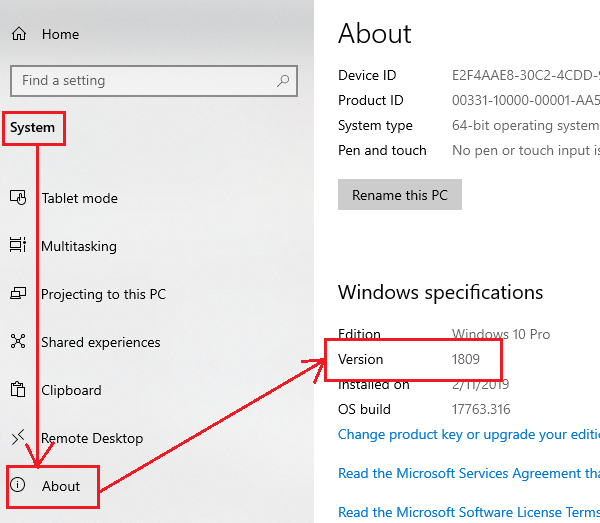
On your Windows 10 computer, open its Settings and go to System > About.
Scroll down to Windows specifications and check the Version. If it is 1803 or above, Nearby sharing should be present. Alternatively, you can also do this, open the Run command box, type winver, and click OK.
If not, update Windows 10 to the latest version. Windows 11 users can check for updates on the Windows Updates page. Open Windows 11 Settings and go to the Windows Updates page. Now, click on the Check for updates button.
3] Check if the Bluetooth supports low energy mode
While this isn’t a necessary condition for using Nearby sharing, Bluetooth terminals that support low-energy mode make a lot of difference.
Press Win + R to open the Run window and type the command devmgmt.msc. Press Enter to open the Device Manager.
Expand the list of Bluetooth adapters, and right-click on your adapter. Select Properties.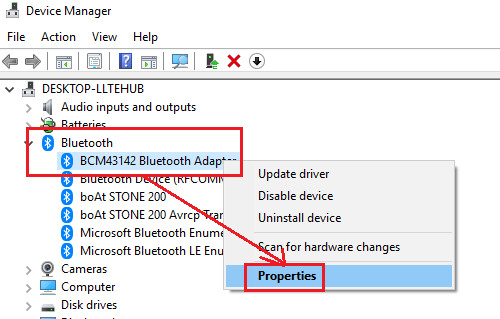
In the Details tab, select Bluetooth radio supports Low Energy Central Role.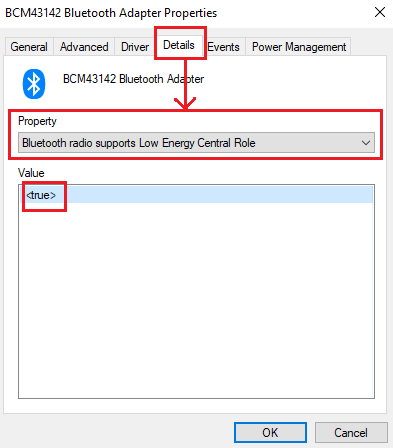
If the value says <true>, your Bluetooth supports low energy mode, if it says <false>, it doesn’t.
If your Bluetooth adapter doesn’t support low-energy mode, you could consider purchasing an external one.
4] Bring the devices closer
Another reason Nearby sharing might not work is that the devices aren’t near enough. Bring the devices closer and check if it helps. Also, Network sharing should be switched ON for all the devices in question.
5] The adapter should be Bluetooth version 4.0 or later
One requirement for connecting systems using Nearby sharing is that the adapters on all devices involved should be version 4.0 or later. If not, you can buy an external Bluetooth adapter with the required features.
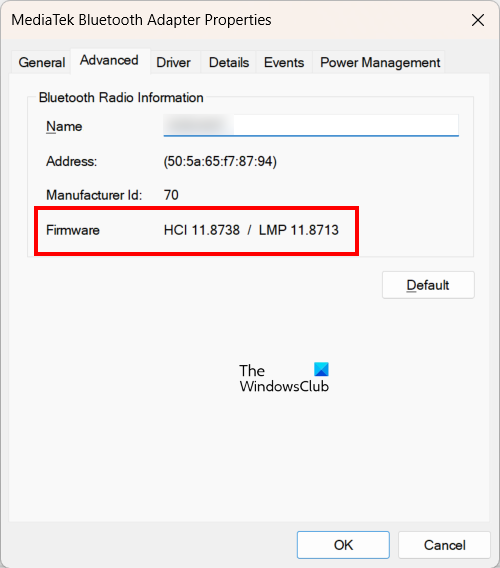
The following steps will help you check the Bluetooth version on your Windows 11/10 computer.
- Press the Win + X keys and select Device Manager.
- In the Device Manager, expand the Bluetooth branch.
- Right-click on your Bluetooth adapter and select Properties.
- Go to the Advanced tab in the Bluetooth Adapter properties window.
- Note down the Firmware version of your Bluetooth adapter.
The Bluetooth firmware version should be LMP 6 or higher.
6] Check other Nearby Sharing settings
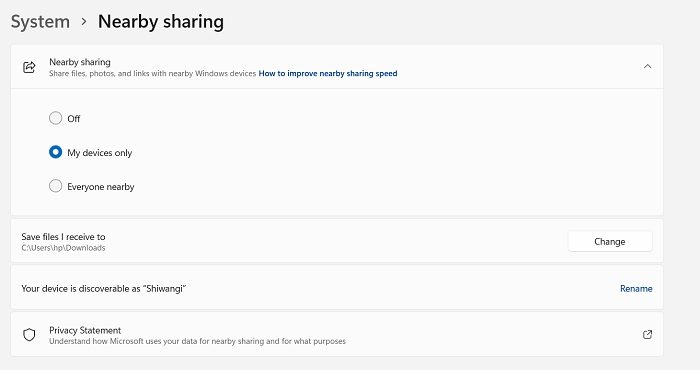
You should also check the Nearby Sharing settings on both of your computers. The settings should be set to Everyone nearby. If the My devices only option is selected, this feature will work only for paired devices. In this case, pair both of your Windows 11 systems so they appear in the Bluetooth & devices list.
Related: Turn On or Off Shared Experiences in Windows 11.
Hope something helps!
Why is Nearby sharing not working?
There can be many reasons the Nearby Sharing feature isn’t working on your Windows 11 or Windows 10 computer. Some of these reasons include Bluetooth being turned off, incorrect Nearby Sharing settings, devices being placed too far apart, and Bluetooth not supporting Low Energy mode. Also, the Bluetooth version should be 4.0 or later on both of your devices.
Read: Nearby Sharing file transfer is slow in Windows 11
How do I share files between Android and Windows 11?
There are many ways to share files between your Android phone and Windows 11 computer. You can connect both devices through Bluetooth and then share files. However, transferring large files will take a long time. Another way to share files between an Android device and a Windows 11 computer is via a USB cable. Alternatively, you can also install a third-party file-sharing app on both devices.
Read next: Bluetooth devices not showing, pairing or connecting in Windows.
