
MSI Afterburner is the most used graphics card software. Usually, it works seamlessly, however, at times, you may find that your MSI Afterburner is not detecting GPU on Windows systems – and everything is greyed out. In this article, we will discuss this issue in detail and explore what should be done to resolve it.
Why is my GPU not being detected?
There are various reasons why your GPU drivers are not detected, first of all, it can be because of improper connection. You have either not connected your display to the right port, or your connecting cable has malfunctioned. We should also check the settings and make sure it is not misconfigured. Other reasons include outdated Graphics Drivers, Vanguard anti-cheat programs, corrupted software, and interfering applications. We will discuss everything in detail and determine what should be done to resolve the issue.
MSI Afterburner not detecting GPU on Windows 11
If MSI Afterburner is not detecting, showing or recognizing GPU on your Windows 11/10 computers, here are some suggestions to help you.
- Check the connection and cable
- Disable low-level IO driver
- Update or reinstall your Graphis Drivers
- Do you have Vanguard anticheat?
- Troubleshoot in Clean Boot State
- Uninstall and reinstall RivaTuner Statistics Server and MSI Afterburner
Let us talk about them in detail.
1] Check the connection and cable
If you are using an external monitor, make sure to connect it to the dedicated GPU port, not the integrated one. Also, check the cables and make sure they are working properly. You can connect the same cable to another computer to see if it is faulty. Replacing a faulty cable is pretty inexpensive. After ruling out these possibilities, move to the solutions.
2] Disable low-level IO driver
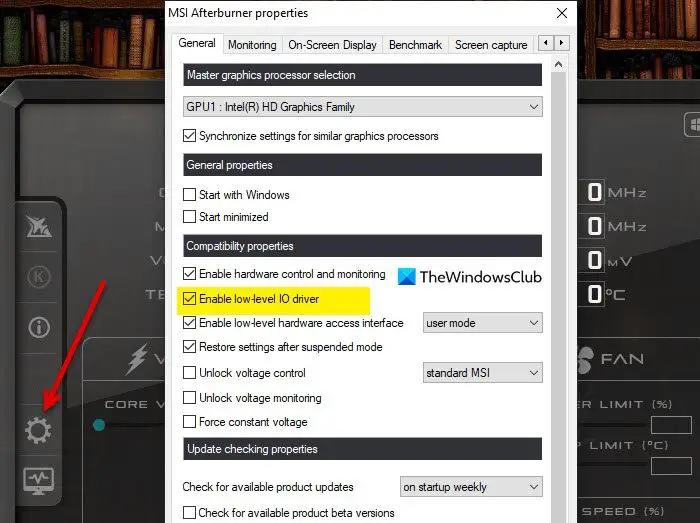
The issue may be due to misconfigured settings. For many users, disabling low-level I/O drivers in MSI AB’s properties has worked. So, follow the given steps to do the same.
- Open MSI Afterburner.
- Click on the cog button to go to its settings.
- From Compatibility properties, untick Enable low-level IO driver.
- Click Apply > Ok.
Finally, restart your computer and see if the issue persists.
3] Update or reinstall your Graphics Driver
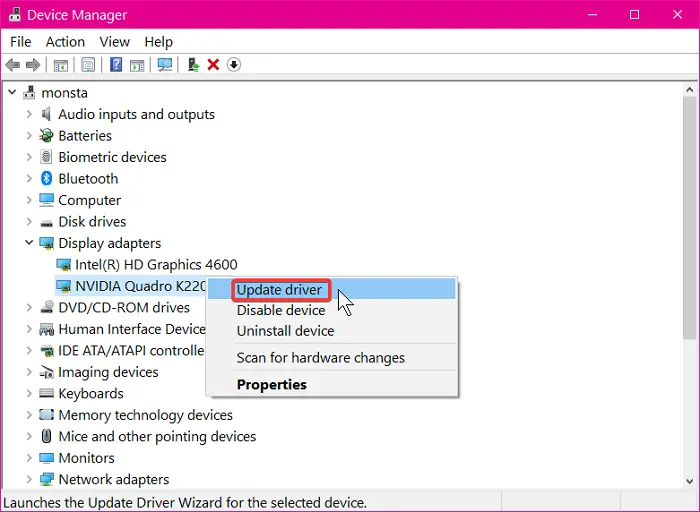
Chances are, outdated GPU drivers are triggering this issue because of compatibility issues or a bug. We have to update those drivers and see if that works. Install Optional updates as it has updates for your Graphics Drivers along with other drivers.
Go to the manufacturer’s website and download and install the version of the driver for your model. Now, install the DDU utility. Display Driver Uninstaller (DDU) is a lightweight software that lets you completely uninstall the graphics card drivers from your system. Uninstall your GPU driver using the DDU utility, then run the installer to reinstall it. If the driver is downloaded as an EXE file, you can easily install it by double-clicking on it. If it is in INF format, you have to use Device Manager to install the display driver in INF format.
After updating your Graphics driver, restart your computer, open MSI AB, and check if the issue persists.
4] Do you have Vanguard Anticheat?
According to a lot of users, Volarent’s Vanguard anti-cheat program has been causing the issue. The anti-cheat program is interfering with the MSI AB and causing the issue. However, we can not be sure about this; that is why you should first disable the app and see if it works. If the issue is resolved, uninstalling the program will definitely resolve it. To uninstall Vanguard on a Windows 11/10 computer, follow the prescribed steps.
- Open Windows Settings by Win + I.
- Go to Apps > Apps & Features.
- Windows 11: Click on the three vertical dots and click Uninstall.
- Windows 10: Select the app and click Uninstall.
Finally, restart your computer and reopen MSI Afterburner. Hopefully, this will resolve the issue for you.
5] Troubleshoot in Clean Boot
Vanguard is not the only application that can interfere with MSI Afterburner, there are a lot more culprits here. To find them out, you have to troubleshoot in a Clean Boot State. After starting your system in Clean Boot State, open MSI Afterburner and see if it detects your graphics card. If yes, follow the steps written below to identify the problematic startup app and service:
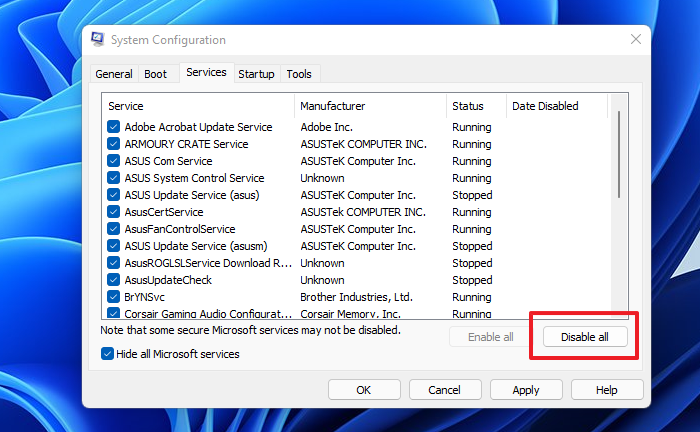
- Enable startup apps and restart your system.
- Open MSI Afterburner and see if the problem persists. If yes, disable any one startup app and restart your system.
- Launch MSI AB and see if the problem persists. If not, the app that you have just enabled is the culprit. If the problem does not occur, another startup app is the culprit. Repeat the process until you find the problematic app. Once you find it, uninstall it.
Similarly, you can identify the problematic third-party Service. By troubleshooting in the Clean Boot State, you can boil down the possible culprits to find the exact one. Once you know what’s causing the problem, just remove it, and you will be good to go.
6] Uninstall and reinstall RivaTuner Statistics Server and MSI Afterburner
If nothing worked, maybe we are dealing with a corrupted MSI Afterburner installation package. There are various reasons your package may have become corrupted; missing features, improper downloads, etc., are common causes. We won’t go into the details, but we’ll tell you the only way to resolve the issue: reinstall the program.
When you install MSI Afterburner, RTSS (RivaTuner Statistics Server) is also installed. Some affected users stated that the problem was caused by RTSS. Open your Windows 11/10 Settings and uninstall the RivaTuner Statistics Server software. After that, uninstall MSI Afterburner.
After uninstalling the programs from your system, restart the computer. Go to msi.com and download the latest version of MSI Afterburner. Hopefully, this will do the job for you.
Hopefully, you are able to resolve the issue with the mentioned solutions.
Can MSI Afterburner damage my GPU?
MSI Afterburner won’t damage your GPU. It is there to adjust your Graphics Drivers, and we haven’t heard any reports of the software damaging the GPU in any way. However, it can cause abrupt crashes of third-party software and games. So, bear in mind, if you are using the app to overclock, and your game starts crashing, try disabling MSI AB and then check the application.
Also Read: Best free tools to benchmark CPU and GPU on Windows computer.
