
If your mouse is not working in games on Windows 11/10, the solutions provided in this article will help. This is frustrating because you cannot play the game until you resolve this issue.
Mouse is not working in games on Windows 11
Use the following solutions if your mouse is not working in games on Windows 11/10:
- Disable the mouse acceleration
- Change batteries or use a wired mouse
- Disable Game Mode
- Reinstall the mouse driver
- Disable the Power Management setting for your mouse
- Repair your system image files
- Uninstall Windows Update (if applicable)
- Troubleshoot in a Clean Boot state
All these fixes are provided in detail below:
1] Disable the mouse acceleration
The first step is to disable mouse acceleration. Follow these steps:
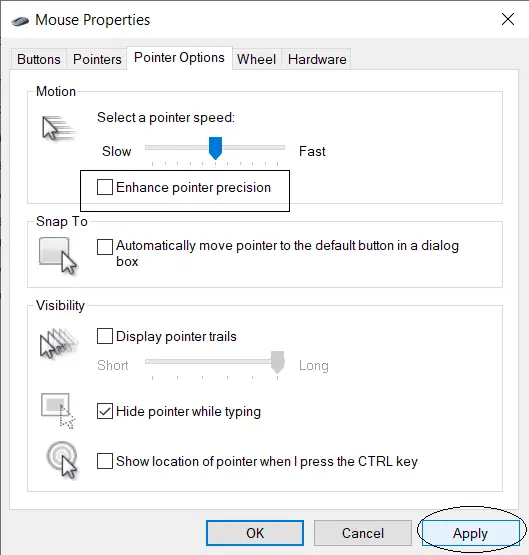
- Open the Control Panel.
- Type mouse in the Control Panel search box.
- Click the Mouse in the search results.
- Go to the Pointer Options tab and uncheck the Enhance pointer precision checkbox.
Now, check if the issue appears.
2] Change batteries or use a wired mouse
If you use a wireless mouse, its batteries might be low. Replace the batteries and check if this helps. If this does not work, you can use a wired mouse.
3] Disable Game Mode
The Game Mode can sometimes cause issues in video games on a Windows computer. To check this, you can disable the Game Mode.
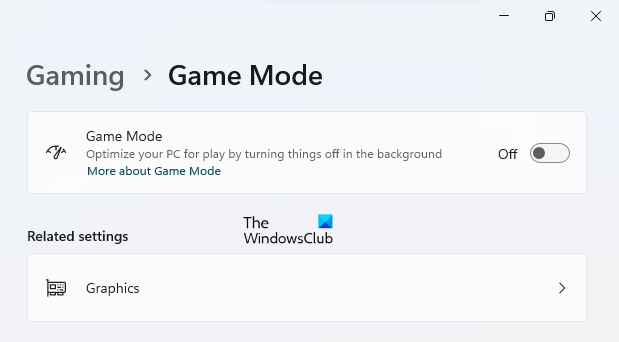
The following instructions will help you:
- Open Windows 11 Settings.
- Navigate to Gaming > Game Mode.
- Turn off the Game Mode switch.
Additionally, you can also disable the Game Bar.
4] Reinstall the mouse driver
The driver of your gaming mouse might have been corrupted. If this is the case with you, reinstalling the mouse driver can help.
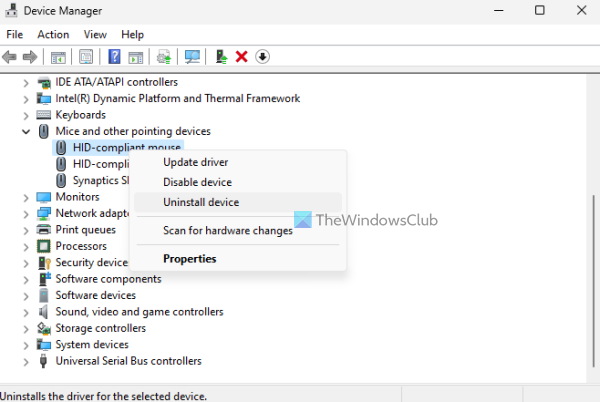
Follow these steps:
- Open the Device Manager.
- Expand the Mice and other pointing devices branch.
- Right-click on your mouse driver and select Uninstall device.
- Scan for hardware changes or restart your computer.
Windows will automatically install the missing driver when you scan your system for hardware changes or restart it.
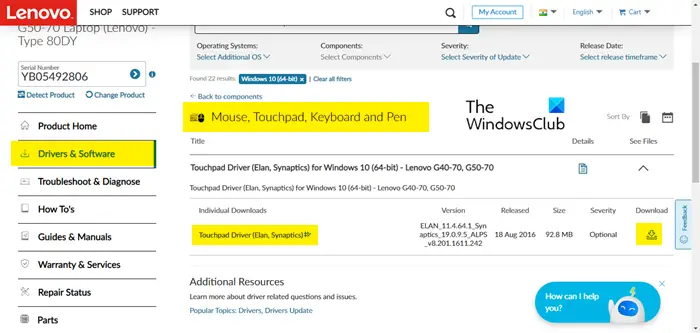
If the issue persists, you can download the latest version of your mouse driver from the official manufacturer’s website.
5] Disable the Power Management setting for your mouse
Windows computers have a power management setting that allows the device to power off when not in use. This setting might be causing this problem.
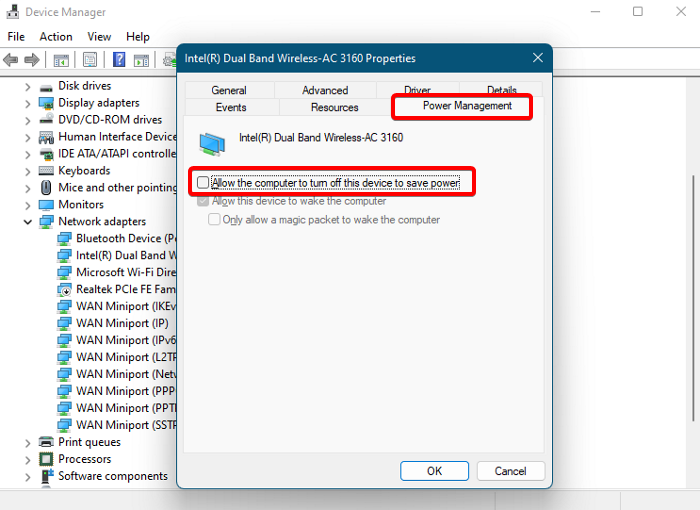
Follow these steps to disable this setting:
- Open the Device Manager.
- Expand the Mice and other pointing devices branch.
- Select the Power Management tab.
- Uncheck the “Allow this computer to turn off this device to save power” checkbox.
- Click OK to save changes.
6] Repair your system image files

Corrupt system image files are also a possible cause of this problem. Use the built-in tools, System File Checker and DISM, to scan your system for the system image file corruption. If these tools find corrupted image files, they will repair them. Do not interrupt the scan; it will take time.
7] Uninstall Windows Update (if applicable)
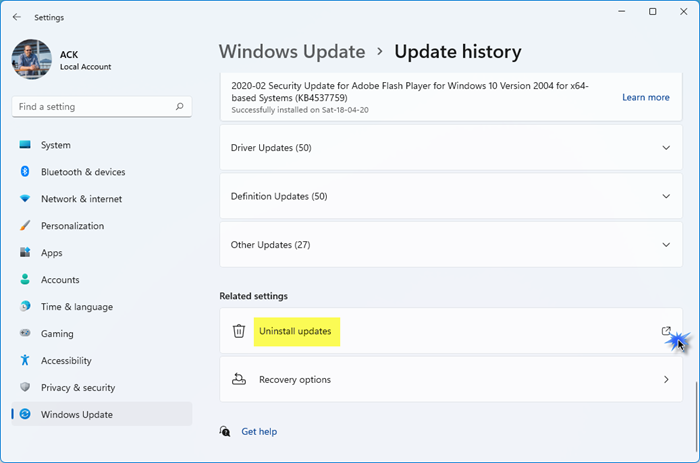
Windows Updates are necessary to install because they fix bugs and improve device security. However, Windows Updates can sometimes cause issues. In such cases, uninstalling the affected Windows Update helps. If this issue started occurring after installing a Windows Update, uninstall that update.
8] Troubleshoot in a Clean Boot state
A third-party application or service might also be responsible for this problem. To check this, open the Task Manager and disable all startup apps. Restart your computer after that. Please launch the game and confirm whether the issue persists. If the issue disappears, one of the startup apps is causing it.
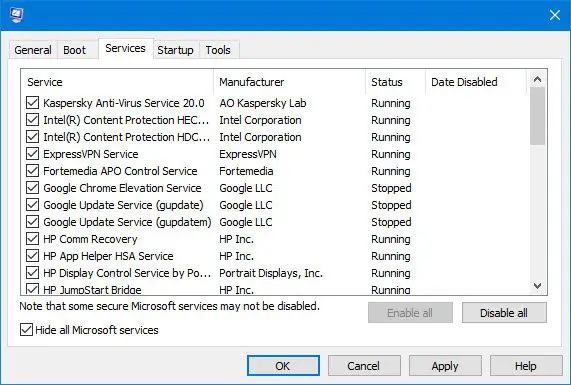
If the issue continues, you need to enter the Clean Boot state and troubleshoot further. Use MSConfig carefully to enter Clean Boot. If you disable all the services by mistake, you will put yourself in trouble. Once in Clean Boot, launch the game and check whether the issue occurs. If not, your next step is to find the problematic third-party service. For this, disable some of the enabled services and restart your computer. If the issue disappears, one of the services you have just enabled is the culprit.
That’s it. I hope this helps.
Why is my mouse not working in games?
There can be multiple reasons why your mouse is not working in games. If you have a wireless mouse, check its batteries. Sometimes, it can be due to the Selective Suspend feature in Windows. If you have a wired mouse, connect it to another USB port. Corrupt mouse drivers can also cause this problem.
How to fix the mouse not locking on to game screen in Windows 11?
If the mouse cursor is not locking in the game, you can try some fixes. Restart the game or the launcher and see if the issue persists. Check if an update for your game is available. If yes, install the update. You can also reinstall the mouse driver.
Read next: Mouse cursor disappears when playing games in full-screen mode.
