
Continued use of Windows will generate a large number of log files, but how can one easily monitor these files without having to go through a series of mouse clicks? Well, recently, we’ve been testing a tool known as SnakeTail, and so far, it seems to work quite well. It is a Windows tail utility for monitoring growing text log files.
SnakeTail is capable of monitoring text log files and Windows event logs with relative ease, which is the main reason we enjoy it so much. Furthermore, it supports multiple window modes, including MDI, Tabbed, and Floating. This tool boasts a comprehensive list of features, many of which we will not cover today; however, we will highlight a few key points in our brief overview.
List of some SnakeTail features:
- Monitor “large” text log files
- Monitor Windows Event Logs (Without needing administrator rights)
- Multiple Window Modes supported (MDI, Tabbed, Floating)
- Save and load the entire window session. Can load session files at startup when given as command line parameter.
- Sentence highlight with colors based on keyword match (Includes regex support)
- Quickly jump between highlighted sentences using keyboard shortcuts
- Toggle bookmarks and quickly jump between bookmarks
- Configure external tools and bind custom shortcut key (Trigger execute on highlight)
- Tails circular logs where the log file is periodically truncated/renamed.
Monitor Windows Log Files with SnakeTail
SnakeTail will help you monitor text log files related to hardware events, security, programs, systems, and other types of events. We like SnakeTail because it does what it sets out to do with few problems.
1] Check the Event Log
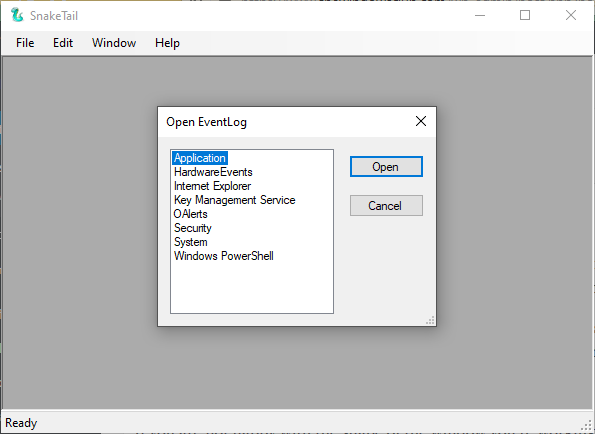
When it comes down to checking the Event Log, this can be done quite easily. Just click on File, then hit the option that says Open EventLog, and from there, you should see a new window appear. From this window, the user can choose from a list of options from where event longs can be viewed.
Select the one you want, then click the Open button, and view the event logs at your convenience.
2] Save and open a session
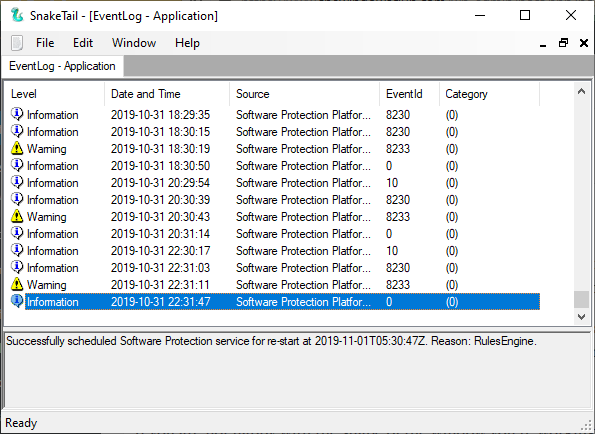
When you’ve launched a log, right, you can save it as a session from within SnakeTail. It means, if you want to view the same section again, there is no need to go through a million things to get there.
To save a session, click the File tab and then select “Save Session” at once. Now, to open an already saved session, perform the same task, but instead, click on ‘Open Session’, and that’s it.
3] Change the window
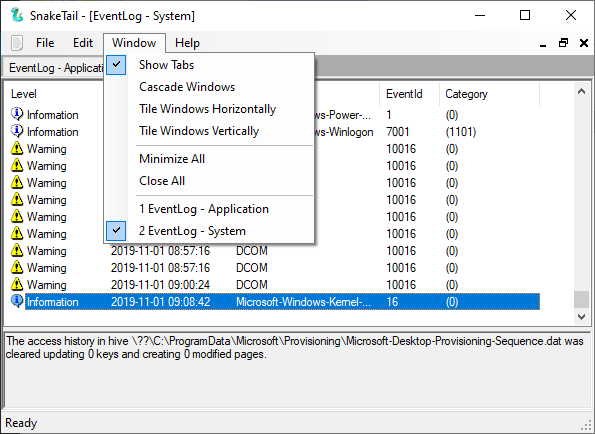
If you are not happy with the shape of the window you’re working in, consider making a few changes. To do this, click on the Window tab, then select an option from the available options. Want to create a tab? No problem, for this is possible.
Click on the tab that says Window, and that makes it possible for the user to create Cascade, Horizontal, or Vertical window. This is the same section to Show Tabs, which is basically multiple event log windows in the primary window.
Download SnakeTail directly from the official website.
Related reads that are sure to interest you:
- How to view and delete Event Viewer Saved Logs in Windows
- How to view Event Logs in Windows in detail with Full Event Log View
- Use Event Viewer to check unauthorized use of Windows computer
- How to create Custom Views in Event Viewer on Windows 11/10
- Enhanced Event Viewer for Windows from Technet
- Event Log Manager Free event log management software
- Event Log Manager & Event Log Explorer software.
