
After upgrading to Windows 11 24H2, LSA protection is enabled to block untrusted DLLs. Therefore, it starts blocking DLLs that lack Microsoft-compatible digital signatures, outdated services from third-party vendors, or anything else that it deems malicious. In this post, we are going to talk about this issue and see what you can do to resolve it.
The module is blocked from loading into the Local Security Authority.
\DLL-Location\DLL-Name.dll
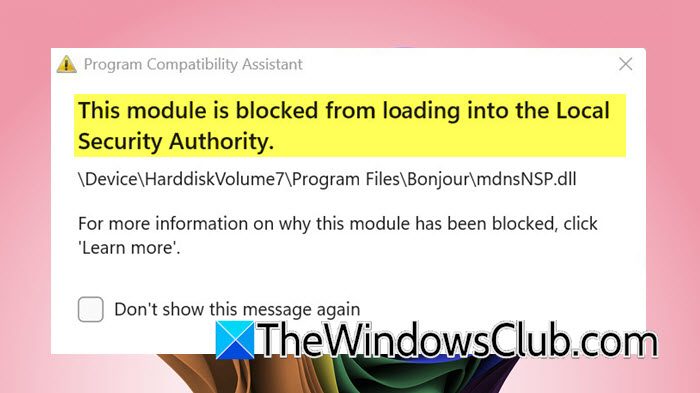
Fix This module is blocked from loading into Local Security Authority
This error occurs when Windows 11 Local Security Authority (LSA) protection, enabled by default, blocks unsigned or outdated third-party DLLs from injecting into the critical lsass.exe process during system startup or login. It commonly affects software like Apple Bonjour (mdnsNSP.dll), IBM i Access, or Audinate Dante, whose vendors haven’t updated their modules to comply with Microsoft’s stricter security requirements. While the OS remains stable, specific features tied to these blocked DLLs may fail, resulting in persistent error pop-ups that signal enforced security protocols preventing unauthorized code execution in sensitive authentication processes.
Let us see what you can do if you get a pop-up saying “This module is blocked from loading into Local Security Authority”. You can follow the steps mentioned below to do the same.
- Disable Bonjour
- Check for problematic software and uninstall it
- Remove Problematic Registry Entry
- Add DLL Exclusion via Intune
- Add DLL to LSA Security Package
Let us talk about them in detail.
1] Disable Bonjour
Let us start with a simple workaround. After analyzing the issue, we concluded that the Bonjour service is a common cause, and disabling it could be a good option. It prevents the DLL from loading at startup without removing the software. To do so, open Services, look for Bonjour, right-click on it, and select Disable. Finally, check if the issue is resolved.
2] Check for problematic software and uninstall it
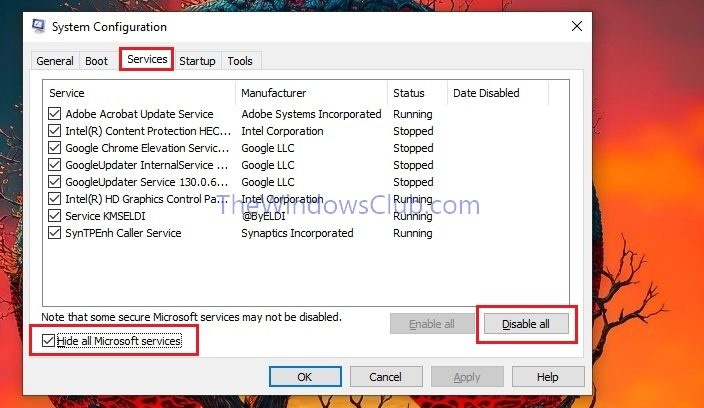
As mentioned earlier, the error is triggered by outdated/insecure DLLs, for example, Bonjour’s mdnsNSP.dll, attempting to inject into the LSA process. If you know of a problematic software, go ahead and uninstall it. However, if you’re unsure what it is, consider trying Clean Boot, which might be a good alternative. You can perform a Clean Boot to disable all third-party services and then enable them manually to figure out the culprit. Once you know who the culprit is, go ahead and uninstall it.
Suppose you don’t want to uninstall the application. In that case, you can try updating or even reinstalling the latest version, as there could be a possibility that the application you have installed has some corrupted element that LSA thinks is malicious.
3] Remove Problematic Registry Entry
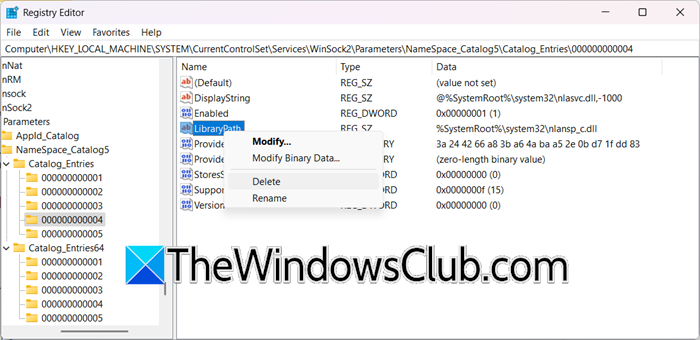
When software can’t be uninstalled, orphaned registry entries force Windows to load the blocked DLL at startup. Therefore, deleting these entries sever the link between the OS and the insecure DLL, preventing the LSA conflict without removing the software itself. However, before we go ahead and make any changes to the registry, create a backup of the registry.
Once done, follow the steps mentioned below.
- Open the Registry Editor.
- Then, go to the following location.
HKEY_LOCAL_MACHINE\SYSTEM\CurrentControlSet\Services\WinSock2\Parameters\NameSpace_Catalog5\Catalog_Entries
- Check every subfolder under Catalog_Entries and Catalog_Entries64.
- Look for keys where LibraryPath or ProviderPath values point to the blocked DLL (e.g., C:\Program Files\Bonjour\mdnsNSP.dll).
- Right-click on each problematic registry and then select Delete.
Once done, your issue should be resolved.
4] Add DLL Exclusions via Intune
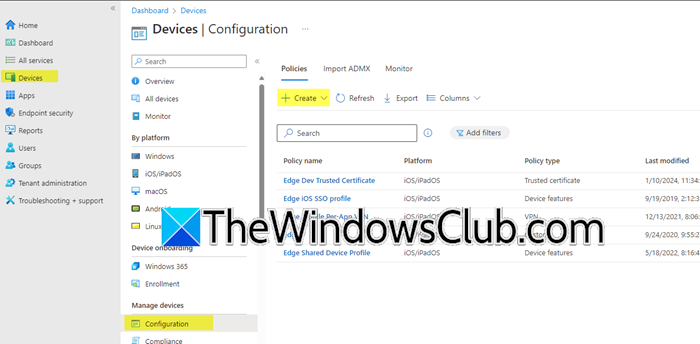
This solution is only geared towards enterprise users. We are going to whitelist blocked DLLs in Microsoft Intune. It directs LSA protection to ignore specific unsigned/insecure modules, overriding default security enforcement for critical business software. Follow the steps mentioned below to create an exclusion policy.
- Open Microsoft Intune Admin Center.
- Go to Devices > Configuration profiles or Configure and then create a profile.
- Now, make sure to follow the details given below.
- Platform: Windows 10 and later.
- Profile type: Custom
- Name: LSA Exclusion for Bonjour or something else
- OMA-URI: Paste the exact path above.
- Value: Full path to the blocked DLL.
- Assign to device groups and deploy.
Finally, check if the issue is resolved.
5] Add DLL to LSA Security Packages
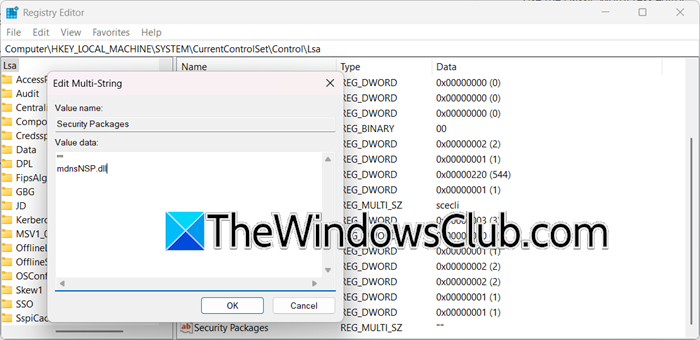
We can grant the DLL full access to plaintext passwords in the LSA process, creating a credential-theft vulnerability; therefore, it should be a last resort. You can follow the steps mentioned below to add a DLL to LSA Security Packages, but make sure to create the registry backup (mentioned earlier) before that.
- Open Registry Editor.
- Go to the following location.
HKEY_LOCAL_MACHINE\SYSTEM\CurrentControlSet\Control\Lsa
- Look for Security Packages, double-click on it, and mdnsNSP.dll or your blocked DLL.
Finally, reboot your computer.
How do I enable Local Security Authority LSA?
To enable Local Security Authority (LSA) protection in Windows, open the Registry, navigate to HKEY_LOCAL_MACHINE\SYSTEM\CurrentControlSet\Control\Lsa, create or modify a DWORD named RunAsPPL, set its value to 2 (for standard protection) or 1 (for lightweight protection on older systems), then reboot. For enterprise environments, use Group Policy by opening gpedit.msc, going to Computer Configuration > Windows Settings > Security Settings > Local Policies > Security Options, enabling “Configure LSA: Run as PPL” and selecting “Enabled with UEFI Lock” for maximum security, and finally, do a system reboot.
Read: This change requires you to restart your device LSA error in Windows 11
Should I enable LSA?
Yes, enable LSA protection unless facing compatibility issues with critical software. It provides essential security by shielding the Local Security Authority (lsass.exe) from malicious code injection and credential theft attempts. Disabling it (via registry/Group Policy) is only justified temporarily if legitimate software fails and all other workarounds exhaust, but re-enable it immediately after resolving the conflict.
Also Read: LSA package is not signed as expected Credential Guard error.
