
After installing the latest cumulative update for Windows, you may find that applications that were running smoothly just yesterday start displaying errors related to missing DLL files or runtime libraries. Upon inspecting your installed programs, you might notice that several Microsoft Visual C++ Redistributables are either outdated or missing altogether. In this post, we will see what you can do if Microsoft Visual C++ Redistributable is rolled back or is corrupted after a Windows Update.
This issue usually happens because Windows Update uses a method called Component Based Servicing. When a Windows update is installed, it often updates system files and backs up the old versions. However, a bug in the update process can mistakenly treat the Visual C++ Redistributable (VC++ Redist) as a system file that needs to be reset. As a result, the update might not register the new files correctly or might pull an older version of VC++ Redist from the Component Store (WinSxS), replacing the current installation. This can break the connections needed for your modern software to work properly.
Microsoft Visual C++ Redistributable rolled back or corrupted after Windows Update
Since your Microsoft Visual C++ Redistributable is rolled back or corrupted after a Windows Update, follow the solutions below.
- Repair Installation via the Official Installer
- Perform a System File Check with Deployment Servicing
- Clean Uninstall and Reinstall Using the Microsoft C++ Redistributable Cleanup Tool
- Manually Install the Specific Version from the Update Cache
Let us talk about them in detail.
1] Repair Installation via the Official Installer
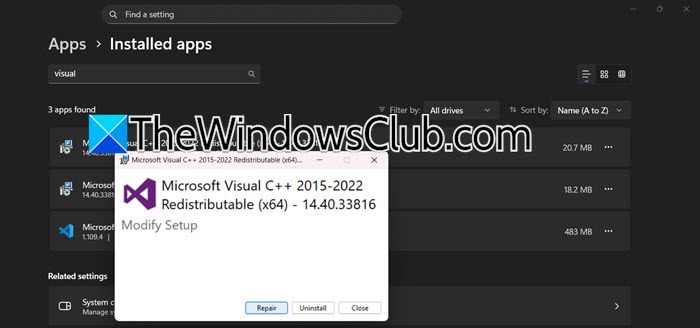
The Visual C++ Installer has a built-in mechanism to verify file versions and registry entries. When run over an existing installation, it detects missing or incorrect files and overwrites them with fresh copies from its cache, restoring the environment without needing a full uninstall. Follow the steps below to repair the installation.
- Hit Win + I to open Settings.
- Go to Apps > Installed apps.
- Scroll through the list to find the specific Microsoft Visual C++ Redistributable that is causing issues or search for it from the Search Bar. It will likely have a year in its title (e.g., 2015-2022, 2013, 2012).
- Click on the three dots and then click on Modify.
- Once the installation window appears, click Repair, then follow the on-screen instructions.
- If you don’t see any Modify option, go to learn.microsoft.com to download a copy of the Redistributable.
- When you run the installer, you will get an option to repair your current installation.
Once the installation is repaired, check the failing application and see if your issue is resolved.
2] Perform a System File Check with Deployment Servicing
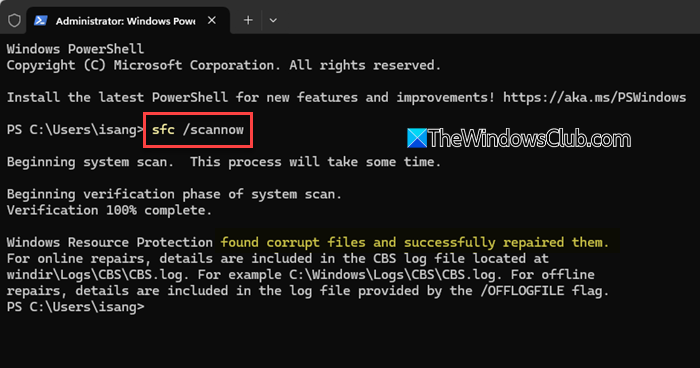
While often treated as a generic fix, this specific sequence targets the component store corruption that caused the rollback.
Open Command Prompt as an Administrator and run the following command first.
DISM /Online /Cleanup-Image /RestoreHealth
This repairs the Component Store (WinSxS) that Windows Update used incorrectly. After this completes (it may take 15-20 minutes), follow up with the System File Checker.
sfc /scannow
This will replace any VC++ files that were incorrectly rolled back with the correct versions cached by the newly repaired component store. A reboot is required afterward.
3] Clean Uninstall and Reinstall Using the Microsoft C++ Redistributable Cleanup Tool
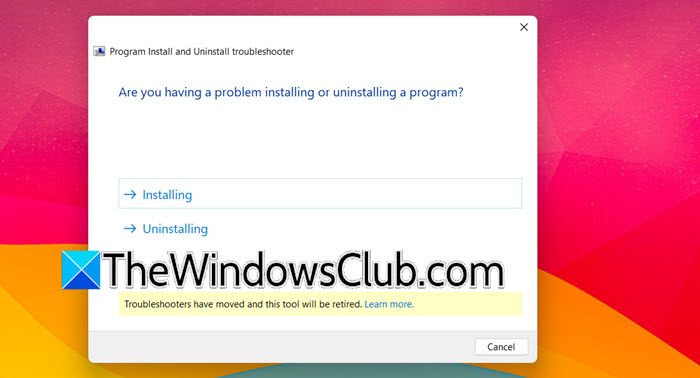
When a Visual C++ redistributable becomes corrupted after a Windows Update rollback, the standard uninstall process may fail due to corrupted entries or missing cache files in the Windows Installer database. The Microsoft Program Install and Uninstall Troubleshooter is a tool that can scan for these issues, forcibly removing stubborn registry keys and installation records, allowing for a fresh installation to succeed.
Follow the steps below to do the same.
- First of all, download MicrosoftProgram_Install_Uninstall file from Microsoft.
- Right-click the downloaded file and select Run as Administrator.
- When the tool launches, choose Uninstalling from the first screen.
- Scroll through the list of programs and select the specific Microsoft Visual C++ Redistributable that is causing problems. If you do not see it in the list, select Not Listed and manually type the name of the redistributable (e.g., “Microsoft Visual C++ 2015-2022 Redistributable”).
- Click Next and allow the troubleshooter to scan and forcefully remove the program. It may take a few minutes to clean up all registry keys and installation fragments.
- Once the removal is complete, restart your computer. After reboot, download the latest supported Visual C++ Redistributable packages directly from Microsoft and install them with administrator privileges.
You can even use the Get Help troubleshooter to use the Uninstall troubleshooter. Just open the Get Help app (it is preinstalled), search for Microsoft Program Install and Uninstall Troubleshooter, and then go through the results.
Finally, check if the issue is resolved.
4] Manually Install the Specific Version from the Update Cache
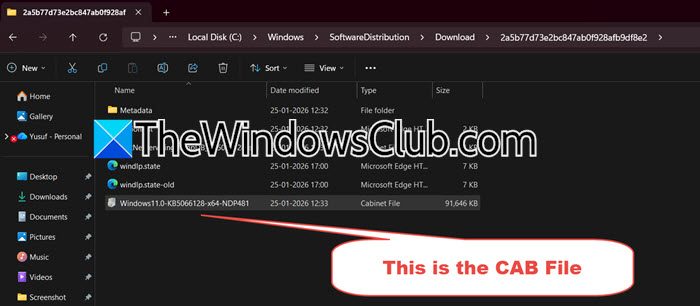
Sometimes, Windows Update downloads the correct version but fails to apply it. Go to C:\Windows\SoftwareDistribution\Download folder. Sort by date to find folders modified on the day of the problematic update. Look inside these folders for .cab files containing VCRuntime or VCRedist. You can right-click these .cab files and select Extract. Inside the extracted folder, you will often find the actual .exe installer for the VC++ Redist. Running this installer manually forces the installation that Windows Update attempted and failed to complete properly.
That’s it!
Read: Microsoft Visual C++ Redistributable Package: FAQ and Download
Does Windows Update update Microsoft Visual C++ redistributable?
Yes, Windows Update can and does update Microsoft Visual C++ Redistributables, but not always for every version. Updates are typically delivered when they are bundled with essential system updates or security patches, or when a Windows component requires a newer version. However, many redistributable updates are released independently and must be downloaded manually from Microsoft’s website.
Read: Error 0x80070666 when installing Microsoft Visual C++
How to fix Windows Update corruption?
Run the built-in Windows Update Troubleshooter first, as it can automatically detect and resolve common issues. If problems persist, open Command Prompt as Administrator and run the DISM command DISM /Online /Cleanup-Image /RestoreHealth to repair the component store, followed by sfc /scannow to scan and restore corrupted system files.
Also Read: Fix Microsoft Visual C++ Install Error 0x80240017.
