
You open Control Panel to repair a corrupted Microsoft Visual C++ Redistributable, click on Change, select Repair, and then nothing happens, the progress bar barely moves, or the window just sits there frozen. In this post, we will see what you can do if the Microsoft Visual C++ Redistributable repair gets stuck on your Windows computer.
Fix Microsoft Visual C++ Redistributable Repair stuck
This happens when you manually try to repair a Visual C++ Redistributable package through Programs and Features because something has gone wrong with it, maybe an application crashed, or you got errors about missing DLL files. During the repair process, Windows Installer tries to verify and replace the existing files, but gets stuck if the original installation source files are missing, if the Windows Installer cache is corrupted, or if another installer process is already running in the background and conflicting with it.
If the Microsoft Visual C++ Redistributable Repair gets stuck, follow the solutions mentioned below.
- Kill the stuck process and clear the Installer cache
- Troubleshoot in a Clean Boot to eliminate interference
- Download the installer from the official website
- Reinstall Visual C++ Redistributable
- Use System Restore to Roll Back Before Corruption
Let us talk about them in detail.
1] Kill the stuck process and Clear the Installer Cache
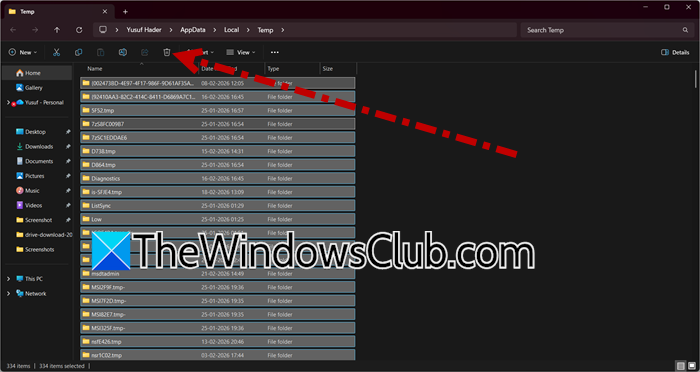
Sometimes the repair is not actually stuck but is waiting on a background Windows Installer process that is hung. Forcefully ending it and clearing the temporary installer files allows the repair to start fresh without the conflict.
You can follow the steps mentioned below to do the same.
- Open Task Manager and look for any msiexec.exe or setup processes under Background processes.
- Right-click and end all instances of Windows Installer you find.
- Press Windows + R, type %temp%, and delete everything inside the folder that appears.
- Then, go to C:\ProgramData\Package Cache (you need to click on View > Show > Hidden items) and clear out its content.
Go back to Programs and Features and try the repair again.
2] Troubleshoot in a Clean Boot to eliminate interference
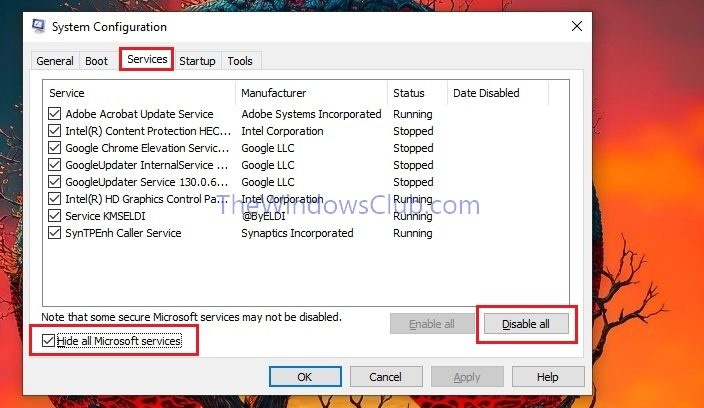
Background services and startup programs from other software, especially antivirus or system utilities, can sometimes lock the files that the repair process needs to modify. Booting with only Microsoft services running gives the repair a clean environment to complete without interference. To start your system in Clean Boot, follow the steps mentioned below.
- Press Windows + R, type msconfig, and press Enter.
- Go to the Services tab, check Hide all Microsoft services, and then click Disable all.
- Go to the Startup tab and click Open Task Manager. Disable all startup items listed there.
- Close Task Manager, click OK in System Configuration, and restart your computer.
- After the restart, try repairing the Visual C++ package again.
Once done, repeat the steps and re-enable the services to return to normal mode.
3] Download the installer from the official website
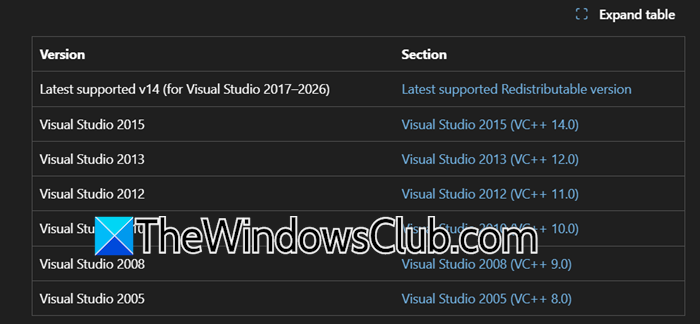
If the repair is stuck because the existing installation is too corrupted to modify, the most reliable approach is to remove it forcefully using the original Microsoft installer in uninstall mode, then install fresh. The standalone installers have built-in logic to handle corrupted entries.
Go to the official Microsoft Download Center and search for the exact version you are trying to repair (for example, “Visual C++ 2015-2022 Redistributable”). Then, download both the x64 and x86 versions that match your stuck package.
Now, open Command Prompt as administrator and navigate to the folder where you downloaded the installer (e.g., cd C:\Users\YourName\Downloads).
Run the installer with the uninstall command: vc_redist.x64.exe /uninstall (replace with your filename).
If uninstall succeeds, run the installer again normally to install fresh. If uninstall fails, try the same process in Safe Mode (boot into Safe Mode with Networking and repeat).
4] Reinstall Visual C++ Redistributable
You can even try to uninstall Microsoft Visual C++ Redistributable and then install it from the aforementioned link.
5] Use System Restore to Roll Back Before Corruption
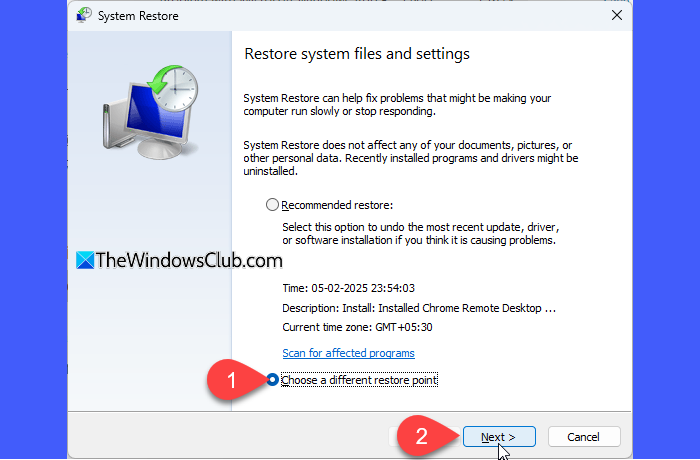
If the repair got stuck because system files related to the redistributable became corrupted recently, and none of the above methods work, rolling back to a restore point from before the issue started can undo the damage and let you repair normally. This is a last resort, but highly effective when the Windows Installer database itself is corrupted.
To do so, you need to follow the steps mentioned below.
- Hit Win + S, search “Create a system restore”, and click OK.
- Then, click on System Restore.
- Select a restore point and click on Next.
Finally, follow the on-screen instructions to complete the restore.
Hopefully, with these solutions, your issue will be resolved.
Read: Fix Microsoft Visual C++ Install Error 0x80240017
Is it safe to repair or uninstall Microsoft Visual C++ Redistributable packages?
Yes, it is generally safe to repair or even uninstall these packages because Windows allows multiple versions to coexist, and different applications rely on specific versions independently. Repairing a corrupted package usually fixes issues without affecting other software, and if you uninstall one, you can always download and reinstall it fresh from Microsoft to restore functionality for any programs that need it.
Read: MSVCR100.dll, MSVCR71.dll, or MSVCR120.dll is missing
Why does my game or application keep asking for the Visual C++ Redistributable?
This issue typically occurs when the current installation is corrupted, or the specific version required by the game is missing or damaged. You can try running a repair on the existing package through Programs and Features to fix any corrupted files. If that doesn’t work, you may need to uninstall and then reinstall the exact version required by the game, which is often specified in the error message or the game documentation.
Also Read: Error 0x80070666 when installing Microsoft Visual C++.
