
Most of us usually leave our accounts signed in on a web browser when using our personal computer. This prevents the hassle of entering our usernames and passwords every time we visit our favorite websites and open email clients in a web browser. But things are not happening as expected for some Microsoft Edge users. According to them, Microsoft Edge keeps logging them out of websites and email clients, like YouTube, Gmail, Reddit, etc., when they close Edge. They have to enter their usernames and passwords every time they open Microsoft Edge.
Microsoft Edge keeps logging me out of websites
Microsoft Edge is among the popular and secure web browsers. It also has some unique features that you will not find in other web browsers, like Google Chrome and Mozilla Firefox. However, users may occasionally encounter issues or errors on Edge. If Microsoft Edge keeps logging you out of websites, the solutions provided in this article may help you fix it.
- Tweak Microsoft Edge settings
- Allow third-party cookies
- Run a command in PowerShell
- Reset Microsoft Edge settings to default
Below, we provide a detailed explanation of all these solutions.
1] Tweak Microsoft Edge settings
This problem typically occurs when Edge clears your cookies when you exit the Browser. Session cookies in a web browser help users stay logged in to their favorite websites or email clients even after they close the browser. If the session cookie data is cleared or deleted by the user, they will be logged out of websites automatically. You can configure Edge to delete your browsing history, cookie data, download history, passwords, etc., every time you exit Edge. Check if this setting is enabled or not. If so, disable it.
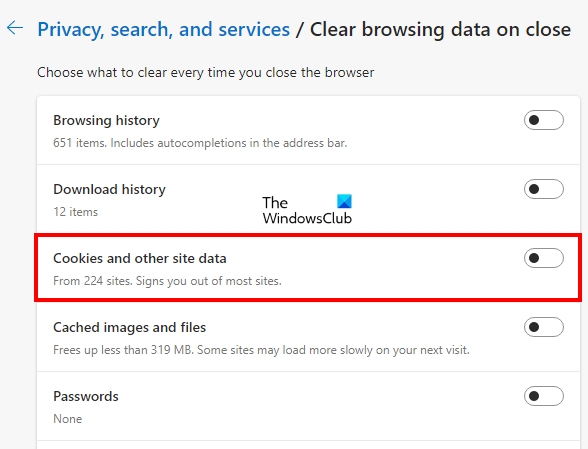
The following steps will guide you on this:
- Open Microsoft Edge.
- Click on the three horizontal dots on the top right side and select Settings.
- Select the Privacy, search, and services category from the left side.
- Turn off the button next to the “Cookies and other site data” option.
2] Allow third-party cookies
You will also experience this issue on some websites if you block third-party cookies in Edge. If you enable this option, some websites cannot use cookies due to which you will be logged out of those websites when you exit Microsoft Edge. If after disabling the clear cookie option in Edge, you are still experiencing the problem on some websites, check if you have blocked the third-party cookies or not.
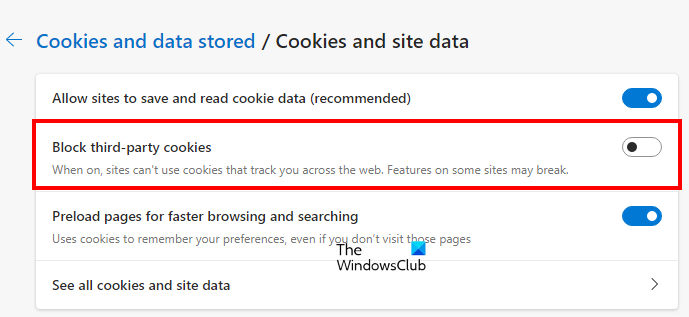
The following steps will help you with that:
- Open Microsoft Edge.
- Click on the three horizontal dots on the top right side and select Settings.
- Select the Cookies and site permissions category from the left side.
- Now, click on the Manage and delete cookies and site data tab.
- Turn off the button next to block third-party cookies.
3] Run a command in PowerShell
If the problem still persists, there might be some S4U tasks scheduled in the Task Scheduler. When the tasks are created in the Task Scheduler for a particular user without storing their passwords, they are called S4U (Service for User). If the Task Scheduler is running any such tasks for Microsoft Edge, disabling those tasks can fix the problem. The following instructions will guide you on how to find and disable such tasks.
Click on Windows Search and type PowerShell. Right-click on the Windows PowerShell app and select Run as administrator. When the PowerShell appears on your screen, copy the following command, paste it into the PowerShell, and hit Enter.
Get-ScheduledTask | foreach { If (([xml](Export-ScheduledTask -TaskName $_.TaskName -TaskPath $_.TaskPath)).GetElementsByTagName("LogonType").'#text' -eq "S4U") { $_.TaskName } }
If any S4U tasks are scheduled in the Task Scheduler, the above command will show you the list of those tasks. Now, make a note of all the tasks displayed in the PowerShell output. Open the Task Scheduler and disable all of them.
4] Reset Microsoft Edge settings to default
If you are still facing the same issue with Microsoft Edge, reset its settings to default. You can also use the following URL to reset Microsoft Edge settings.
edge://settings/reset
Read: Microsoft Edge is showing a blank white screen
How do I fix Microsoft Edge auto close?
If Microsoft Edge is closing immediately after opening on your Windows 11/10 device, you should repair it and see if it fixes the problem. There might be a third-party extension causing the problem. To check this, launch Edge in InPrivate mode. The InPrivate mode launches Edge with add-ons disabled. If Edge does not crash in the InPrivate mode, one of the extensions is the culprit of the problem.
One possible cause of this problem is the corrupted or damaged system files. If this is the case for you, running the SFC scan will resolve the issue. If nothing helps, try resetting it or uninstalling it, then download the latest version from the Microsoft website and install it.
Cannot log into websites using Edge
If you cannot log into websites using Edge:
- Clear cookies and cache
- Disable extensions temporarily
- Ensure JavaScript is enabled and set the switch to Allowed (recommended)
- Try InPrivate mode
- Reset Edge settings to default.
How do I fix Edge browser problems?
If Microsoft Edge is not opening or if you are facing some other issues with Edge, you can try some general fixes to get the problem resolved, like scanning your system with an antivirus or antimalware software, updating Edge, resetting Edge, etc. If none of these fixes help you, uninstall Edge and install its latest version by downloading it from the Microsoft website.
Read next: Microsoft Edge keeps opening automatically by itself.
