
If when you attempt to sign in to the Microsoft Store with your Microsoft Account and you encounter the error code 0x800706d9, then this post is intended to help you. In this post, we will identify the possible causes, as well as provide the appropriate solutions you can try to help you remediate this issue in Windows 11/10.
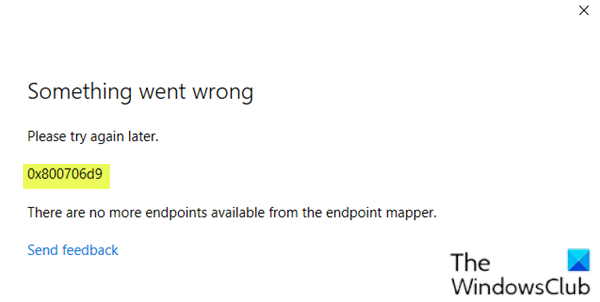
When you encounter this issue, you’ll receive the following error message;
Something went wrong
Please try again later.
0x800706d9
There are no more endpoints available from the endpoint mapper.
Corrupted Microsoft Store components are one possible reason why error 0x800706d9 is occurring.
Fix Microsoft Account sign-in error 0x800706d9
If you’re faced with this issue, try the following suggestions and see if it helps to resolve the issue.
- Reset the Microsoft Store cache
- Create a new User Account
- Run SFC and DISM scan
- Reset Firewall settings to default
- Perform System Restore
- Perform Reset This PC operation.
Let’s take a look at the description of the process involved concerning each of the listed solutions.
1] Reset the Microsoft Store cache
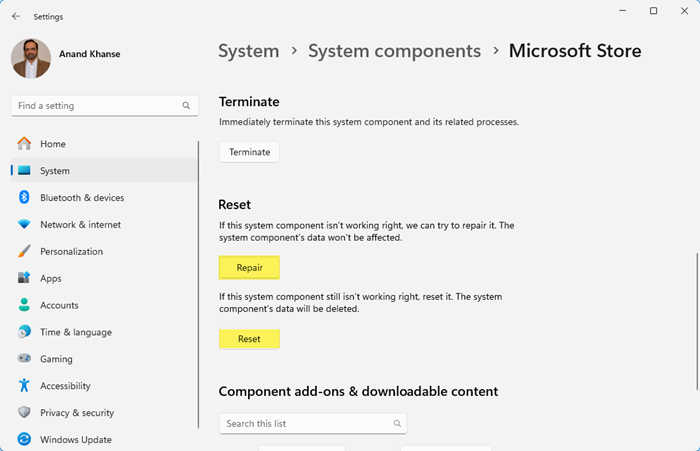
This solution requires you to clear/reset the Microsoft Store cache and then retry the sign-in with your Microsoft Account. If the error 0x800706d9 is still unresolved, continue with the next solution.
2] Create a new User Account
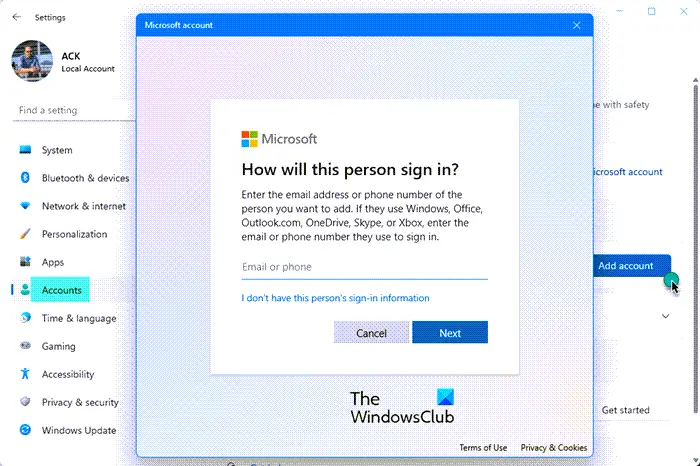
You may have a corrupted user account and that might be triggering the error 0x800706d9. In which case, you can try creating a new user account and then use it to sign in to the Windows Store and see if the issue persists.
Read: Fix 0x800706D9 Microsoft Store Error
3] Run SFC and DISM scan
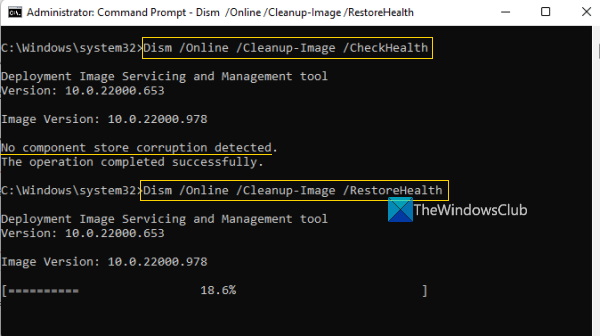
If you have system file errors, you may encounter the Microsoft Account sign in error 0x800706d9.
The SFC/DISM is a utility in Windows that allows users to scan for corruptions in Windows system files and restore corrupted files.
For the purposes of ease and convenience, you can run the scan using the procedure below.
- Press Windows key + R to invoke the Run dialog.
- In the Run dialog box, type notepad and hit Enter to open Notepad.
- Copy and paste the syntax below into the text editor.
@echo off
date /t & time /t
echo Dism /Online /Cleanup-Image /StartComponentCleanup
Dism /Online /Cleanup-Image /StartComponentCleanup
echo ...
date /t & time /t
echo Dism /Online /Cleanup-Image /RestoreHealth
Dism /Online /Cleanup-Image /RestoreHealth
echo ...
date /t & time /t
echo SFC /scannow
SFC /scannow
date /t & time /t
pause
- Save the file with a name and append the .bat file extension – eg; SFC_DISM_scan.bat.
- Repeatedly run the batch file with admin privilege (right-click the saved file and select Run as Administrator from the context menu) until it reports no errors.
- Restart your PC.
Try to sign in again and see if the issue is resolved. If not proceed with the next solution.
4] Reset Firewall settings to default
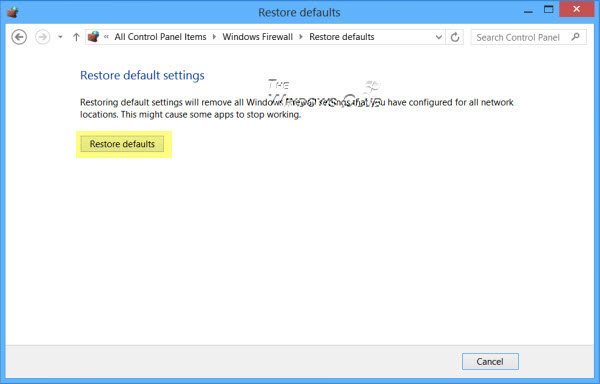
Reset Firewall settings to default and then try again.
5] Perform System Restore
If you noticed that the error started to occur recently, it’s entirely possible that the issue was facilitated by a change that your system has gone through recently.
Suppose you have no idea what changed that might have ended up breaking the printing functionality of your Office applications. In that case, you can use System Restore (any changes like application install, user preferences and anything else made after the restore point will be lost) to revert to a date where you’re certain that the printer was working properly.
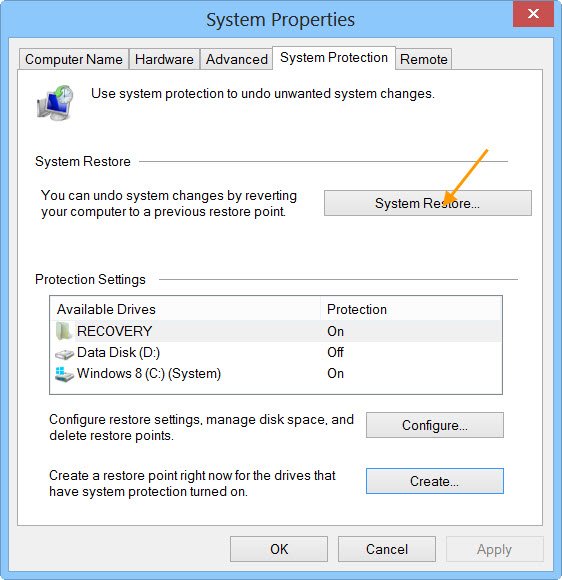
To perform System Restore, do the following:
- Press Windows key + R.
- In the Run dialog box, type rstrui and hit Enter to open up the System Restore Wizard.
- Once you arrive at the initial screen of System Restore, click Next to advance to the next window.
- At the next screen, start by checking the box associated with Show more restore points.
- After you’ve done this, select a point that has an older date than the one in which you first started to notice the error.
- Click Next to advance to the next menu.
- Click Finish and confirm at the final prompt.
At the next system startup, your older computer state will be enforced.
If the issue is still unresolved, try the next solution.
6] Perform Reset This PC operation
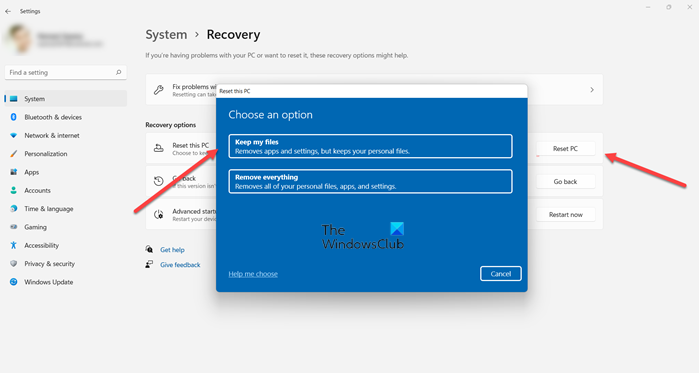
At this point, if the problem is still unresolved, it’s most likely due to some kind of system corruption that cannot be resolved conventionally. In this case, you can use Reset Thic PC option.
Any of these solutions should work for you!
Similar error codes:
