
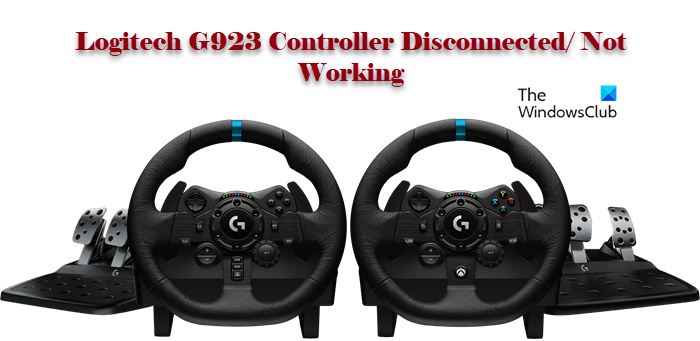
One of the most important tools for Forza Horizon 4 gamers and similar games is the Logitech G923 Controller. It’s amazing and is hence used by many. However, a lot of gamers’ screens are pinged with the error message that says “Please reconnect a controller“. So, obviously, they are frustrated with this behavior. But not anymore, we are going to resolve the issue with some simple solutions. If the Logitech G923 Controller disconnects or stops working on your computer, this article is all you need.
Why does my controller keep disconnecting?
If the Logitech G923 controller is disconnected or not working, the first thing you should check is the connection. Whether the controller is connected firmly or not. Other than that, you should make sure that your drivers are up to date.
Although you can still face the error if your drivers are updated, there is no way you can use the controller smoothly with outdated drivers. You should also check your computer’s settings, its registry, and Steam settings to make sure they are not causing any issues. We will discuss all of them in detail hereinafter.
Logitech G923 Controller Disconnected or Not working
If your Logitech G923 controller is disconnected or not working on your computer, the first thing to check is the connection. Once you make sure you can try these fixes to resolve the issues.
- Cross-check the connection
- Make sure that your wheel is operating within G HUb
- Make sure that Steam detects your controller
- Install the newest driver for the system
- Reinstall your wheel through Registry Editor
Let’s get started with the first solution.
1] Cross-Check the connection
First of all, make sure your controller is receiving the required power and is firmly plugged in. Also, try disconnecting and reconnecting the device, and make sure it’s as firm as possible this time. All the switches should be intact and hopefully, this will resolve the issue.
2] Make sure that wheel is operating within G Hub
Proper Setup is key to the controller’s proper functioning. However, if there is a connection issue within G Hub then you can expect errors to happen. Please go through the step and see what we are talking about.
- Open Logitech G Hub.
- Click on the wheel you are using. Navigate to the Steering Wheel option.
- Move your wheel and make sure that its effect is reflected in G Hub.
- Now go to your Pedal and make sure that they performing as they are supposed to be.
After confirming that your wheels and pedals are working properly in G Hun, head to the game controller section in your Control Panel to see if it’s visible. Follow the prescribed steps to do the same.
- Go to the search box and type “Joy.cpl”.
- Click on it.
- Select your controller from the Installed game controllers list.
- Click on Properties.
Verify the buttons that are pressed, but if the page is blank, you have to see the next solution.
3] Make sure that Steam detects your controller

The error can also occur when Steam does not detect the controller. To know if this is the cause, you can execute the following steps.
- Launch Steam client.
- Click on Steam then navigate to Settings.
- Click on the Controller tab.
- Select General Controller Settings.
- Uncheck all the boxes.
- Make sure that the controller detected is yours.
Hopefully, this will resolve the issue but if it persists move on to the next fix.
4] Update your Drivers
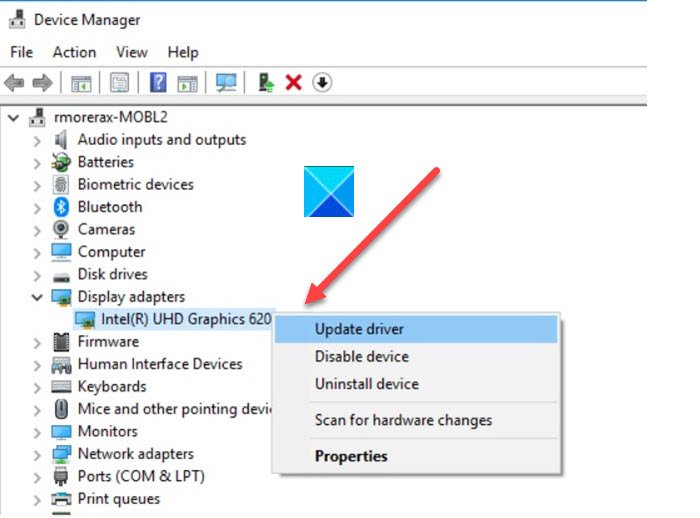
Outdated Drivers can be a cause for the error. You should make sure that your drivers are up to date. There are umpteenth ways to update your drivers, so see the one that fits you.
- Update your Windows so that driver will be automatically updated.
- Install and update drivers by utilizing Freeware.
- Update Driver from the Device Manager.
- You can go to the manufacturer’s website and download it from there.
After updating the driver, check if the issue persists.
5] Reinstall your wheel through Registry Editor
Check your Wheel’s setup if you haven’t already. You can reinstall the wheel through Registry Editor. You can do the same by following the steps.
- Click Win+R to open the Run Dialog box.
- Type the following to open Registry Editor.
Regedit
- Click OK. Grant permission by clicking on YES.
- Navigate to the following path
HKEY_CURRENT_USER\System\CurrentControlSet\MediaProperties\PrivateProperties\Joystick\OEM
- Select the wheel you are using, based on the last 4 digits of each VID.
- Right-click on it and then click on the Delete option. Click OK.
- After the process is done, remove the wheel then plug it in again.
- Once you are connected click View > Refresh.
Check if you can find the wheel in the registry.
Hopefully, you will be able to resolve the issue with the solutions mentioned here.
Does the Logitech G923 work on PC?
Yes, Logitech G923 works perfectly on Windows PC. It has the ports required to connect both the device and most of the games support the controller. Be it Need for Speed, or Forza Horizon, Logitech G923 is the way to go.
Read Next:
