
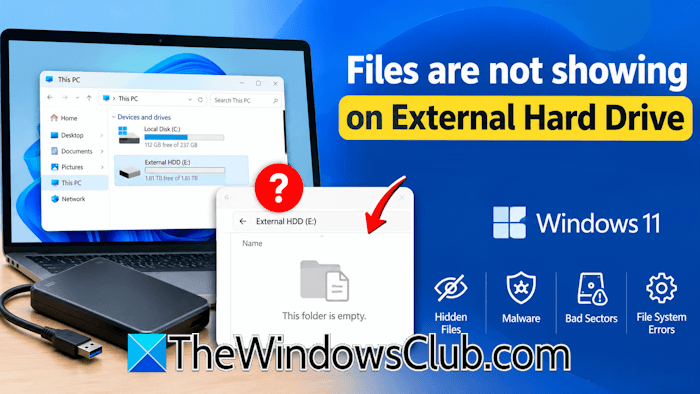
Some users report that their files are not showing on the external hard drive on their Windows 11 PC. This issue can occur for several reasons, including hidden file attributes, malware infections, file system corruption, bad sectors, or other logical errors. In this article, we will discuss the possible causes and fixes.
Files are not showing on the external hard drive in Windows 11
Use the following fixes if your files are not showing on the external hard drive in Windows 11:
- Check your USB cable and USB port
- Use a third-party Disk Space Analyzer tool
- Use a data recovery tool
- Run chkdsk scan on the external hard drive
- Look for the FOUND folders
- Scan your external hard drive with an antivirus
Before you proceed, connect the external hard drive to another computer and see if the files are visible.
1] Check your USB cable and port
A faulty USB cable or port, or an unstable connection, can sometimes interfere with data reading, even if Windows detects the external hard drive. Disconnect the external hard drive and reconnect it. If that doesn’t work, try a different USB port or a different USB cable. You can also try connecting the hard drive to another computer and see whether the missing files appear. These simple fixes will help you narrow down the cause of this issue. If the files still don’t appear when you connect the drive to another computer, the issue may be related to the drive’s file system, hidden attributes, or data corruption.
2] Use a third-party Disk Space Analyzer tool
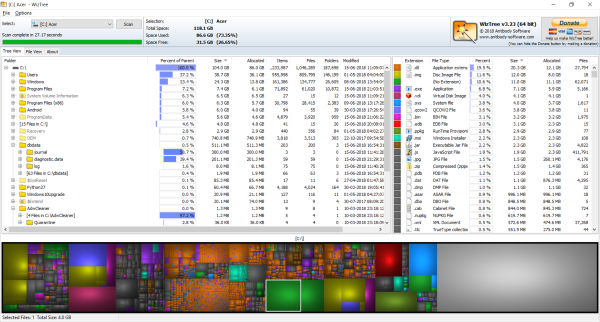
Your hard drive isn’t showing the files, but the disk space is still used. This means that your files exist on the external hard drive. You can use a free Disk Space Analyzer tool, such as TreeSize or WizTree, to scan your hard drive. The tool will show all folders and files on your external hard drive, including hidden files.

If the Disk Space Analyzer tool confirms that your files are still on the hard drive, they may have been assigned the hidden attribute. When you assign a hidden attribute to a file or folder, it becomes invisible but occupies the required space on the disk. To check this, enable the Show hidden files and folders option in File Explorer.
3] Use a data recovery tool
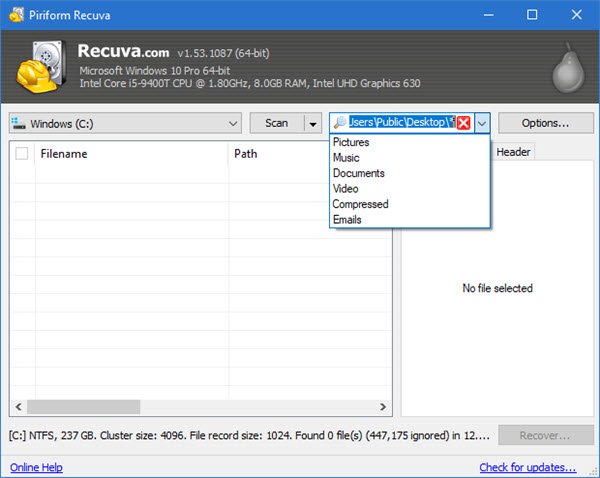
A data recovery tool helps recover data from a hard disk even if it has been formatted. Since your hard drive isn’t showing the files, try a free data recovery tool. Scan your hard drive with the tool and see if it detects the missing files. If so, you can recover them easily. Many free data recovery tools are available. You can use any of them.
4] Run chkdsk scan on the external hard drive
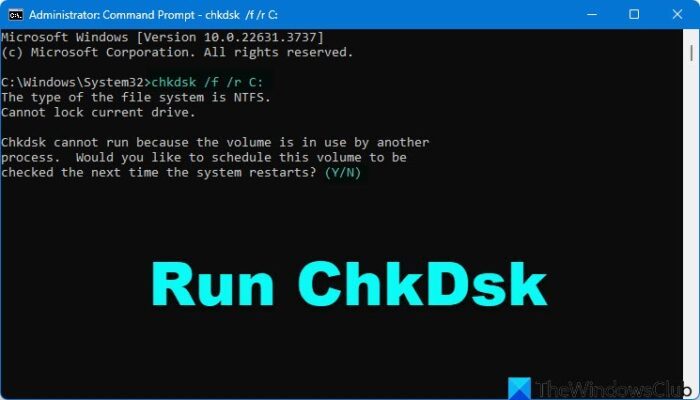
Your external hard drive may have logical errors or bad sectors, causing this problem. Chkdsk is a built-in utility in Windows that repairs bad sectors and fixes logical errors on a hard drive. You can also run this utility on an external storage device. Run a chkdsk scan on your external hard drive and see if this fixes the problem.
To run Check Disk on your external hard drive, using the command line, type the following and hit Enter:
chkdsk /r x:
Here, x is the drive letter for your external hard drive.
ChkDsk /r includes /f, but it also scans the entire disk surface for physical errors and attempts to repair them as well.
The chkdsk scan will take time. So you’ll need to wait for it to complete. Do not interrupt the scan until it is completed.
5] Look for the FOUND folders
The FOUND folders, such as FOUND.000 or FOUND.001, is a hidden system folder created on a hard drive or an external storage device when you scan it with the built-in Chkdsk utility. If Chkdsk finds a corrupted file during the scan, it moves it to the FOUND folder and assigns the .chk extension. You can check your hard drive for this folder. The folder may not appear after enabling the hidden files option. You may need to unhide the protected system files.

Follow these instructions:
- In File Explorer, click the three dots on the ribbon and select Options.
- The Folder Options window will appear.
- Go to the View tab.
- Scroll down and uncheck the Hide protected operating system files checkbox.
- Click Yes in the confirmation box.
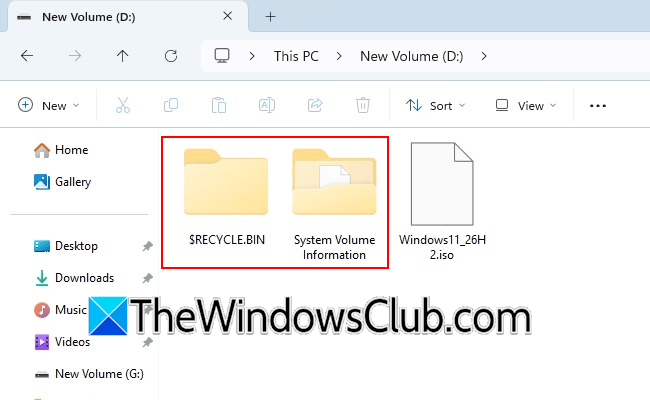
After performing the above steps, you should see the System Volume Information folder on the same hard drive. This folder is protected; therefore, you may get the Access Denied message when opening it. To fix this, you need to take full ownership of that folder. Open the folder and look for the FOUND folder. It may have your files. Now, you can easily recover the missing files. Also, open other folders and subfolders, including the Recycle Bin folder, and look for your missing files. If your files have been converted to the .chk extension, use a file converter tool to convert them back to their original extension. Before using a file converter tool, make one more copy of those files.
6] Scan your external hard drive with an antivirus
A malware infection can also cause missing files on a hard drive. Scan your hard drive with good antivirus software.
That’s it. I hope this helps.
Why is my external hard drive not showing files?
If your external hard drive is showing files now, the files may have been hidden. Check this by enabling the option to unhide hidden files. Another possible cause is a malware infection. Run an anti-malware scan on your hard drive.
Why are my external hard drives not showing up in Windows 11 File Explorer?
If your external hard drive isn’t showing in File Explorer, reconnect it. If that doesn’t work, connect it to another USB port or replace the USB cable. Also, check whether the hard drive appears in Disk Management. If so, check if it is displayed in a raw format. If the hard drive doesn’t show in Disk Management, you may have a hardware issue. To confirm this, connect the drive to another computer.
Read next: External hard drive not recognized after force eject.
