
Some users reported that their laptops shut down unexpectedly before the battery level dropped to 0%. In such cases, users lose their unsaved work. This article shows what you should do if your Windows laptop shuts down at 50 or 60 percent battery.

Laptop shuts down at 50 or 60 percent battery
Follow these suggestions if your Windows laptop shuts down at 50 or 60 percent battery:
- Hard reset your laptop
- Change your power plan settings
- Restore the missing power plans
- Run a battery health check
- Reinstall your battery driver
- Recalibrate your battery
- Update BIOS
- Replace your battery
All these fixes are explained in detail below:
1] Hard reset your laptop
The first step is to perform a hard reset on your laptop. Follow these steps:
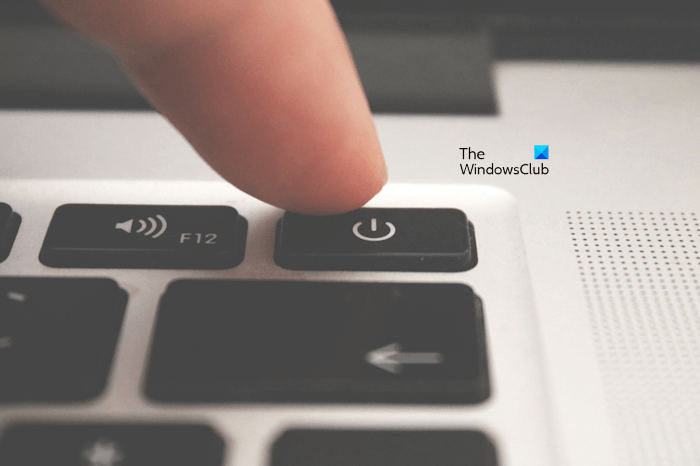
- Turn off your laptop.
- Remove peripherals and disconnect the charger.
- Remove its battery. Leave this step if your laptop has a non-removable battery.
- Press and hold the power button for 30 seconds. This will drain the residual charge from the capacitors.
- Connect the battery and turn on your laptop.
2] Change your power plan settings
Change your power plan settings. Follow these steps:
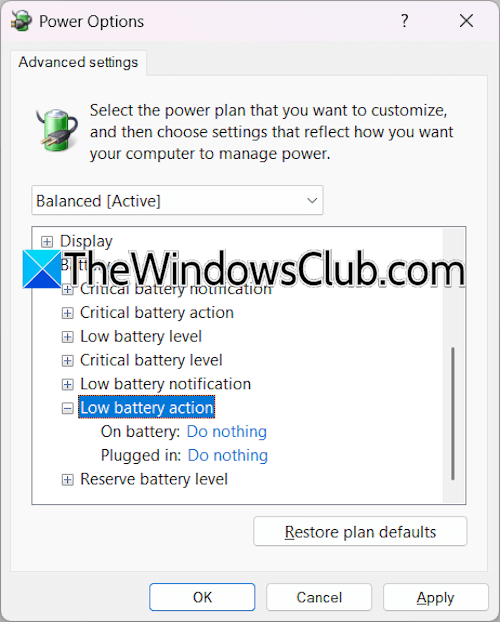
- Open the Control Panel.
- Type power in the Control Panel search bar and click Power Options.
- Click the Change plan settings link for your currently active plan.
- Now, click Change advanced power settings.
- Expand the Battery section, then expand the Low battery action.
- Select Do nothing.
Click Apply and then click OK.
3] Restore the missing power plans
If the issue persists, you can switch to the default power plan. If the default power plans are missing, you can restore them by executing the required commands in the Command Prompt.
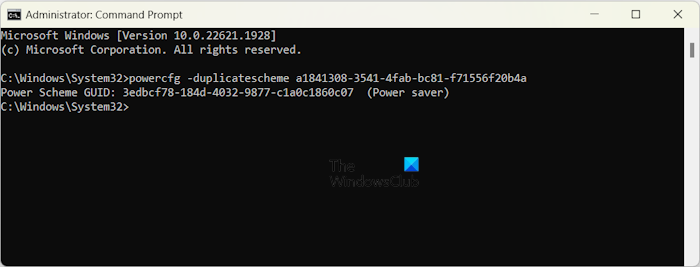
The commands to restore the missing default power plans will not work if your laptop is in Modern Standby Mode S0. You can check this by running the following command:
powercfg /a
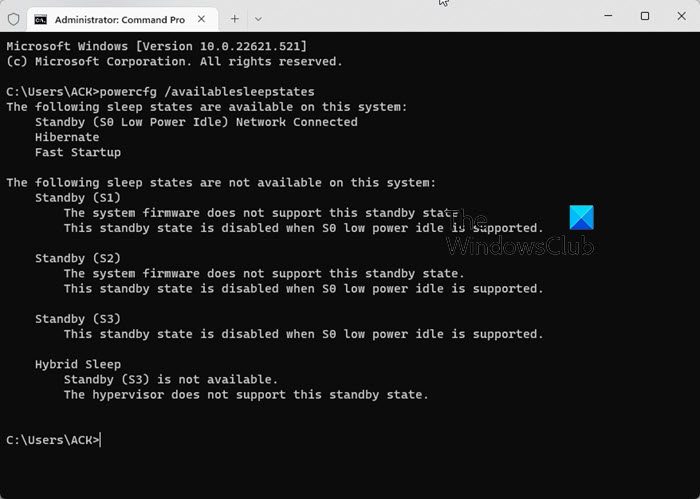
If the Modern Standby Mode S0 is active on your laptop, disable it by using the following command. After that, you can restore the missing default power plans. Before proceeding, create a system restore point.
After restoring the power plans, switch to each one individually and see which one resolves the issue. You can customize that power plan’s settings later.
4] Run a battery health check
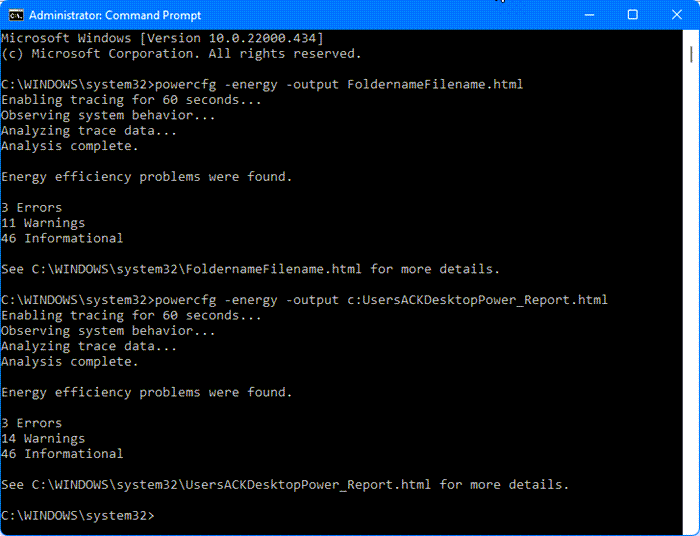
You can also run a battery health check to know whether your battery is healthy. For this, you can use the built-in Power Efficiency Diagnostic Report Tool. This tool runs in an elevated Command Prompt window.
Alternatively, you can also use the dedicated software developed by your laptop manufacturer to test the health of your battery. For example, the ASUS laptop manufacturer provides the MyASUS app to manage ASUS laptops. This app allows users to run a full or a customized diagnostic test.
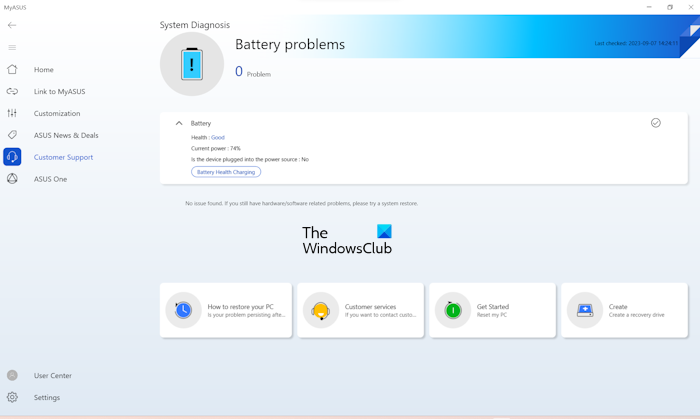
ASUS laptop users can download this tool from the ASUS website and run the battery health test under the System Diagnosis section.
5] Reinstall your battery driver
You can also try reinstalling your battery driver. Before proceeding, create a system restore point.
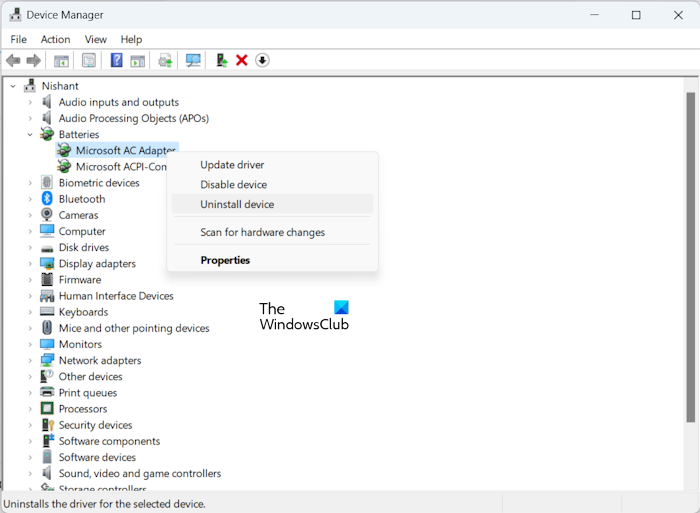
Follow these steps:
- Open the Device Manager.
- Expand the Batteries branch.
- Right-click on the Microsoft ACPI-Compliant Method Control Battery and select Uninstall device.
- Restart your laptop or perform a Scan for hardware changes to restore the uninstalled battery driver.
6] Recalibrate your battery
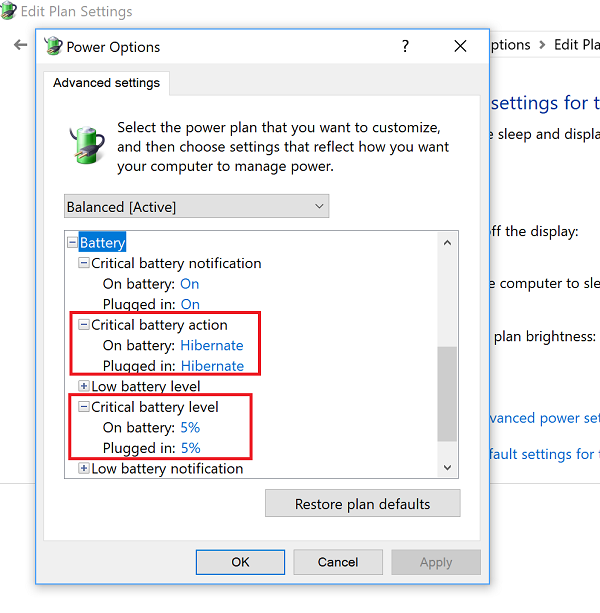
If your laptop shuts down at 50 or 60 percent every time, battery calibration might be the issue. Recalibrate the battery and see if it helps.
7] Update BIOS
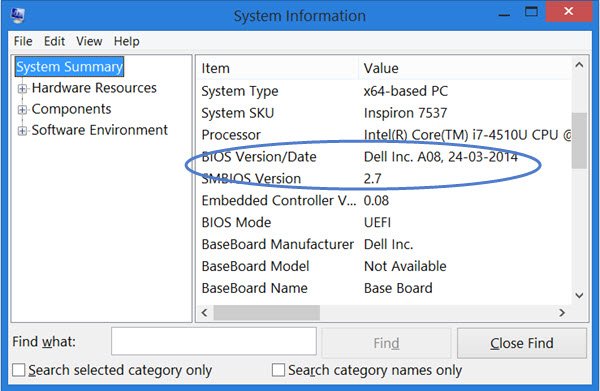
A BIOS update improves hardware compatibility and system stability. If the issue persists, a BIOS update can help. First, check the current version of BIOS installed on your system via the System Information.
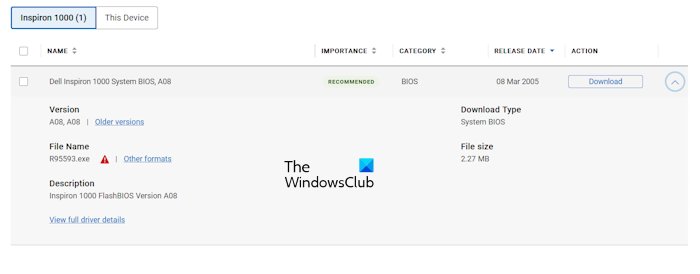
Now, visit the official website of your laptop manufacturer and check the available BIOS version. If the latest BIOS version is available, download and install it. While installing the BIOS update, connect the charger and turn on the switch, even if the battery is completely charged. An interrupted power supply during the BIOS update can damage your motherboard.
8] Replace your battery
If your laptop still shuts down at 50 or 60 percent battery, the problem might be with your battery. In this case, we recommend that you replace the battery. If your laptop is under warranty, you can contact the manufacturer for battery replacement.
That’s it. I hope this helps.
Why does my laptop shut down at 50%?
There can be multiple causes why your laptop shuts down at 50%. This may be due to battery calibration issues or a faulty battery. Apart from this, it can also be due to the corrupt battery driver.
Is keeping a laptop at 100% bad?
Occasionally keeping your laptop at 100% is fine (for travel, long meetings, etc.). However, keeping the laptop always plugged in at 100% is not good for the battery health. This slowly degrades the battery health.
Read next: Laptop Battery Usage Tips & Optimization Guide for Windows.
