
When you close your laptop lid, it goes into sleep mode. This is the default behavior of Windows 11/10. Microsoft has also provided a related setting to change this behavior. For some users, this setting is not working as expected. According to them, the laptop is not shutting down when closing the lid. If you encounter the same issue, use the suggestions provided in this article. We will also tell you what you can do in the opposite scenario, ie. your Windows laptop shuts down when closing the lid.
Laptop is not shutting down when closing the lid
Use the following suggestions if your Windows laptop is not shutting down when closing the lid:
- Check your power settings
- Disable Fast Startup
- Check corrupt drivers
- Repair your system image files
- Update BIOS
All these fixes are explained in detail below.
1] Check your power settings
The first step is to check your power settings. The following steps will guide you on this:
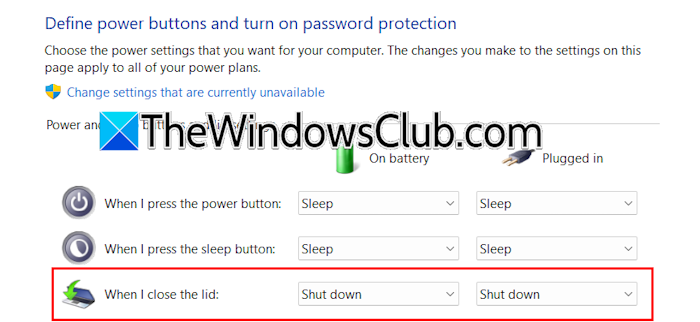
- Open the Control Panel.
- Type power in the Control Panel’s search box and click Power Options.
- Click the “Choose what closing the lid does” link.
- Select Shut down in the “When I close the lid” drop-downs.
- Click Save.
2] Disable Fast Startup
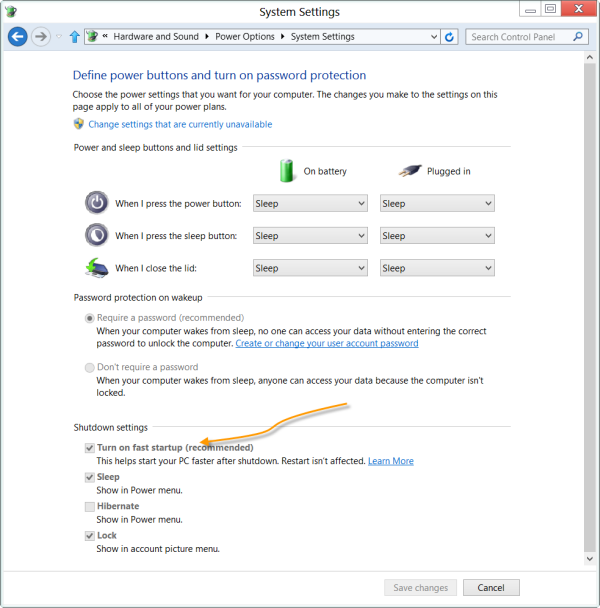
Fast Startup is a feature in Windows 11/10 that makes your system boot faster after shutting down. It is enabled by default. Sometimes, this feature causes issues. Therefore, we suggest you disable it and check if the issue persists.
3] Check corrupt drivers
Corrupt or outdated drivers also cause several issues on a Windows computer. We suggest you check this in the Device Manager. Follow these steps:
- Open the Device Manager.
- Expand all the branches one by one and see if there is a warning sign.
- If any driver shows a warning sign, this means it has been corrupted.
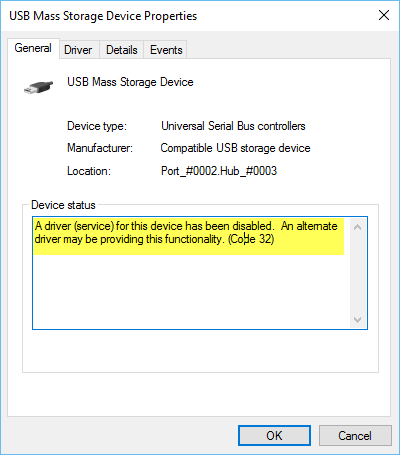
- Now, double-click on it to open its properties. You will see the error code and message under the General tab in the Device status field.
The error code will be one of the Device Manager error codes. Now, you can troubleshoot accordingly. You can also try updating your drivers using free third-party Driver Updater software, such as IObit Driver Booster.
5] Repair your system image files

Corrupt system image files can also cause this problem. Repairing the system image files can help. You can use the built-in System File Checker and DISM tools for this purpose.
6] Update BIOS
If the issue persists, we suggest you update your BIOS, as it will improve your system’s stability. First, check the current version of BIOS using the System Information. Now, visit the official website of your computer manufacturer and check the version of BIOS available there. If an updated version is available, download and install it.
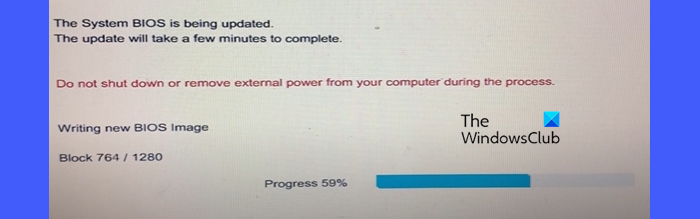
During a BIOS update, ensure that your laptop does not shut down, as it will damage your motherboard. To avoid this, connect the charger and turn on the switch, even if your laptop is fully charged.
Laptop shuts down when closing the lid
If your laptop shuts down when closing the lid, check the power settings in the Control Panel. The power option when you close the lid should be set to Sleep or Hibernate. If the issue persists, follow the same suggestions explained earlier in this article to resolve this problem.
Additional troubleshooting fixes that you can try are:
- Reset your power plan settings or create a new power plan
- Reset BIOS
- Reset your PC
Let’s start.
1] Reset your power plan or create a new power plan
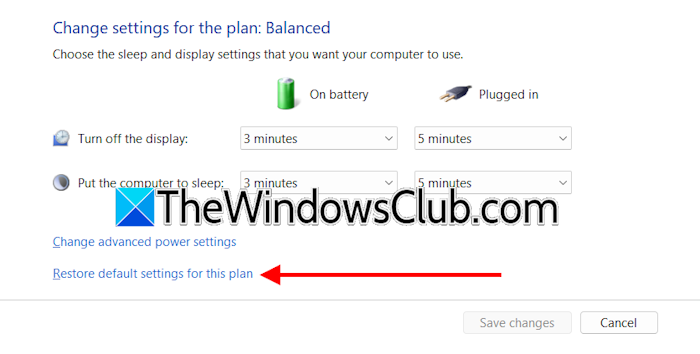
Since Sleep is the default action for closing the lid, you can reset your power plan to the default settings. For this, open your power plan settings in the Control Panel and click the “Restore default settings for this plan” link.
If this does not work, you can create a new power plan or restore the missing power plans via the Command Prompt. Do note that the commands to restore the missing power plans will not work if the Modern Standby Mode S0 is active on your laptop.
2] Reset BIOS
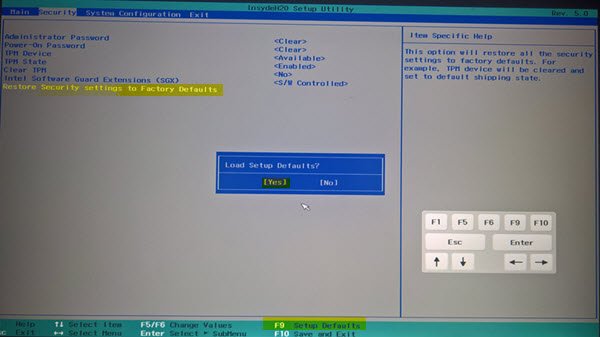
You can also reset your BIOS to the default values. Refer to your system user manual to know the right BIOS key.
3] Reset your PC
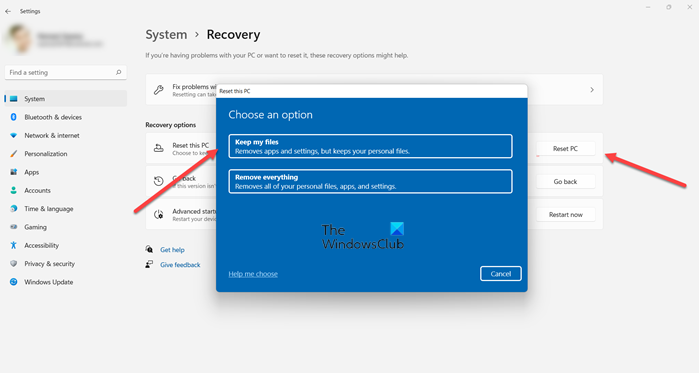
The last resort is to reset your PC to the factory defaults. Windows provides an option to reset your PC without deleting data. Select that option to keep your data safe while resetting. However, keeping a backup of all important files is always the best practice.
That’s it. I hope this helps.
How to set the laptop to shut down when closing the lid?
To set your laptop to shut down when closing the lid, open the Control Panel and search for Power Options. Now, select the “Choose what closing the lid does” option. You will see the option to change this setting there.
When I close the lid, there is no sleep option
If your laptop does not sleep when closing the lid, you might have changed the power settings and set them to “Do nothing.” Open the Control Panel and check this setting. Change it if required.
Read next: How to wake a Windows laptop from Sleep with the Lid closed.
