
Most users run Windows on their portable laptops, so it’s important to make the battery last as long as possible. Fortunately, Windows 11 is Green; and has great power management schemes.
Manage Power Management Settings on your Windows PC
A power plan or power scheme is a collection of hardware and system settings that manages how your computer uses power. Power plans can help you save energy, maximize performance, or balance both.
Windows Power management schemes typically offer three plans:
- Balanced
- Power Saver
- High Performance
- Balanced: Offers full performance when you need it and saves power during periods of inactivity.
- Power Saver: Saves power by reducing system performance. This plan can help mobile PC users get the most from a single battery charge.
- High Performance: Maximizes system performance and responsiveness. Mobile PC users might notice that their battery doesn’t last as long when using this plan.
There is also a hidden Ultimate Performance Power Plan that can be activated manually on Windows Pro and Windows Server.
When you choose the Balanced power plan, you may face performance issues because Balanced mode gives your PC performance when you are doing an intensive task and reduces it when you are doing a simple task. Logically, three different power schemes will affect your mobile device performance. HTC Shift and the Sony TZ notebook and discovered that on both devices the Balanced power setting provides better benchmark numbers than the High-Performance setting.
Read: Which Windows Power Plan should you use and when?
You can manage your Power Options by clicking on More Power Options. On clicking it, you will be presented with the following window.
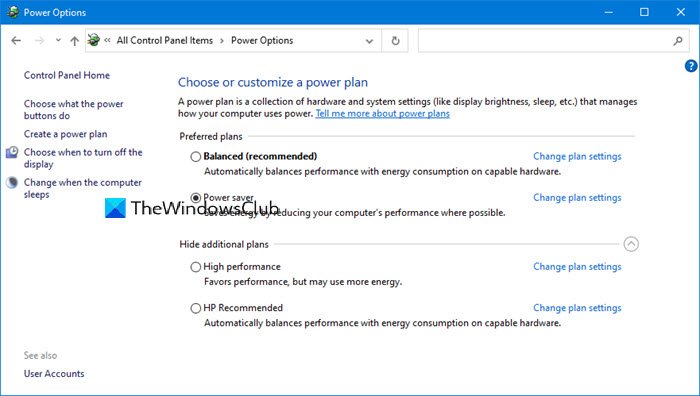
It’s easy to configure power options here.
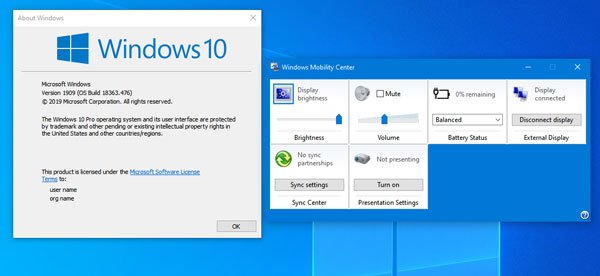
You can also instantly configure additional power settings using the Windows Mobility Center.
Must read: How to configure hidden Power Options in Windows
Make the Laptop battery last longer
Here are a few easy tips that can help you stretch your battery’s power:
- Choose a power plan that saves power. A power plan is a collection of hardware and system settings that control how your mobile PC manages power. These settings include power-saving measures, such as switching to a power-saving state when you aren’t using your mobile PC.
- Reduce display brightness. The display can use more power than any other computer hardware; even more than your hard disk and CPU. Although many mobile PCs have keys to adjust brightness and other display settings, how you change display brightness can differ by manufacturer. To learn more about dimming your display, check the information that came with your mobile PC or visit the manufacturer’s website.
- Shorten the length of time before Windows turns off the display. When you’re not using the mobile PC, even for brief periods of time; you can save power by having Windows turn off the display after a brief period of inactivity.
These tips to Conserve Battery Power and Extend or Prolong Laptop Battery Life in Windows will also help you.
Windows power management technologies provide platform and processor efficiencies that reduce power consumption and can help lower energy costs. It also provides a better user experience with longer laptop battery life for specific scenarios.
These posts may also interest you:
- How to Change Power Plan Settings & Options using the Control Panel.
- How to troubleshoot Power Plans.
