
Want to keep your laptop on with the Lid closed on Windows 11/10? You can wake your Windows laptop from sleep with the lid closed using the Device Manager or BIOS settings. Let us see how to do it.

Laptops are great devices; they have essentially transformed the way we use Windows. However, if you are looking for an arrangement where you want to use your portable laptop as a desktop connected to a monitor, you will face a few issues. While recently trying to achieve this for a friend, we were unable to wake up the laptop from sleep with the lid closed. If you are facing the same issue and are looking for a solution, check out the post below.
Wake up Windows laptop from Sleep with Lid closed
The setup that we were trying to achieve was a Windows 11/10 laptop connected to a monitor via HDMI. We hooked a wireless keyboard and mouse, and the laptop was tucked away nicely in a vertical stand (with the lid closed). So, when the computer will go to sleep after a few minutes, it was practically impossible to wake it up using an external keyboard/mouse and without opening the lid.
Keep Laptop On with the Lid closed on Windows 11
We have explored several solutions, which are covered in this post. Therefore, ensure that you follow all of these steps to achieve your goal. Before we proceed, we assume that you want to wake up your laptop using an external USB device, such as a wired or wireless keyboard, mouse, etc. You have two options:
- Using Device Manager
- Via BIOS settings.
1] Using Device Manager
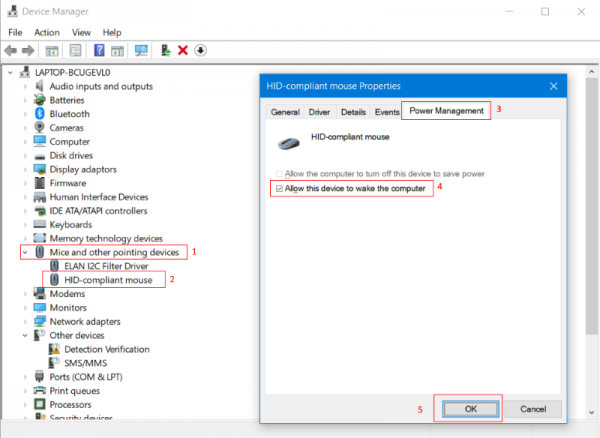
The most basic setting you need to configure is allowing your device to wake up your computer.
To do so, open Device Manager and under Mice and other pointing device locate your external wired/wireless mouse.
Go to Power Management tab and tick the checkbox that says Allow this device to wake the computer.
Make sure you repeat the same steps for the keyboard as well or any other USB device for which you want to achieve this setup. To test these settings, put your laptop to sleep and try to wake it up from the mouse or any other desired device. If it did not work out for you, you might want to follow the next procedure mentioned below.
2] Using BIOS Settings
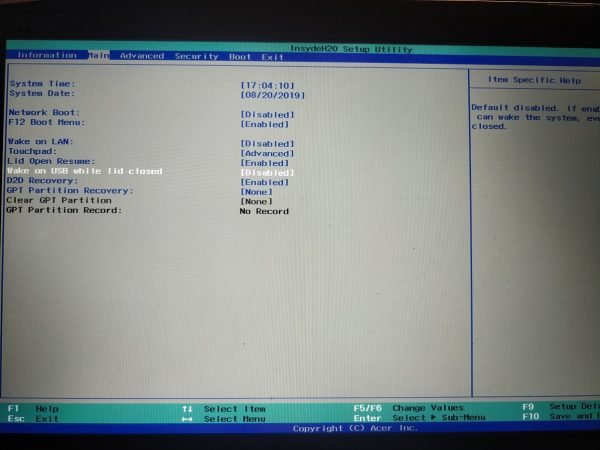
If the above steps did not work out for you, no need to revert them. Rather, you can follow the steps mentioned in this section. A possibility is that this feature has been disabled in BIOS settings of your laptop. So, you need to enter BIOS and enable this setting for the above steps to work.
On an Acer laptop, we managed to enter BIOS by pressing F2 when the computer is booting up. Inside the BIOS, enabling the setting called Wake on USB while lid closed achieved our purpose. Although the steps we’ve mentioned here are for an Acer laptop, a similar setting or procedure is available for all modern laptops. If you own an older laptop and cannot find this setting in the BIOS, then your laptop probably does not support it.
This was all about creating a desktop-like setup on a laptop. If you have faced the same issue and this post helped you fixed, do let us know in the comments.
Read: How to run Laptop with the lid closed in Windows?
How do I turn on my laptop without opening the lid?
To turn on your laptop without opening the lid, use the power button on the docking station, if available. Alternatively, enable the Wake-on-LAN feature, which allows the laptop to power on via a network signal. Ensure your laptop’s BIOS or firmware settings support these options for seamless activation.
How to turn on laptop after closing lid?
To turn on a laptop after closing the lid, first ensure the laptop is in sleep mode, not shut down. Open the lid and press the power button if the device doesn’t wake up automatically. Adjust settings in the Control Panel or System Preferences to change the behavior when the lid is closed.
