
Windows lets you decide how long your display should remain on before it automatically turns off during periods of inactivity. Many users set this option to Never to keep the screen active while monitoring downloads, security cameras, dashboards, presentations, or other ongoing tasks. However, some users have reported that their screens continue to turn off even when the setting is set to Never. In some cases, the display dims or goes black after a few minutes of inactivity. In this post, we will show you how to fix the issue if your Windows 11 screen turns off even when set to Never.
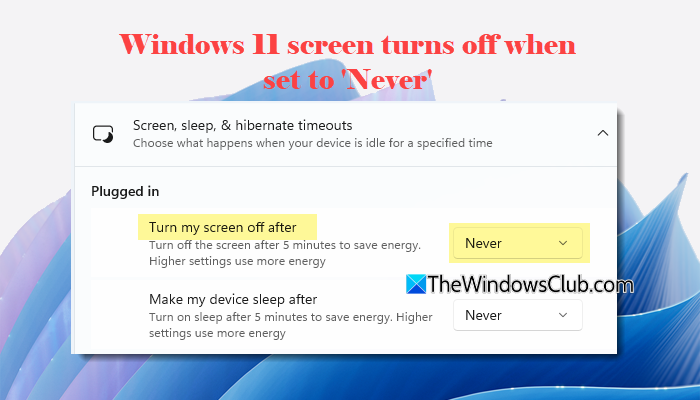
Fix Windows 11 screen turns off even when set to Never
To fix your Windows 11 screen if it turns off even when set to Never, use these solutions:
- Review Advanced Power Settings
- Disable the Screen Saver
- Turn off Presence Sensing
- Check other power plans for conflicting display timeout settings
Let us have a detailed look at these solutions.
1] Review Advanced Power Settings
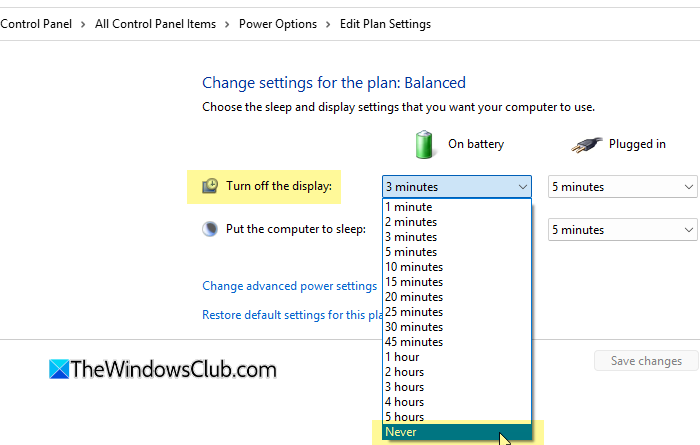
Even if “Turn my screen off after” is set to Never in the Settings app, it is worth verifying that the same configuration is reflected in the advanced power settings. Incorrect or conflicting values in the active power plan may cause Windows to turn off the display unexpectedly.
Open Control Panel. Go to Hardware and Sound > Power Options. Next to your active power plan, click Change plan settings, and then click Change advanced power settings.
In the Power Options window:
- Expand the Display section and verify that Turn off display after is set to Never.
- Expand the Sleep section and verify that:
- Sleep after is set to Never.
- Hibernate after is set to Never.
- Expand Multimedia settings and verify that:
- When sharing media is set to Prevent idling to sleep (especially if the issue occurs while streaming video, using a webcam, monitoring security cameras, or viewing other live media feeds).
Click Apply > OK and restart your computer.
Note:
- On laptops, make sure you review both the On battery and Plugged in settings, as Windows maintains separate timeout values for each mode.
- Windows includes several hidden power settings that are not displayed by default, such as Adaptive display, Enable adaptive brightness, Console lock display off timeout, and System unattended sleep timeout. If you have previously modified these settings, review them as well to ensure none of them are configured to dim or turn off the display unexpectedly.
2] Disable the Screen Saver
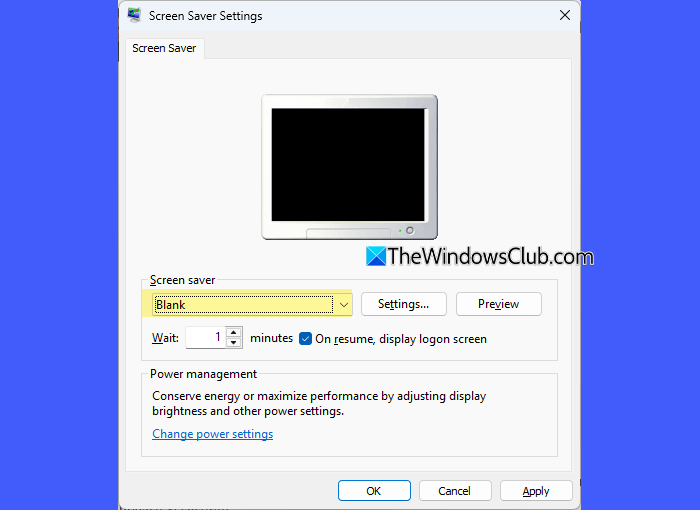
A screen saver may sometimes make it appear as though the display is turning off, especially if the Blank screen saver is enabled.
To check this, open Settings (Win + I) and go to Personalization > Lock screen. Click Screen saver under Related settings.
In the Screen Saver Settings window, select (None) from the Screen saver drop-down menu. If you prefer to use a screen saver, increase the Wait time to a suitable value instead.
Also, clear the On resume, display logon screen checkbox if it is enabled.
Click Apply > OK, and then check if the issue is resolved.
3] Turn off Presence Sensing
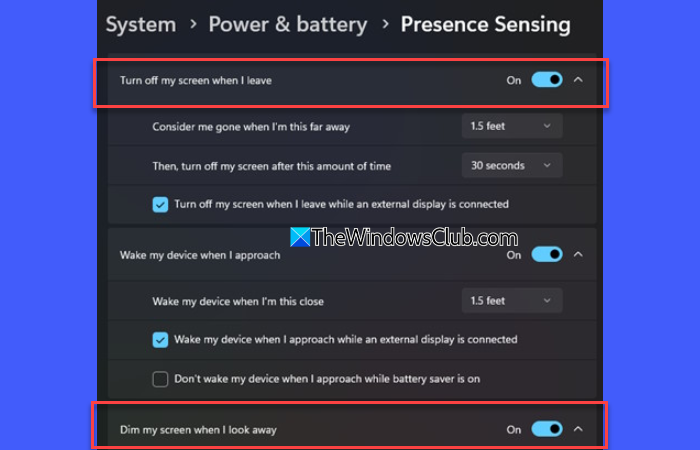
Many modern Windows 11 laptops include Presence Sensing, a feature that uses built-in sensors to detect whether you are near your device. Depending on how it is configured, Windows may automatically dim or turn off the display when you step away, even if the display timeout is set to Never.
To check if Presence Sensing is enabled, open Settings > System > Power & battery > Presence sensing. Turn off the following options (if enabled):
- Turn off my screen when I leave
- Dim my screen when I look away
Restart your computer and check if the issue is resolved.
Note:
- Presence Sensing is available only on supported devices with compatible hardware. If you do not see the Presence sensing page in Settings, your PC may not support this feature.
- Some PC manufacturers also provide their own presence-detection software, such as Dell Optimizer, HP Presence Aware, or Lenovo Vantage. If your device includes one of these utilities, review its settings and disable any options that automatically dim or turn off the display when you are away from the computer.
4] Check other power plans for conflicting display timeout settings
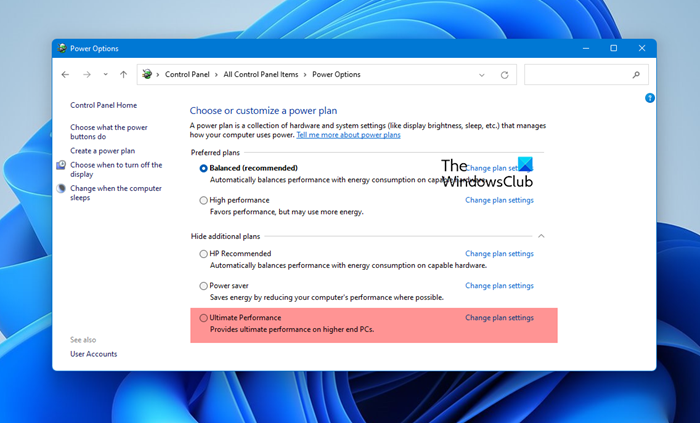
Some users have reported that Windows continued using the display timeout configured under another power plan, particularly Ultimate Performance, even though Balanced was the active plan. Reviewing all available power plans may help rule out conflicting power settings.
Open Control Panel. Go to Hardware and Sound > Power Options.
Click Show additional plans (if available) to view all installed power plans. Review the display timeout settings for each plan by clicking Change plan settings. If you find conflicting values, update them, click Save changes, and then restart your computer.
Read: Pros and cons of the different Power Plans.
How do I prevent my screen from turning off in Windows 11?
To prevent your screen from turning off, you may need to adjust the default screen and sleep settings in Windows 11. Open the Settings app. Go to System > Power & battery > Screen, sleep & hibernation timeouts. Set Turn my screen off after to Never for both On battery and Plugged in modes (if applicable). If the issue persists, check your advanced power settings.
Why does my screen keep turning off in Windows 11?
Your screen may continue to turn off because of conflicting power settings, Presence Sensing features, or another power plan overriding your current display timeout settings. In some cases, the display may appear to be turned off if the ‘Blank’ screen saver is enabled.
Read Next: Screen won’t turn off after the specified time in Windows.
