
Laptops come with USB, Thunderbolt, audio, charging, and related ports. We use them to connect devices such as external storage drives, external audio devices and external monitors. They work perfectly fine in detecting every connected device when we use them on a Windows 11 laptop. At times, we encounter issues that frustrate us. When a laptop that is working perfectly fine fails to detect your thumb drive or SSD, there could be an issue with it. In this guide, we show you different ways to fix when a laptop is not detecting USB or external devices.
Laptop not detecting USB or External devices
If your Windows laptop fails to detect USB or other external devices, such as speakers, you can fix it in the following ways.
- Check if the external device is working properly
- Clean the dust or debris from the ports
- Check the Device Manager for devices
- Change USB Root Hub Power Management settings
- Run SFC scan
- Check in Clean Boot State
- Reset your PC
Let’s see how we can use each method to fix the issue.
1] Check if the external device is working properly
If there is an issue with external devices or the cables connecting them to your laptop, it will not be detected. Make sure the cables and the external devices are working properly by connecting them to another device. If they are not even connecting to another device, the problem is with the external devices, not the laptop.
2] Clean the dust or debris from the ports
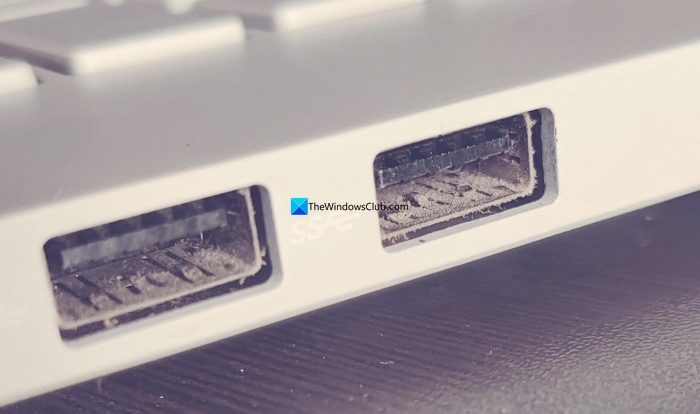
Over time, the ports on a laptop or PC accumulate dust and debris. With the accumulation, it becomes hard for the port to connect to external devices or USB. You need to clean the ports to make it work. Use a soft cloth or a compressed air machine to clean them. If you are unsure how to clean the ports, take it to a service center for cleaning.
3] Check the Device Manager for devices
Every device or hardware connected to a Windows laptop is listed in the Device Manager. You can check whether the device is listed there. Open the Device Manager from the Start menu by searching for it. Then, on the Device Manager window, right-click on your PC name and select Scan for hardware changes.
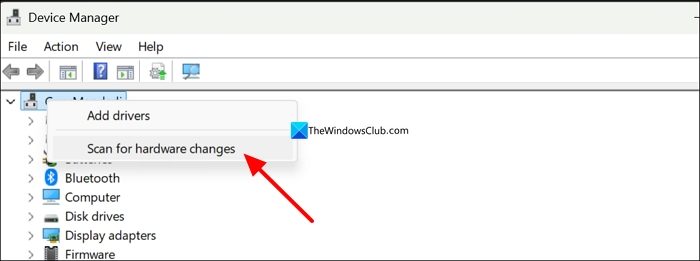
It will scan and include newly connected hardware devices in their respective categories. If you have connected a USB device and it is not being recognized, expand Other devices or Universal Serial Bus controllers. If you find a yellow warning sign on the device, there is an issue.
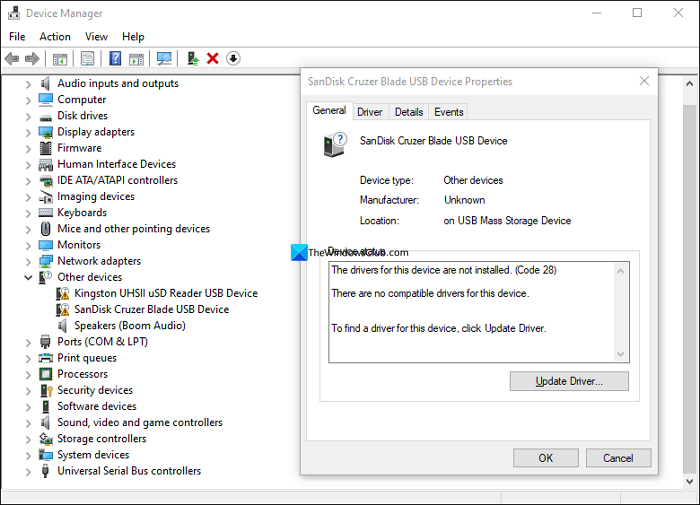
Then, right-click on the problematic external device and select Uninstall device. Complete the uninstalling of the device by following the on-screen instructions. After successful uninstallation, restart your PC to let Windows install the missing device drivers automatically. Your external device will now be detected by your laptop.
Read: USB Device Not Recognized, Last USB device malfunctioned error
4] Change USB Root Hub Power Management settings
If the earlier method does not fix the issue, the power management settings might be causing the issue. Open the Device Manager and expand Universal Serial Bus controllers. Right-click on USB Root Hub (USB 3.0) and select Properties.
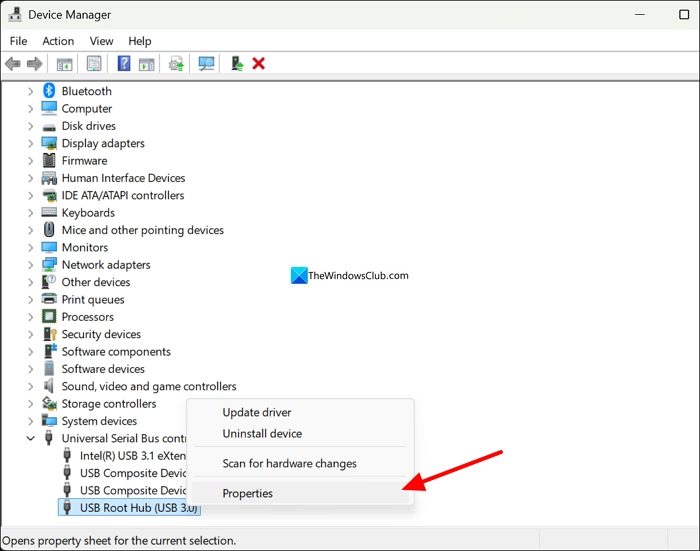
In the USB Root Hub (USB 3.0) Properties window, click the Power Management tab. Then, uncheck the button beside Allow the computer to turn off this device to save power.
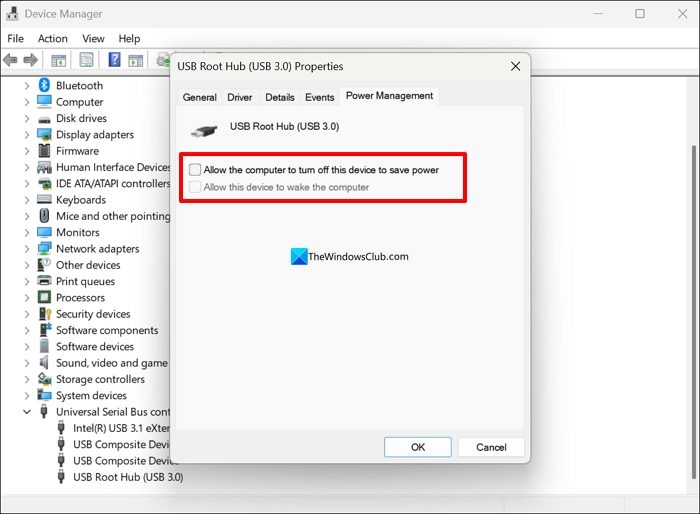
Click OK to save the changes. Restart your PC, and reconnect the external device you are having issues with.
5] Run SFC scan
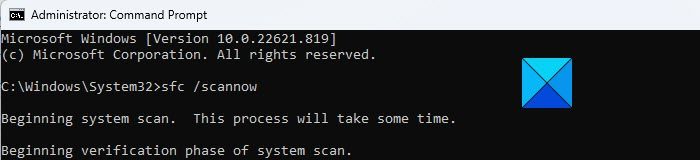
If there are any issues with the system files, such as corruption or missing files, you will see these issues. Running an SFC scan fixes it all by scanning for issues with the system files, and fixes the issues it finds for you.
6] Check in Clean Boot State
A clean boot is a state in which only Microsoft programs and services run. This helps us detect the root cause of the problem and fix it. Perform a Clean Boot from System Configuration. Then disable all third-party programs and see if the laptop detects the external devices.
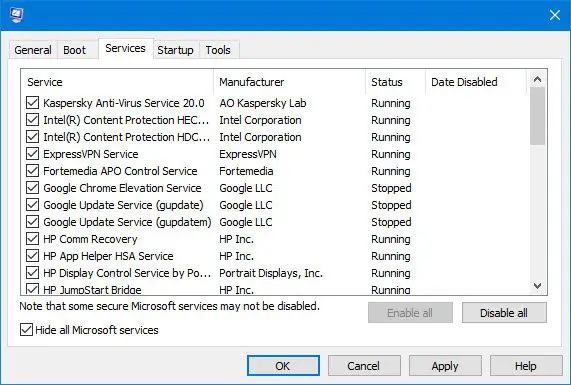
If the laptop is detecting those devices, the error must be caused by a third-party program. Now, enable third-party programs one after another to find the culprit. When you find the program responsible for the issue, uninstall it from your laptop.
7] Reset your PC
If the issue persists, you need to reset your PC to remove apps and settings while keeping your personal files. When Windows 11 is installed again from the cloud, any issues caused by the previous Windows installation are fixed automatically. To reset your PC, open the Settings app, click System, select Recovery, and click Reset PC under Recovery options.
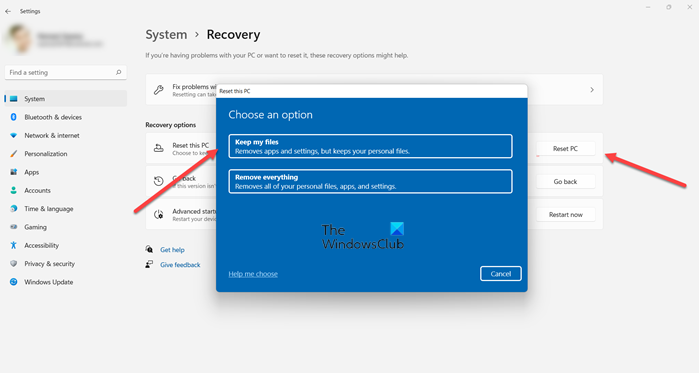
After a successful reset, your laptop will detect external devices again.
Read: External Hard Drive not showing up or detected in Windows 11
Why is my laptop not recognizing my external drive?
If your laptop is not detecting an external drive, there might be an issue with the cable or the external drive itself. The ports you are trying to connect could also be clogged with dust and debris. If there are any system-level corruptions, your external drive will not be detected until you fix the issues.
Why does my laptop not recognize my external monitors?
The cables you are trying to connect your monitors to the laptop and external monitors could be faulty. Even if the dongle or splitter you are trying to connect multiple monitors via a single port is faulty. Or you might have accidentally selected the PC screen only in your laptop’s Project options.
Related read: USB Devices not working in Windows 11
