
Are you unable to launch or open L.A. Noire on your Windows 11/10 PC? A lot of L.A. Noire gamers have reported being unable to launch the L.A. Noire game on their Windows PC. This could be a result of missing administrator rights, an outdated graphics driver, or broken game files. There can be some other reasons for this issue as well. If you are one of the affected users who can’t play L.A. Noire, this guide is for you. In this post, we are going to mention several fixes that will help you launch L.A. Noire smoothly.

Why is L.A. Noire not launching?
Several reasons might cause this issue. Some of the potential causes are:
- It could be caused due to lack of admin rights to run the game launcher. Try running Steam as an administrator to fix the issue.
- If your graphics driver isn’t updated, you may have trouble launching games like L.A. Noire. Update your graphics driver and check whether the problem is resolved.
- The game might fail to launch if your game files are corrupted. If applicable, you can fix the issue by verifying the integrity of your game files.
- It can also be caused by an outdated DirectX package. Install the latest version of DirectX, then try launching the game.
- If you have enabled Beta Participation on Steam, you might encounter this issue. So, try opting out of beta programs on Steam to fix the issue.
- You may face this problem because the game is corrupted. If applicable, you can fix the issue by reinstalling the game.
Now that you know what may be causing the issue, you can apply a suitable fix to resolve it.
L.A. Noire not working, launching or opening on PC
If L.A. Noire is not working, launching or opening on Windows 11/10 PC, you can try the below fixes:
- Launch Steam as an administrator.
- Update your graphics driver.
- Verify the integrity of game files.
- Install the latest DirectX version.
- Opt-out of all beta programs.
- Turn off SteamVR Desktop Game Theatre.
- Reinstall the game.
1] Launch Steam as an administrator
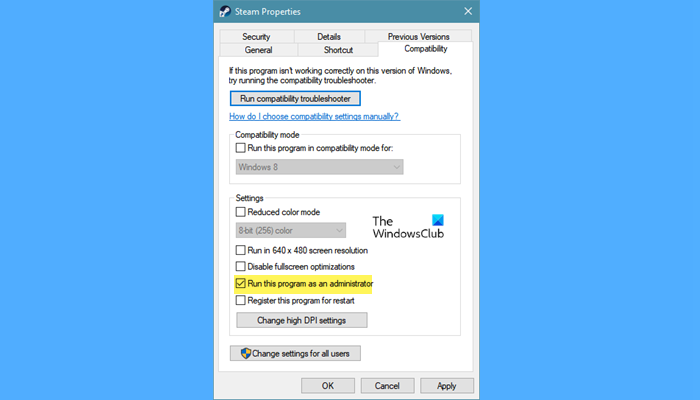
The issue might be caused if the game lacks due administrator rights. So, if you are running the game launcher i.e., Steam without admin rights, you might face the problem of being unable to launch L.A. Noire or any other game. Try running Steam as administrator to fix the issue. You can right-click on Steam’s shortcut and press the Run as administrator option to launch it with admin privileges. After that, try launching L.A. Noire and see if it launches without any issue.
If the problem is resolved by running Steam as an administrator, you will have to launch it with admin rights every time you want to play the game. In that case, you can make Steam run with admin rights always using the below steps:
- Firstly, right-click on the Steam executable.
- Now, from the appeared context menu, select the Properties option.
- Next, move to the Compatibility tab and enable the checkbox named Run this program as an administrator.
- After that, press the Apply > Ok button to save changes.
See whether this fixes the problem. If not, try the next potential fix.
Read: Xbox Error 0x82D40003 occurs when you launch a game.
2] Update your graphics driver
Launch issues with games are most likely caused due to corrupted and outdated graphics. Hence, make sure you have an updated graphics driver to avoid the problem at hand. You can Install Optional Updates to keep your GPU Driver updated. Or, download and install the latest graphic driver from the manufacturer’s website.
If you have an up-to-date graphics driver and you still get this problem, try the next potential fix.
Read: Hitman won’t launch on Windows PC.
3] Verify the integrity of game files
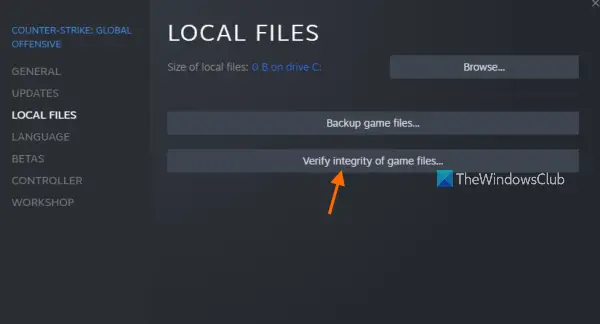
One reason L.A. Noire may not launch or open on your PC is corrupted game files. If you are dealing with bad, corrupted, or missing game files of the game, you are likely to face the issue at hand. Hence, if the scenario is applicable, verify the integrity of your game files on Steam to fxi the issue.
Here are the basic steps to verify and repair game files on Steam.
- Firstly, start the Steam client and go to LIBRARY.
- Now, locate the L.A. Noire game and right-click on it.
- Next, select the Properties option from the appeared context menu.
- After that, move to the LOCAL FILES tab and click on the VERIFY THE INTEGRITY OF GAME FILES button. Steam will scan and repair the corrupted game files.
- Finally, try launching the game and check whether the issue is fixed.
If the problem persists, try the next potential fix to resolve the issue.
See: FIFA won’t launch EA Desktop on PC.
4] Install the latest DirectX version
DirectX is important to run games properly on your Windows PC. Hence, make sure you have installed the latest version of DirectX to avoid such issues. You can visit the Microsoft Download Center page and download the latest build of DirectX. After that, run the installer and follow the prompted instructions to install it. After installing DirectX, reboot your PC, then try launching the game to see whether the problem is fixed.
5] Opt-out of all beta programs
If you have enabled Steam beta participation, it may cause the issue. Beta versions of games usually have bugs and issues and can cause game instability. If so, try opting out of all beta programs on Steam and see whether the issue is fixed. Here’s how to do that:
- Firstly, launch the Steam client and then tap on the Steam > Settings option.
- Now, navigate to the Account tab and find and press the CHANGE button present below the Beta participation section
- Next, tap on the Beta participation drop-down option and choose the NONE- Opt out of all beta programs option.
- Finally, close the settings window, reopen Steam, and check if you are able to launch the L.A. Noire game or not.
If this method doesn’t work, move on to the next potential fix.
Read: Generation Zero not launching, freezing, or crashing at startup on PC.
6] Turn off SteamVR Desktop Game Theatre
If you have enabled Steam Desktop Theatre mode, it may cause the issue. So, try disabling it and then check if the problem is resolved. Here’s how to do that:
- Firstly, open the Steam app and go to LIBRARY.
- Now, right-click on the L.A. Noire game and press the Properties option.
- Next, from the GENERAL tab, untick the Use Desktop Game Theatre while SteamVR is active option.
- After that, close the window and try launching your game.
If you still face the same issue, we have one more fix for you.
See: Wolcen Lords of Mayhem crashes and not launching
7] Reinstall the game
If none of the above solutions worked for you, the last resort is to reinstall the game. You might be dealing with a corrupted installation of the game and thus it is not opening. Hence, in that case, reinstalling the game should fix the problem. First, you will have to uninstall the game. Just open Steam and go to LIBRARY. Then, right-click on the L.A. Noire game and use the Manage > Uninstall option to remove the game. Once done, install it again on Steam and check if the problem is resolved.
Hope this helps.
Why is my game not opening PC?
Launch issues are likely caused if your system doesn’t meet the game’s minimum requirements. Apart from that, it can also be caused due to outdated Windows OS or graphics drivers. Make sure you update Windows and your graphics drivers. Additionally, corrupted or missing game files are also known to cause game launch problems.
Does L.A. Noire work on Windows 11?
Yes, L.A. Noire works on Windows 11/10. You can try playing it via Steam. It is also available on other platforms including PlayStation 4 and Xbox One.
How do I fix L.A. Noire on my computer?
If you can’t run L.A. Noire on your Windows 11/10 computer, try running Steam as an administrator. Otherwise, try updating your graphics driver, verifying and fixing corrupted game files, installing the latest DirectX build, or reinstalling the game. You can also try a few more fixes to resolve the issue. You can check out more solutions below in this post.
Now read:
