
Some users encountered slow internet speeds while playing games or streaming videos. Because of this problem, they could not play their favorite games properly. If your internet speed drops when playing games, downloading, or streaming videos, the solutions provided in this article will help you.

Internet speed drops when playing games, downloading, or streaming videos
Use the following fixes if your internet speed drops when playing games, downloading, or streaming videos:
- Run the Network and Internet Troubleshooter
- Use the Ethernet cable
- Troubleshoot in a Clean Boot state
- Reinstall the Network adapter
- Check the Network Boost setting in Lenovo Vantage (if applicable)
- Switch to the 5 GHz WiFi band
- Reset your network
All these fixes are explained below in detail.
1] Run the Network and Internet Troubleshooter
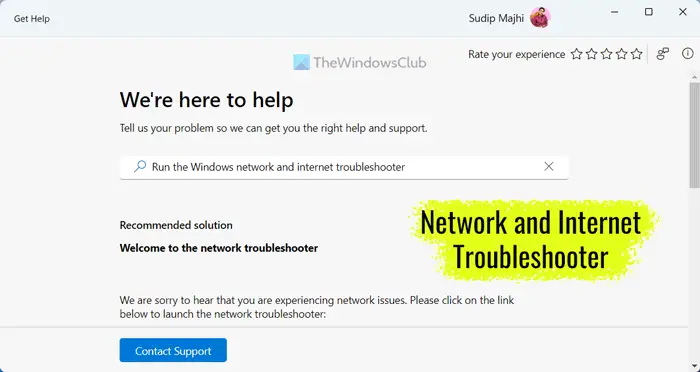
The Network and Internet Troubleshooter in Windows 11 helps users resolve internet connectivity issues. Run this troubleshooter and see if it helps. In Windows 11, you can launch it through the Get Help app.
2] Use an Ethernet cable
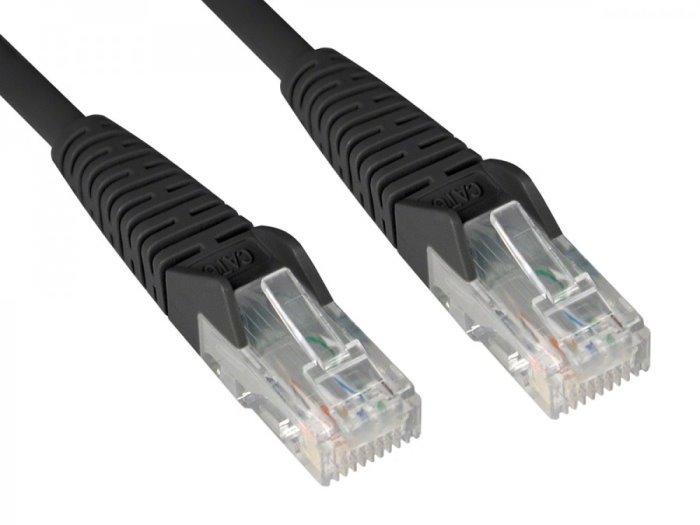
Wireless networks typically experience higher packet loss rates than wired networks. Connect your system to your WiFi router through an Ethernet cable. Ethernet cable connections are more stable. If this resolves the issue, you may need to contact your WiFi service provider to address any remaining concerns.
You can also try to power cycle your WiFi router. Follow these steps:
- Turn off your WiFi router.
- Unplug its power adapter from the wall socket.
- Wait for a few minutes.
- Plug the power adapter back into the wall socket and turn on your router.
3] Troubleshoot in a Clean Boot state
A third-party program or service might be responsible for this issue. To check this, boot your system in a Clean Boot state. Before proceeding, close and disable all startup apps and restart your computer. Now, check if the issue persists. If the issue disappears, enable the background startup apps one by one and restart your computer to find out which one was causing the problem.
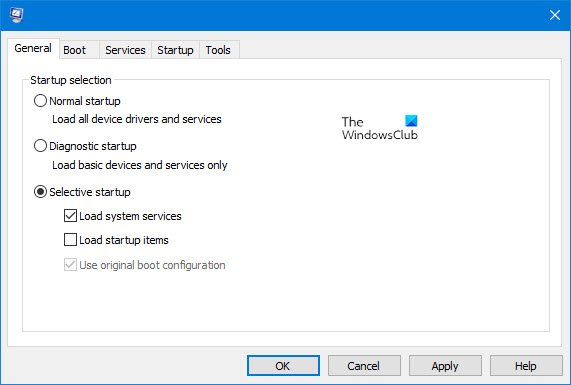
If this does not help, the next step is to identify the problematic service. For this, use MSConfig and enter the Clean Boot state. Be careful because if you disable all the Services by mistake, you will be in trouble. Once you are in the Clean Boot state, launch the game or play a video. If the issue does not occur, identify the problematic third-party service. For this, enable some of the disabled services and restart your computer. If the problem reappears, one of the services you have just enabled is the culprit. Repeat this process until you identify another problematic service.
4] Reinstall the Network adapter
The issue might be occurring due to a corrupt Network adapter. Reinstalling the Network adapter can help in such cases. Follow these steps:
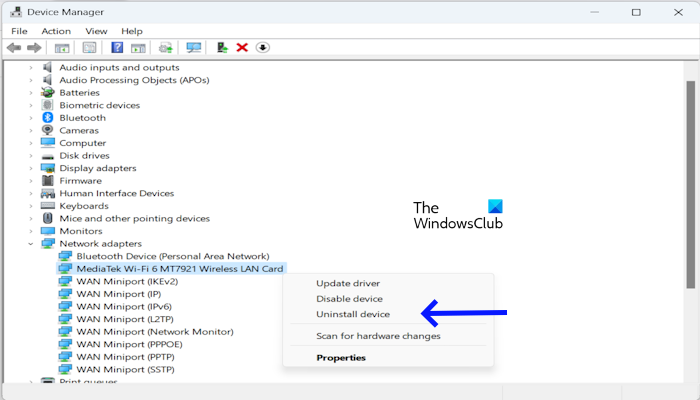
- Open the Device Manager.
- Expand the Network adapters branch.
- Right-click on your Network driver and select Uninstall device.
- Restart your computer or perform a scan for hardware changes to reinstall the uninstalled driver.
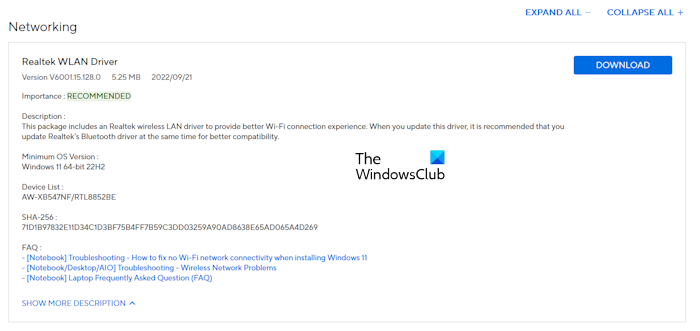
If the problem persists, download the latest version of your Network driver from the official website of your computer manufacturer and install it manually.
5] Check the Network Boost setting in Lenovo Vantage (if applicable)
Some gaming laptops have a dedicated setting to boost the internet speed while playing games. You can find this in the user manual for your system. Some Lenovo gaming laptops have a Network Boost setting. You can enable or disable this setting through the Lenovo Vantage software.
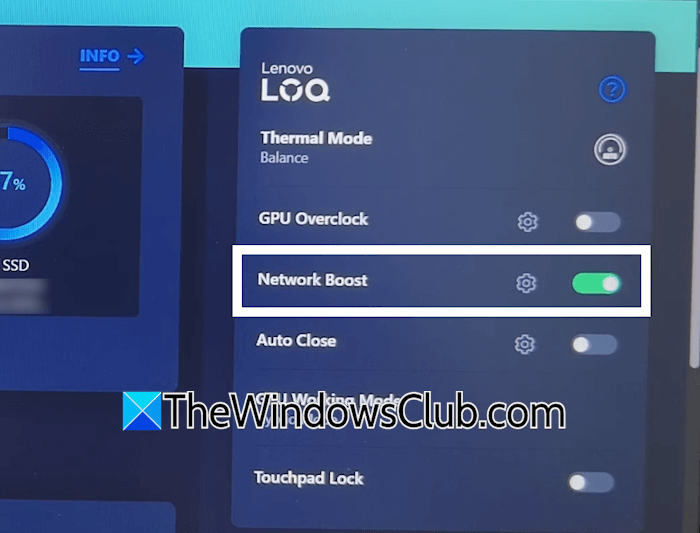
The Network Boost feature in Lenovo Vantage is designed to prioritize network traffic for gaming, typically resulting in faster performance during gameplay. However, if this setting remains active while streaming videos, you may experience a noticeable drop in your overall internet speed. Check this setting in Lenovo Vantage and change it accordingly.
6] Switch to the 5 GHz WiFi band
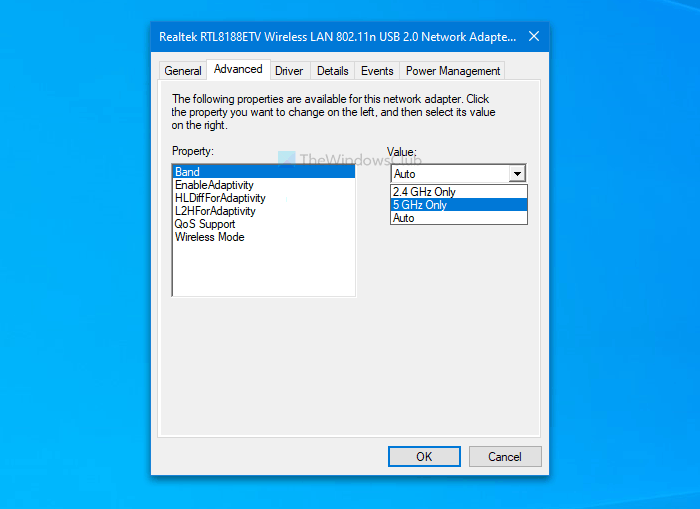
A 5 GHz WiFi band is faster than the 2.4 GHz WiFi band. If you have a dual-band WiFi router and your computer supports the 5 GHz WiFi band, connect it to the 5 GHz WiFi band.
7] Reset your network
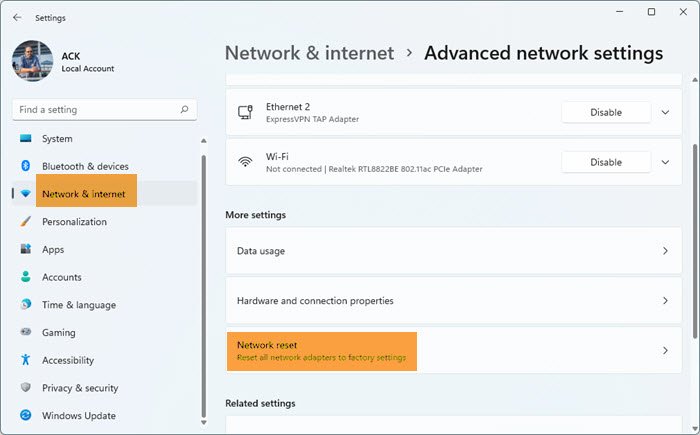
If none of the above-mentioned fixes work, reset your network. This step will reinstall your network adapter and set the networking components back to their default values. Windows will restart automatically during a Network Reset. Therefore, save all your pending work before proceeding.
That’s it. I hope this helps.
Why is my PC’s download speed so slow, even with Ethernet?
There can be multiple causes for a slow internet speed, even with an Ethernet cable. The main cause is the faulty Ethernet cable. Check your cable or replace it. Use a high-quality cable, such as a CAT5 cable. Outdated network adapters and a corrupt DNS cache can be some other causes for this issue.
How to fix the internet disconnecting every 10-20 minutes on PC?
If your WiFi keeps disconnecting randomly, you can try some fixes like running the Network and Internet Troubleshooter, reinstalling the Network adapters, resetting your Network, etc. This post will help you if your Ethernet keeps disconnecting in Windows.
