
Windows users can import browser data from Google Chrome to Microsoft Edge in the first run. This feature has especially been designed to keep users sticking to Microsoft Edge while they are setting up their new PCs. Before this update, users had to install Chrome if they wanted to import information, such as bookmarks, favorites, saved passwords, browsing history, and cookies. But now they will be able to import this data with a click of a button without having to install Chrome at all.
Microsoft has made this possible by requiring users to log in to their Google accounts during the first run of the Edge browser. This will allow Microsoft Edge to retrieve Chrome data that has been synced to the cloud.
Import Chrome Data to Microsoft Edge without installing Google Chrome
Here’s how you can import Chrome data to Microsoft Edge without installing Google Chrome:
- Open Microsoft Edge.
- Sign-in to your Google account.
- Allow Edge to import browser data.
- Choose a theme and finish setup.
Let’s understand the above steps in detail.
1] Open Microsoft Edge
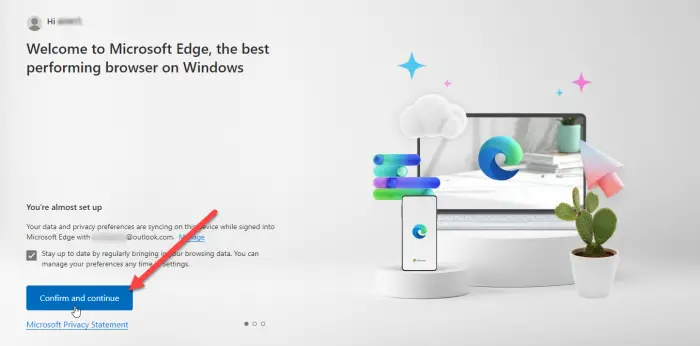
Launch Microsoft Edge browser on your PC. On the Welcome Screen, click on ‘Confirm and continue’.
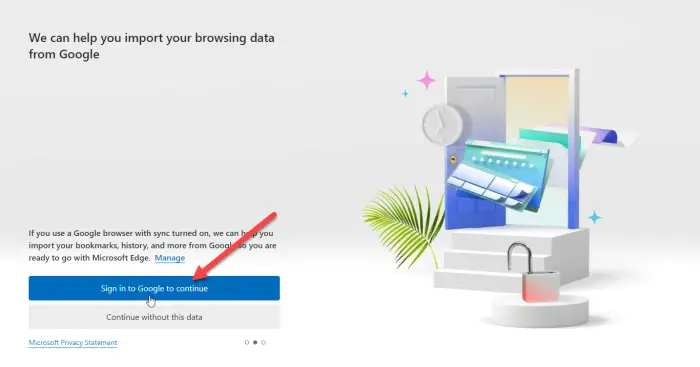
The next screen will ask for your permission to import browser data if you use Chrome with ‘Sync’ turned on. Click on ‘Sign in to Google to continue’.
TIP: Try these methods to fix the error if the sync feature is not working on your Chrome browser.
2] Sign-in to your Google account
You will see a ‘Google Sign In’ popup. Enter the email id associated with your Google account and then click on the ‘Next’ button.
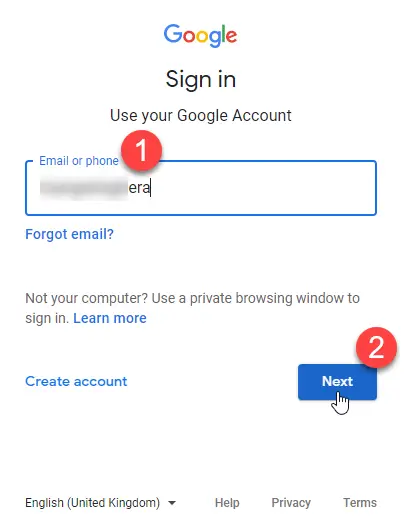
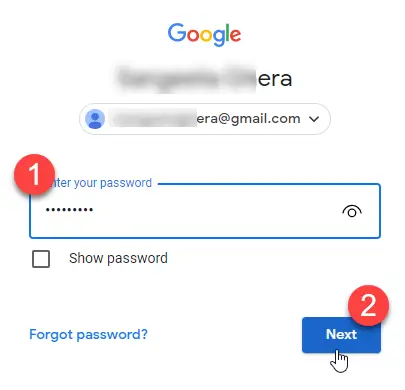
Enter your password in the next screen that appears in the popup. Then click on the ‘Next’ button.
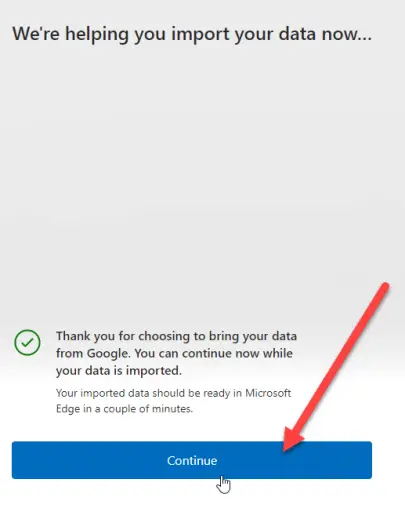
Microsoft Edge will begin importing data from Chrome. Click on ‘Continue’.
Also read: Gmail is not opening in Edge.
3] Allow Edge to import browser data
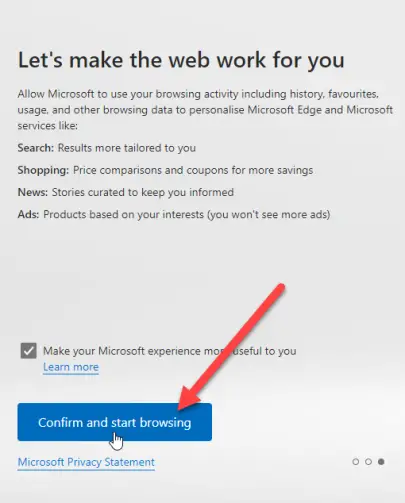
The next screen will ask for your permission to use the imported data to personalize Microsoft Edge for you. Click on ‘Confirm and start browsing’.
4] Choose a theme and finish setup
The next screen will ask you to pick a theme for your browser. Select a theme and click on the ‘Next’ button.
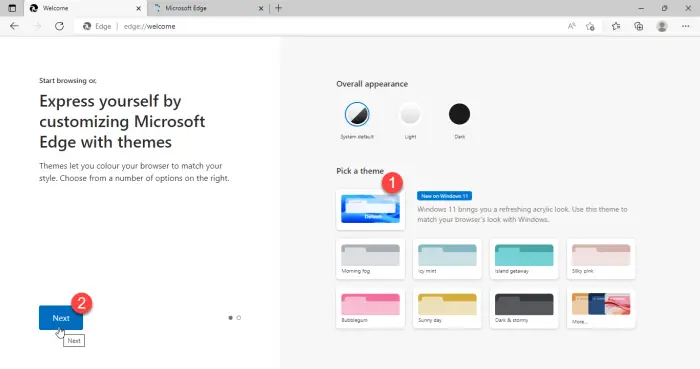
You’re done setting up Edge. Click on the ‘Finish’ button.
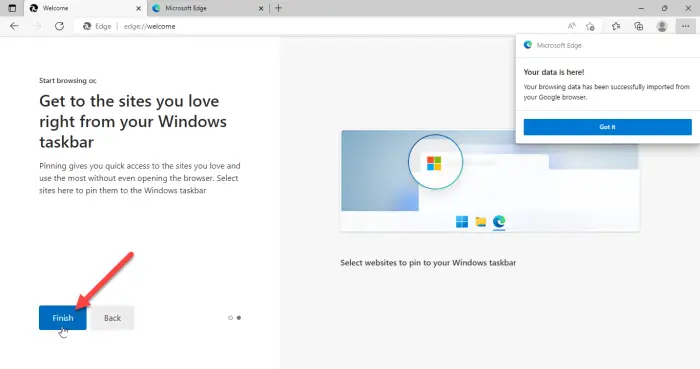
A notification on the top right corner of the browser window will confirm that Microsoft Edge has successfully imported browser data from Google Chrome.
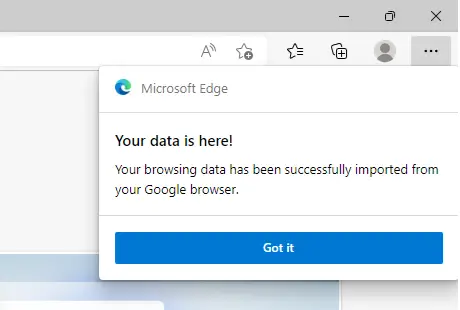
Once you’ve imported this data, you will be able to see bookmarks, saved passwords, browsing history, auto-fill details, and other important information in your Microsoft Edge browser.
Note:
- The screens shown above will appear when you run Microsoft Edge for the first time and you do not have Google Chrome installed. If you’re already using Edge, you can still import Chrome data, but you’ll need to install Google Chrome on your PC.
- The above method will help you quickly import browser data into Microsoft Edge without switching to Google Chrome. However, this will only work if you’ve synced your Chrome data to the cloud and have the ‘Sync’ feature enabled.
Microsoft Edge is giving Chrome tough competition by rolling out such features. However, it remains to be seen how successful it will be in increasing its user base, given that Chrome already has the highest share in the Web Browser Market. Nevertheless, this is going to be an exciting feature for those with firsthand experience on Edge.
How do I transfer Chrome data to Microsoft Edge?
The new Microsoft Edge is giving the option to automatically import all your browser data from Google Chrome when you first run it on your system. You just need to sign in to your Google account to transfer the data. Once you are logged in, all your Chrome data synced to the cloud will automatically be imported and available in Edge for easy access.
Read next: How to reset or repair the Microsoft Edge browser.
Can you transfer Chrome passwords to Edge?
Yes, you can transfer Chrome passwords to Edge without even installing Chrome. When you run Microsoft Edge for the first time, it will ask you to sign in to your Google account to import data such as browser history, passwords, cookies, and more. Once you allow Edge to import this data, your Chrome data, including your saved passwords, will be transferred to Edge.
