
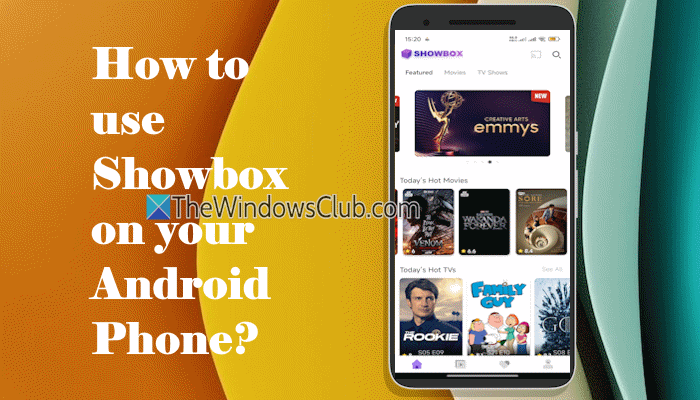
Showbox is a widely known third-party Android app for streaming TV shows and movies without ads. Although the app isn’t available on the Play Store, you can still download the Showbox APK from a reliable source and install it. In this tutorial, we will show you how to download, install, and use Showbox on your Android phone with step-by-step instructions for the whole process.
Requirements to use Showbox
Android version 5.0 or higher is required to use Showbox. Its APK file size is around 26 MB, but you should have 150-300 MB of space for uninterrupted installation. Also, it is good to keep at least 1 GB or more free storage space for a lag-free experience. Additionally, you must enable the setting to install apps from unknown sources on your Android phone.
How to use Showbox on your Android Phone?
Follow this process to use Showbox on your Android phone:
- Enable the Install Unknown Apps setting
- Download the Showbox APK file
- Install the Showbox app on your Android device
- Open and use the Showbox app for streaming
- Customize Showbox Settings.
Let’s check the entire process with a step-by-step guide.
1] Enable the Install Unknown Apps setting
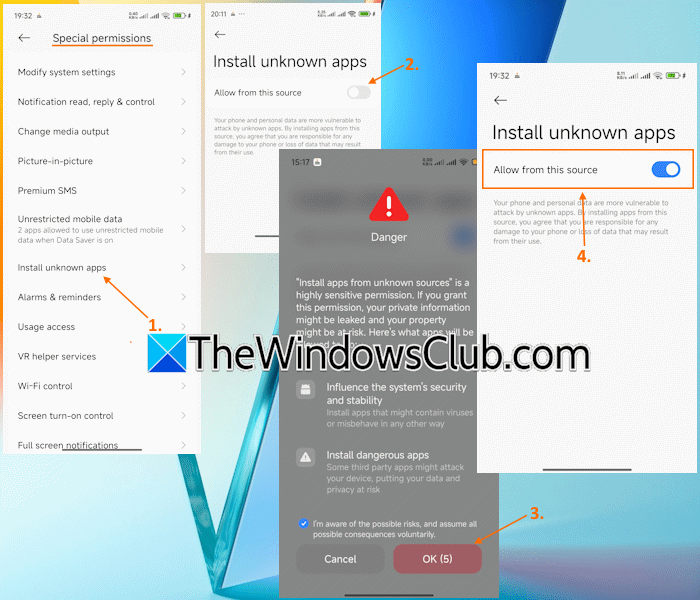
To download and install APKs or third-party apps from sources other than the Play Store on an Android phone, you have to enable the Install Unknown Apps setting. The steps may vary by device and manufacturer, but should be similar. Here are the steps:
- Open the Settings app
- Tap on the Privacy protection (Privacy or Security)
- Tap on the Special permissions option
- Tap on the Install unknown apps option
- Select a browser (say Chrome, Edge, etc.) that you want to use to download the APK file
- Use the toggle for Allow from this source option to turn it on
- You may receive a warning message. Tick mark the I’m aware of the possible risks, and assume all possible consequences voluntarily option
- Tap OK.
2] Download the Showbox APK file
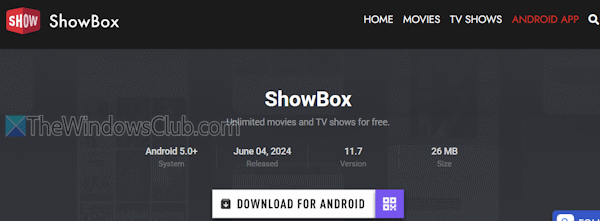
Open your browser and search for the APK file for Showbox. You can download the Showbox APK file from a site like https://www.showbox.media or another site that you trust. Use the DOWNLOAD FOR ANDROID button to get the APK file.
There are some cloned apps, sites, and links with malware and viruses that can put your device at serious risk. Therefore, in case of doubt, check if a website is safe or check if a link is safe from Google Safe Browsing Check, VirusTotal, and other trusted and reputable sources.
3] Install the Showbox app on your Android device
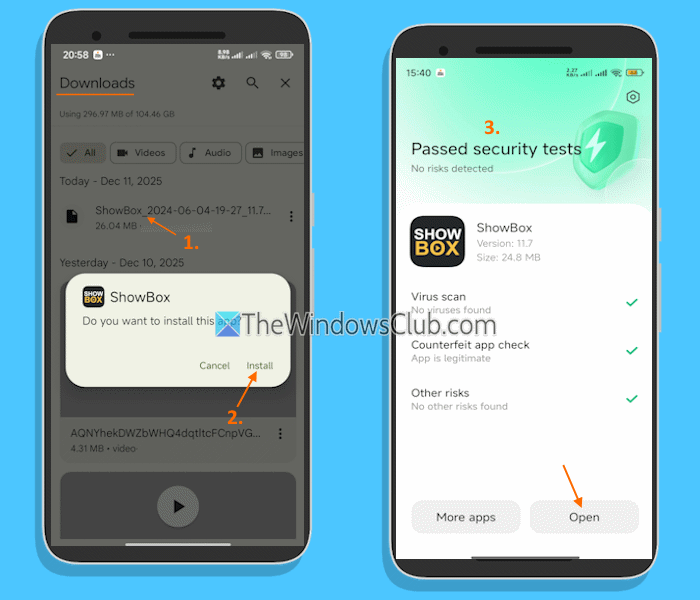
The steps to install the Showbox app on your Android device are as follows:
- Open the Downloads section of your browser or File Manager, then search for the downloaded file. Use the search box and type Showbox to find it quickly
- Tap on the Showbox APK file, and a pop-up will open
- Tap on the Install option
- After completing the installation, security tests will begin for the app for Virus scan, Counterfeit app check, and other risks
- Once it has passed security tests, you can open the app.
Related: How to watch free Movies online legally
4] Open and use the Showbox app for streaming
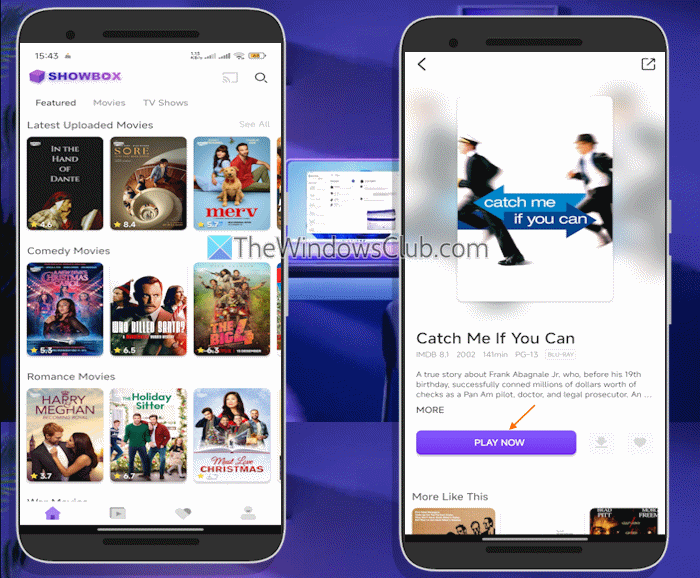
Once the installation is successful, you can open and use the Showbox app for streaming. The steps are:
- Tap on the Open button, or you can launch the Showbox app from the apps list
- While opening it for the first time, it will ask permission to access photos, videos, music, audio, and other files on your device. You can tap Don’t allow and continue
- Now the Showbox app interface will open. You can explore Featured, Movies, and TV Shows categories, and also search for titles from the Home section
- Movies and TV shows are also categorised by IMDB Rating, Top Movie Lists, This Week’s Hot TVs, Latest Uploaded Movies, and more
- Select a title and then tap on the PLAY NOW button. You will have to log in to select a source and start the streaming
- You can also add titles to the watchlist (default or custom) and access them from the Favorite section.
5] Customize Showbox Settings
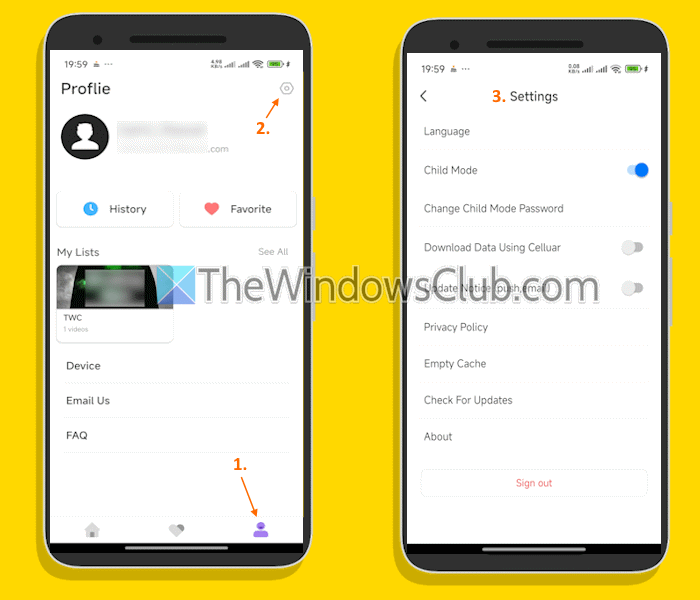
You can customize the Showbox app settings using the following steps:
- Tap on the Profile icon in the bottom right corner of the Showbox app
- Here, you can modify your username, check and clear History, and also access the My Lists section
- To customize the Showbox Settings, tap on the gear icon in the top right corner of the Profile section
- Now you can enable/disable Child Mode, download data using the cellular option, change language, empty cache, sign out from the app, etc. To use the Child Mode, you have to draw a pattern and confirm it.
That’s all.
Now read: Best free Movie apps available on the Microsoft Store for Windows PC
What replaced the Showbox app?
A specific app or site doesn’t replace the Showbox Android app, and you may find various sources with fake or cloned Showbox apps and APKs containing viruses and malware, which are harmful to your device. However, there are some Showbox alternatives, like Tubi, Pluto TV (one of the best Project Free TV alternatives), etc., available on the Play Store that you can try. You will need a subscription to stream and/or download movies and TV shows.
How can I watch movies on my Android phone?
Netflix and Prime Video are two major, popular OTT platforms for watching movies on Android phones. These are ad-supported and subscription-based services with a vast library of movies, original content, TV shows, documentaries, etc. Apart from these two apps, you can watch movies on Stremio, JioHotstar, YouTube, Plex, and other well-known platforms.
Read next: Best Netflix alternatives you need to try out.
