
Digital image loses quality with use. For example, when we share it as an image without selecting to send it as HD on WhatsApp, the quality degrades. Earlier, to improve quality and restore an image to its best look, it takes a professional who is a master of tools like Photoshop. With AI, anyone can improve the quality of an image, unblur it, and restore it without using a single tool in Photoshop or paying a penny for a tool. In this guide, we show you different ways to unblur an image and restore clarity on a Windows PC.
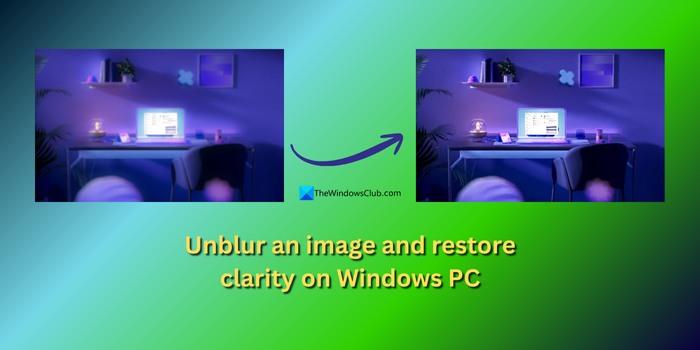
How to unblur an image or bring clarity in photos on a Windows PC
Images lose quality in multiple ways. Some lose their resolution and gradually degrade with each share. Some lose clarity, some go out of style through over-editing, and physical photos may lose shape over time and weather. Unblurring and restoring clarity of images on a Windows PC involves multiple steps. If your images have faces blurred beyond repair, no tool can help. Reference images would be very helpful in such instances. Follow these steps based on the issue you have with the image.
- Restore blurred, lost or damaged face
- Restore the quality of compressed and pixelated images
- Restore images with motion blur
- Restore old photos with faded colors
Let’s see how we can restore images in any instance.
1] Restore blurred, lost, or damaged face
Restoring a face in a photo with partial damage, like an eye, an ear, a part of a cheek, or a part of the body, is easy. Any AI tool can restore the damage based on the image data. Google Gemini is one of the finest models currently available for free to restore a lost or damaged face. Open a web browser on your Windows PC and visit gemini.google.com. Click on Tools and select Create images.
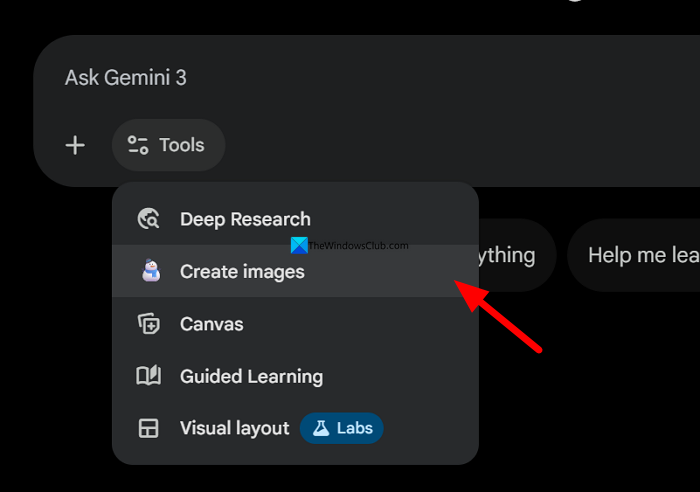
Then upload your partially damaged photo to it and ask to recreate the face without altering the facial features or expressions. You can ask it to change your image into anything while restoring the face. After you have restored the face using Google Gemini, remove the Google Gemini watermark using free watermark remover tools and upscale the image to a better resolution, as Google Gemini does not produce the resolutions we normally require for a high-quality image.
If the entire face in your image is damaged, you’ll need a reference image to restore it. This way, Google Gemini models can read the facial features on the reference image and restore the damaged photo, and save you a great memory. Upload the damaged image along with the reference image, and ask it to recreate the face based on the reference photo’s facial features.
2] Restore the quality of compressed and pixelated images
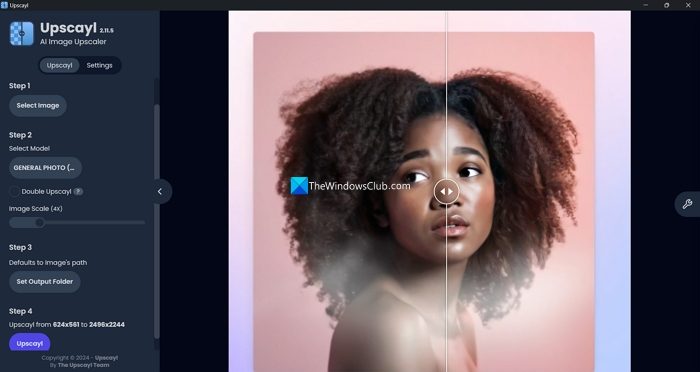
Image compression reduces an image’s size by removing pixels while preserving quality. When an image loses too many pixels, it looks pixelated. Images you’ve shot on your old phones before the smartphone era also look pixelated on current screens because of the higher resolutions we use daily.
In such instances, Upscayl is the best option, as you can use many models and upscale images 2x or 4x without any restrictions. The good thing is you can download it to your PC, use it, and tweak the settings to get the quality you desire.
Read: How to upscale an Image using Copilot PC
3] Restore images with motion blur
Motion blur in images is common. When we hurriedly click pictures while on trips or in busy places, many of our images get motion-blurred. Some images look cool with motion blur, but most of the time it spoils the image’s look and the memories associated with it. Topaz (which offers many great premium tools to enhance productivity in Adobe Photoshop) provides a tool to easily sharpen images with motion blur and restore them.
Open a web browser on your Windows PC and visit the Topaz Labs Sharpen Image website. Upload the image with motion blur, create an account when prompted, and sharpen it to remove the blur.
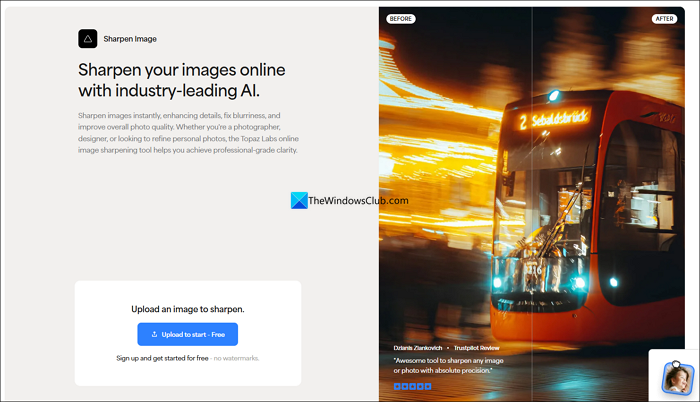
If the entire image is motion-blurred, select Everything under Selection. Then, select Motion Blur under Settings. Adjust the strength accordingly by trying it and see how it affects the image.
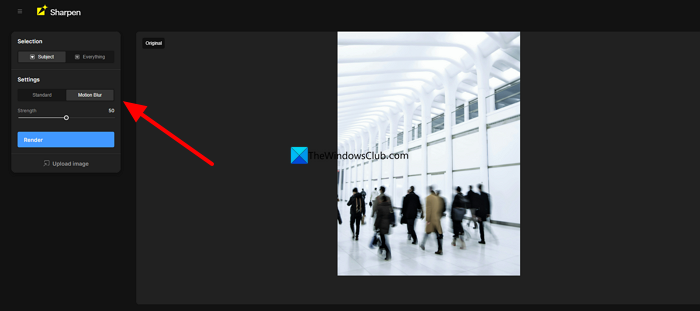
After successfully sharpening the motion blur, you can render it without a watermark. If you get a low-quality image compared to your original, you can easily upscale it.
Read: How to stabilize Shaky Video Footage in Adobe Premiere Pro
4] Restore old photos with faded colors
If you have old photos with faded colors, you can use GIMP to restore them to normal levels and then enhance them further using Google Gemini. Install GIMP from the Microsoft Store. Open GIMP and import your image into it. Click on Colors tab in the menu bar.
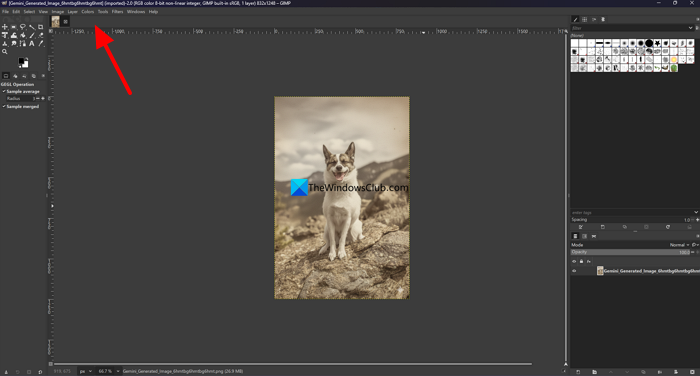
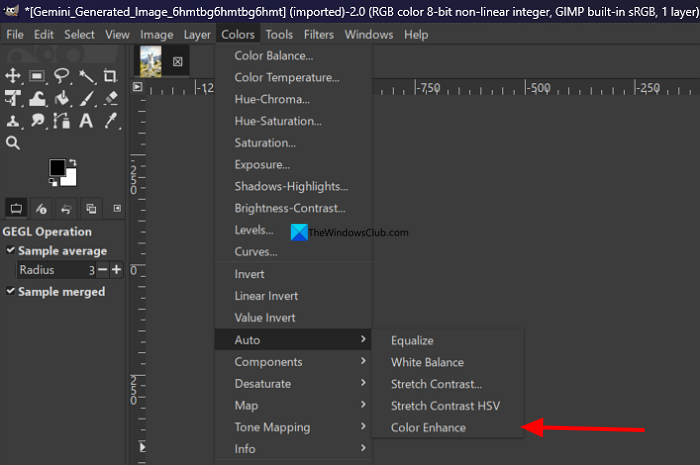
Go to Auto in the Colors menu and click Color Enhance. Then use Equalize, White Balance, and Color Enhance until you achieve the desired colors in your image.
It will colorize your image to the nearest possible colors and make the image look good.
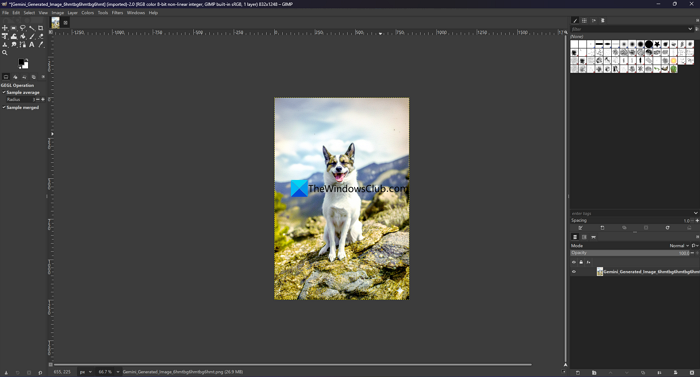
If it has any damage or if you want to improve the photo further, you can use Google Gemini or any other AI tool.
Related posts:
- How to fix Blurry Pictures in Photoshop
- Deblur and fix blurry Photos & Images using free software & online tool
How to turn blur image to HD?
You can easily turn a blurred image into HD by sharpening it and then upscaling it to HD. Sharpening an image without losing the image features can only be done by professional-grade image tools. Upscaling can be done by any AI tool that offers it as most of them use the same models.
Read: Add color to Black and White Photos with Picture Colorizer for PC
Can faded color photos be restored?
Yes, faded colors can be easily restored, even with free tools like GIMP. If you cannot use GIMP, you can use AI tools to colorize your images and enhance the quality. The colors they generate and the levels they produce will depend on the models and how we prompt them to colorize.
Related read: Free Image Editing Software and Editors for Windows.
