
In this post, we will show you how to set up an auto-reply in Zoho Mail on a PC. If you are going on vacation, travelling with limited or no internet access, or are unable to respond to emails immediately, you can set an auto-reply in Zoho Mail.
Setting up an auto-reply is a professional way to inform your colleagues, clients, and business contacts that you’re unavailable at the moment and that your response will be delayed. This helps bridge the communication gap by ensuring that senders are not left wondering why they have not received a response or what to do in an emergency.
Can Zoho send automated emails?
Yes, Zoho Mail can send automated emails using its out-of-office feature. An out-of-office email is a system-triggered auto reply message sent to incoming emails to inform senders that you are unavailable or away. It can be configured to be sent at a set time interval and to send different responses to internal (organization) and external (outside the organization) email addresses.
How to set Auto Reply in Zoho Mail
To set up an out-of-office auto reply in Zoho Mail on a Windows 11/10 PC, follow these steps:
Sign in to your Zoho Mail account. Click the Settings icon in the top-right corner. Under the Mail section, click Out of Office.
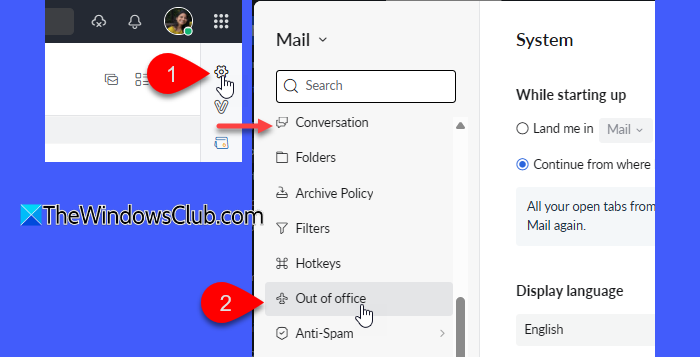
In the right pane, you can configure your out-of-office auto replies.
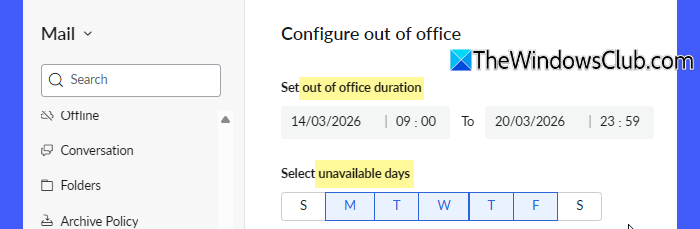
Start by providing the Start and End date and time for which you want to configure the auto reply.
By default, the replies are sent on all days. If you want them to be sent on specific days, deselect the other days.
Next, choose your audience. You can send an automated response only to organization users, external users, or both. By default, both are enabled, and you can configure distinct auto-replies for them.
Under the Organization’s User Auto-Response Activation section, type the subject and message you want to send as an automatic reply. You can also make the response more professional by adding a signature using the Signature editor available in the toolbar. This allows you to include your name, designation, and contact details in the reply.
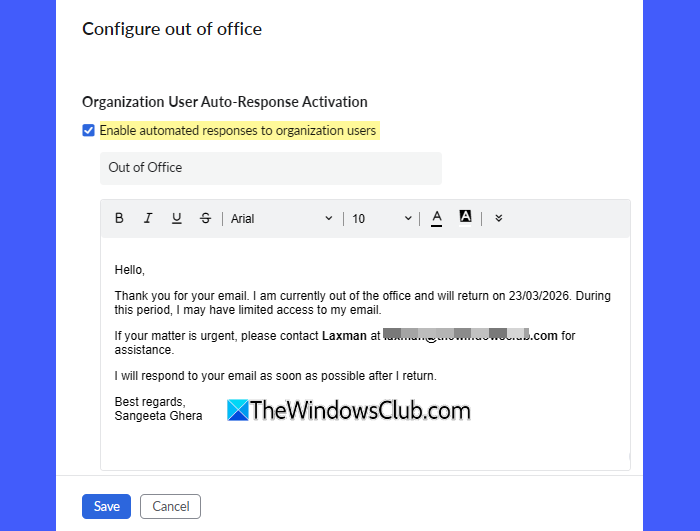
If you don’t want to configure the message for internal users, uncheck the Enable automated responses to organization users checkbox.
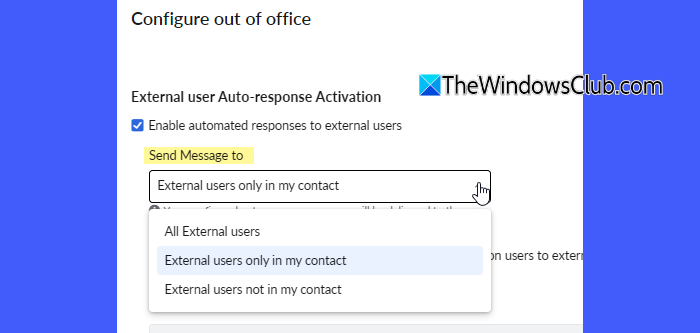
To configure an auto-response for external users, scroll down to the External user Auto-response Activation section. Ensure the Enable automated responses to external users checkbox is selected. Then specify whether you want to send the auto-reply to all external users, to external users in your contacts, or to external users not in your contacts.
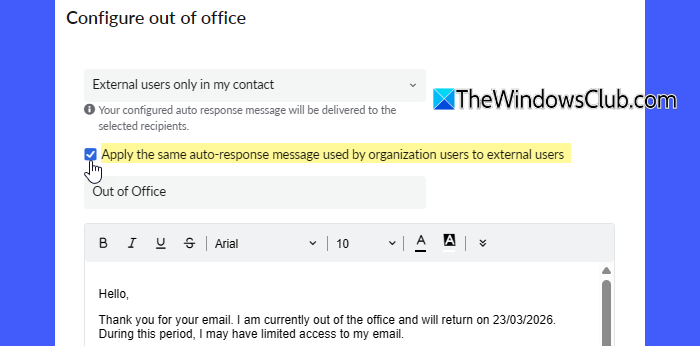
If you want to use the same auto-response for both organization and external users, select the Apply the same auto-response message used by organization users to external users checkbox. Otherwise, draft a new response by entering the subject and the message content in the available fields.
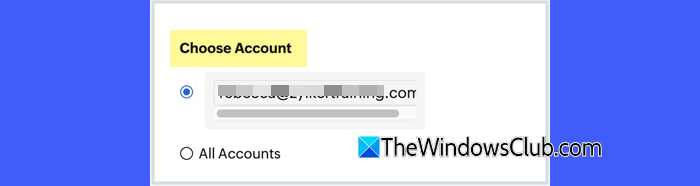
If you have multiple email accounts in Zoho Mail, you can choose the account for which you want to set the auto reply. In the Choose Account section, select the specific email account or choose All accounts to apply the auto reply to every account.
Note:
- You can configure only one out-of-office reply per email account.
- If an out-of-office reply already exists for the selected account, the new settings will replace it.
- If emails are received through an alias address, Zoho Mail will send the auto reply using that alias by default.
Next, choose the auto-response interval to control how frequently the same sender receives your auto reply.
You can select one of the following options:
- Send one reply for the entire duration: The sender gets only one automatic response, even if they send multiple emails during your absence.
- Reply every [n] days: The sender can receive another auto reply after the specified number of days if they email you again.
- Reply even on the same day: The sender receives an auto reply for every email, even if multiple emails are sent on the same day.

The next two settings let you further control your Zoho Mail auto-replies:
Reply to emails only if the email address is in the ‘To’ field: By default, out-of-office messages are sent in response to all incoming emails, regardless of whether they’re addressed directly to you or include your email in the To/Cc fields. If you want to send auto-replies only to the emails sent directly to you, select this option.

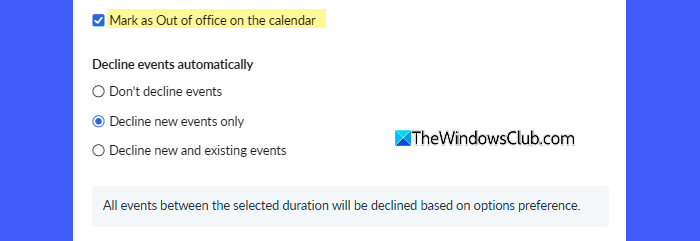
Mark as Out of office on the calendar: This option lets you decline any calendar meetings scheduled during your out-of-office based on the option you choose:
-
- Don’t decline events: Meetings will remain on your calendar; nothing is declined automatically.
- Decline new events only: Only new meeting invites received will be declined. Existing meetings will stay on your calendar.
- Decline new and existing events: Both future meeting invites and meetings already scheduled during that period will be automatically declined.
Finally, you can choose to save the auto-responded emails in the Sent folder using the available toggle.
Click Save, and Zoho Mail will automatically send the configured message to anyone who emails you during the selected time period.

That’s all! I hope you find this helpful.
Read:
How to reply to an email in Zoho?
To reply to an email in Zoho Mail, open the email and click the Reply or Reply All option at the bottom. Then type your response, and then click Send. If you want Zoho Mail to send a predefined response to senders while you’re away, you can configure the out-of-office feature in Settings.
Read Next:
