
Windows 11/10 Task Manager opens to the Processes tab by default, but you can now set the default tab to open. This is a new feature that has been added to Windows now. The Task Manager is used to monitor the applications, processes, and services that are running on your computer. It is also used to monitor the performance of computer hardware and network statistics.
The Task Manager has evolved with time right from Windows 3 to Windows 11 and the new Windows 11/10 Task Manager, now offers a lot of information. We have already seen how the Windows Task Manager works and also the features of the Windows Task Manager, including how to understand the heat map of the Task Manager. Now we take a look at one more new feature.
Change Default Startup Tab of Task Manager of Windows 11
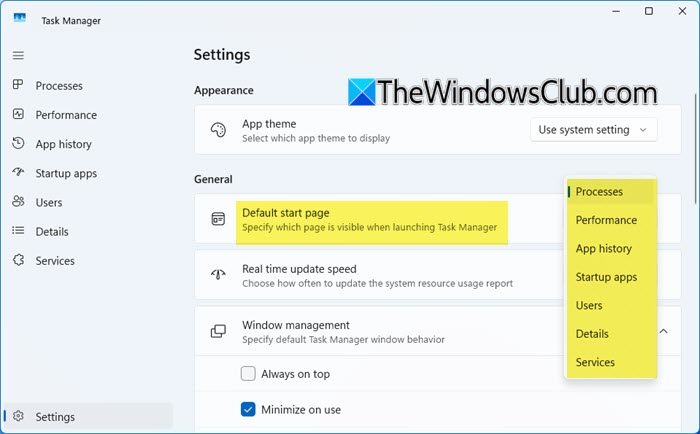
To change the Default Startup Tab of Task Manager in Windows 11, press Ctrl+Shift+Esc.
- This will open the Task Manager
- Click on Settings inthe bottom left corner
- Under General, locate Default start page
- From the drop-down against it, select Performance, Services or any other tab that you want displayed.
That’s it.
Set Default Tab to open in Task Manager in Windows 10
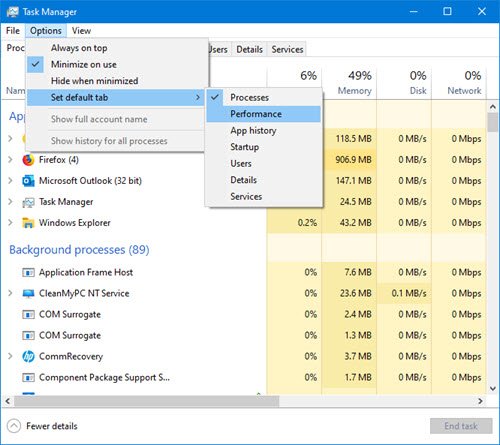
Right-click on the Taskbar and select Task Manager to launch it. Here you will see the several Columns that it offers.
Click open the Options tab on the top menu bar and then select Set default tab.
Here you will see the tab options available:
- Process
- Performance
- App History
- Startup
- Users
- Details
- Services.
The default is Process, but you may select any other like Performance.
The next time you start the Task Manager, it will open to the Performance tab.
I hope this small tip is useful to you.
If you are looking for more control, these free Task Manager alternative software may also interest you.
Also read: How to Reset Task Manager to Default in Windows.
