
The Windows Task Manager is one of the most widely used apps in the Windows operating system. It has a long history, having first shown up in early versions of Windows as a simple utility to close and switch between programs.
In Windows 3, the Task Manager was a simple utility for closing and switching between programs. Over the years, several features and functionalities have been added to it, making it what it is today in Windows 11. Using the Task Manager in Windows 7, you can now close applications, find out detailed data about your processes, start or stop services, to monitor your network adaptor, or even to perform basic system administrator tasks for currently logged-on users.
See how the Task Manager has evolved from Windows 3 to Windows 11.
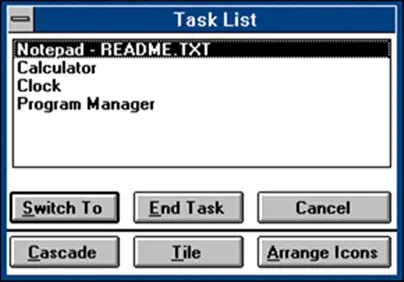
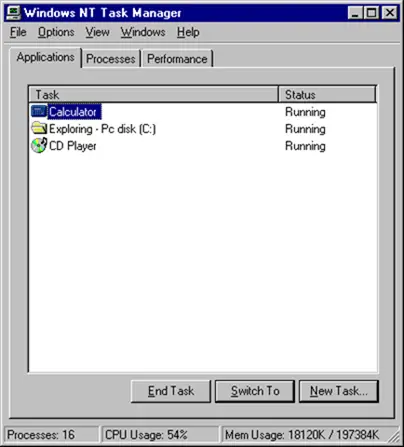
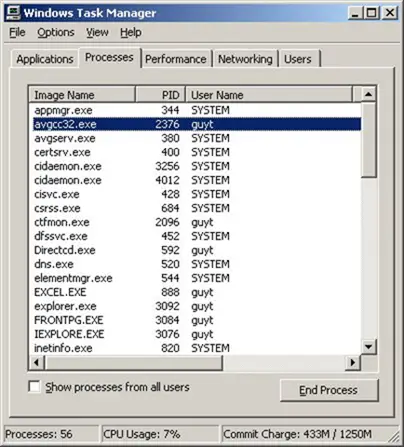
Windows 8/10 takes it a step further and adds significantly more. The Task Manager in Windows 8/10 will introduce several new features and update its UI.
The new Task Manager in Windows 10/8 looks much cleaner and focused now and does not overwhelm the user with too many details.
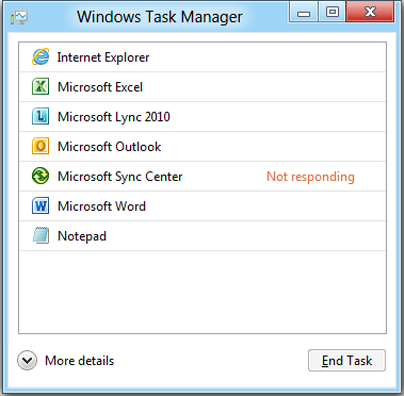
However, if he requires more details, he can always click the More details button.
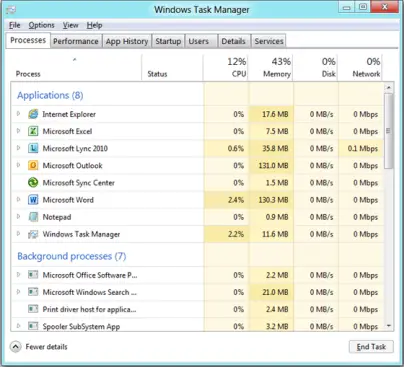
Now if a particular process consumes above-normal resources, the column header will change its color to red/orange to draw your attention to it. This is the Heat Map.
Task Manager in Windows 10
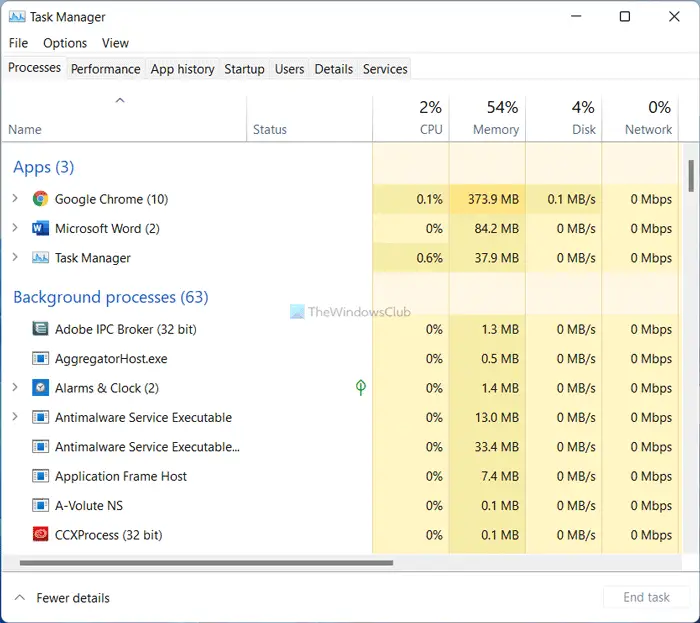
The Task Manager in Windows 10 features several new enhancements that may be useful to you. Whether you want to check the heat map or remove startup programs, everything is possible with the help of the Task Manager.
Task Manager in Windows 11
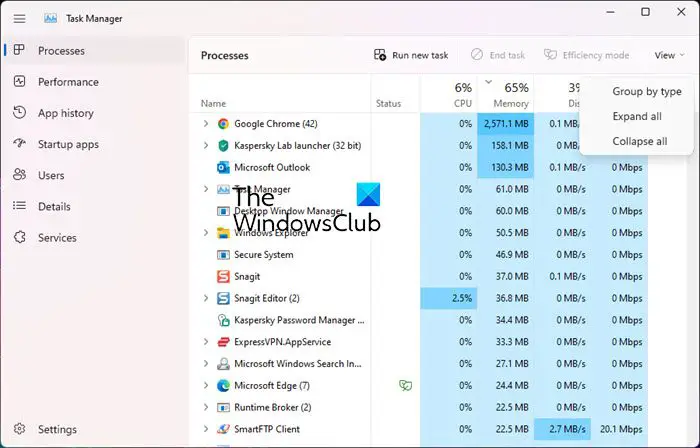
The first thing you will notice is that the menu and tabs have been moved from the top to the left side in Windows 11 Task Manager.

Here are some of the most important features and options you can see in the Windows 11/10 Task Manager:
Processes
It is the first tab you can find after opening the Task Manager on your Windows 11 computer. Here, you can see two main sections: Apps and Background Processes. The Apps section displays all the currently opened apps that you can close. The latter section displays all the background processes currently running.
To close any running app or process, you need to select it and click on the End task button.
Performance
It is one of the most crucial components of the Windows 11 Task Manager. Whether you want to check the CPU performance or RAM, you can do both on this tab. It displays almost every important piece of hardware information, allowing you to manage your computer efficiently. On the other hand, it displays your RAM speed, the number of threads, sockets, logical processors, and whether virtualization is enabled or disabled, among other details.
Depending on the computer you are using, you can find information about Wi-Fi, Ethernet, GPU performance, and more.
App history
At times, you might want to check the uptime of a certain app for any reason. If so, you can use this tab to collect such information. Whether you want to check the performance of Cortana, Groove Music, Microsoft Edge, or anything else, you can do so with the help of this tab of Task Manager.
Startup
If you want to improve your computer’s boot time, this tab is one of your companions. You can enable or disable certain programs from starting up at boot, allowing for a faster boot time. Whether it is Cortana, Spotify, or Microsoft OneDrive, you can add or remove any program from the startup.
Users
If your computer has multiple users and you want to know their uptime, app usage, etc., you can check out this tab in the Task Manager. It shows all the information related to your user account, apps, and more. Whether you have one or multiple user accounts, you can get similar information for all the users.
Details
The Details tab shows all the processes running for a particular app. Whether it is Adobe Photoshop, Google Chrome, Microsoft Edge, or anything else, you can find each background process of all the apps in this tab. Following that, if you wish, you can close any task according to your requirements.
Services
It is similar to the Details tab, but it shows all the services running in the background. You can all the services that are currently running to make your computer smoother in this tab. Whether you want to disable Windows Update or BITS, you can do so with the help of this tab. However, it doesn’t end the service directly. Instead, it helps you to know the current status of the services and allows you to open the Services panel to complete the task.
Who invented Task Manager?
As per some sources, David Plummer is the inventor of Task Manager for the Windows operating system. However, things have evolved over the past few decades and since the launch of the first version of Task Manager. In Windows 11, it is significantly better, smoother, and more user-friendly than all the older versions.
What does a Task Manager do?
Task Manager does several things. From ending a background process, app, service to disabling startup programs, you can do so many things with the help of Task Manager. However, the workflow depends on the version of Windows you are using. For example, the Windows 11 edition is probably the most useful form of Task Manager.
Learn how to use Windows Task Manager as an IT Pro.
