
Windows Task Manager is an essential built-in program in Windows. However, it doesn’t do more than kill unresponsive processes; it doesn’t actually control or manage them.
Is there no Task Manager in Windows 11?
Windows 11 has a built-in Task Manager. You can launch it by pressing either the Ctrl + Shift + Esc keys or the Ctrl + Alt + Delete keys. The Task Manager shows all the running apps, software, and processes. You can use it to manage the running applications and processes on your system.
Free Task Manager alternative software for PC
If you wish to control the processes on your PC, then here are some Task Manager alternatives that will help you manage the processes. Moreover, these software are free and hold various features. Read on to know more about these Task Manager alternative software.
- Task Manager Deluxe
- Daphne
- AnVir Task Manager Free
- Microsoft Sysinternals Process Explorer
- System Explorer
- Glarysoft Security Process Explorer
- TaskInfo
- WinUtilities Process Security
- Process Hacker
- Starter Startup Manager
- Customized Task Manager.
1. Task Manager Deluxe
Task Manager Deluxe is a portable Task Manager alternative software for Windows 11/10 PCS. There are additional features compared to those provided by Windows’ native Task Manager. This is an easy tool to get detailed information about system processes.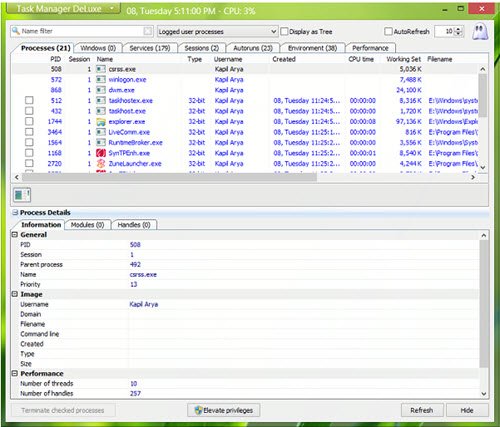
This Task Manager alternative software for Windows is freeware. It has various tabs with a detailed view for each task. You can see the process IDs in the tool, along with their type and file name. To know more about the selected task, click on ‘Process Details’. In the native Task Manager, you have to select a task, then click ‘End Task’ to terminate it. However, this tool lets you terminate multiple tasks simultaneously. The tool also has an auto-refresh feature that refreshes the information on the screen.
Read: Track, Control and Monitor Windows PC using AppControl Task Manager.
2. Daphne
Yet another Task Manager alternative software for Windows PCs. It serves as a convenient replacement for the native Windows Task Manager to kill, control, close, and debug Windows processes. As other alternatives, Daphne too is a process management tool that has several features. Apart from killing the unresponsive processes, Daphne also helps in debugging an application.
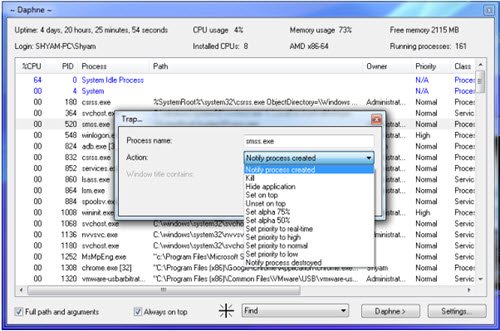
Unlike the Windows Task Manager, Daphne has more options for killing a process. It offers to Kill, Kill Politely, Kill At, Kill Politely At. You can even schedule an application’s termination, which is a handy feature. To do so, right-click the process you want to kill at a scheduled time, then set a date and time.
3. AnVir Task Manager Free
As the name suggests, this is free Task Manager alternative software for Windows PCs. This free task manager tool helps monitor and improve the PC’s performance. It also lets the user make important adjustments in their operating system.
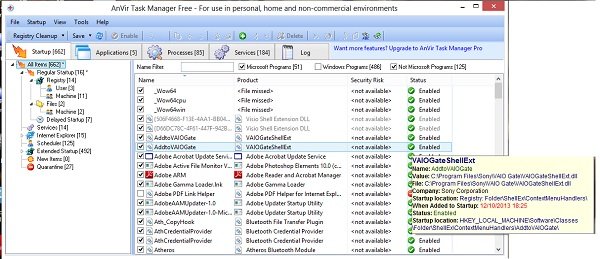
With a very simpler user interface, AnVir Task Manager is quite extensive and shows running applications, processes, services, drivers, and Windows startup programs. It allows you to terminate any of the active processes, edit or disable the start-up programs and stop any of your system’s applications. Apart from being a Task Manager, it is also an antivirus.
4. Microsoft Sysinternals Process Explore
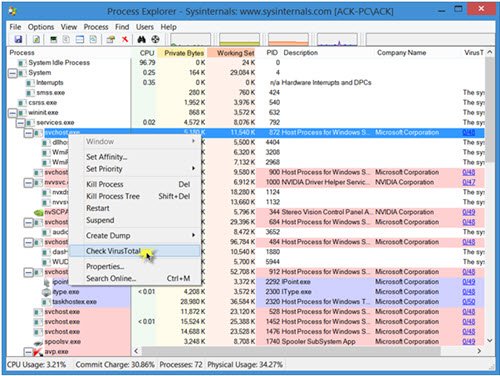 Technically, Process Explorer has those features that Task Manager doesn’t have. It also offers integration with VirusTotal malware scanning service. Thus, it is a task manager plus an anti-malware program. When this feature is enabled, Process Explorer sends the hashes of images and files shown in the process and DLL views to VirusTotal, and if they have been previously scanned, reports how many antivirus engines identified them as possibly malicious. Hyperlinked results take you to VirusTotal.com report pages, and you can even submit files for scanning.
5. System Explorer
Process management is possible with this free Task Manager alternative software. It is more advanced than SysInternals’ Process Explorer. It comes in both portable and installer versions. When you open the application for the first time, it will ask for a security check of processes with Online Database.
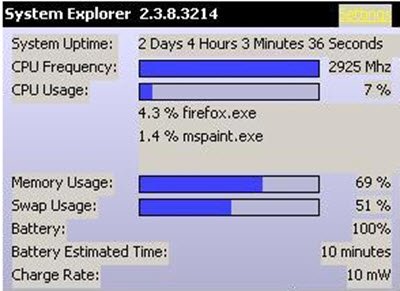
The tool provides detailed information about Tasks, Processes, Modules, Startups, IE Add-ons, Uninstallers, Windows, Services, Drivers, Connections, and Opened Files. With this tool, it is easy to check suspicious files via VirusTotal, Jotti service, or their File Database. IT is easy to monitor processes, activities and System changes with System Explorer. Apart from this, there are several other useful features that System Explorer has.
6. Glarysoft Security Process Explorer
One of the many Glarysoft applications, this is a good Task Manager alternative software for Windows. This tool is not just an ordinary task manager; it also keeps track of the anti-malware and antivirus programs we often download on our PCs. That’s because not all antivirus and anti-malware programs are reliable enough to scan our PCs and data.
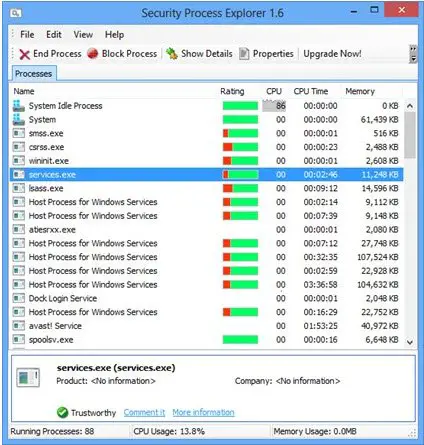
Glarysoft Security Process Explorer gives users detailed information about all security processes running on their system. It also tells the user whether the process is safe. On the main windows of this utility, you can see a list of all the processes running on your system. The utility gives a rating to each of these processes. The green band is good; while the red area signifies a little concern about the security process. However, you can know more about the process by clicking on it.
7. TaskInfo
Yet another free and extremely handy Task Manager alternative software for Windows PCs! TaskInfo combines the features of the native Windows Task Manager and other System Information tools. The tool monitors various system information on Windows systems in real time.
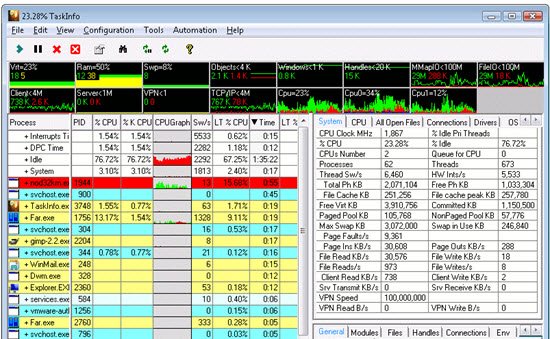
This software scans all running processes and threads. The information about these processes includes invisible processes such as worms, keyloggers, and other spyware. It also scans all threads with details such as Thread Start Address and Call Stack with Symbolic Information. The tool also displays CPU usage across multiple CPUs. It also displays memory usage and scheduling rate. You can download this utility from its home page.
8. WinUtilities Process Security
WinUtilities Process Security is a Task Manager that displays all active processes on your computer. With this tool, it is easy to identify harmful processes on the PC. In addition, you can put a process into quarantine or search the internet for information about it.
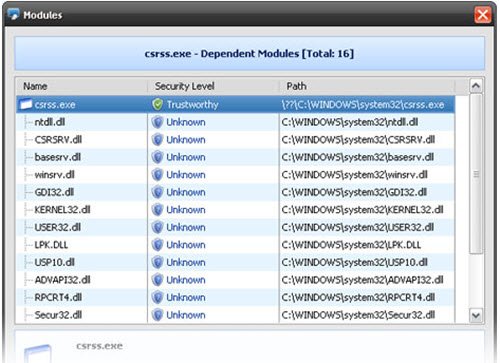
You can download the utility from its website.
9. Process Hacker
As the name suggests, this small but powerful utility is a great Task Manager alternative software for Windows systems. It is a free, multi-purpose tool that helps you monitor system resources, debug software and also detect malware. When the tool scans your PC, it displays all the processes with different colored highlights.
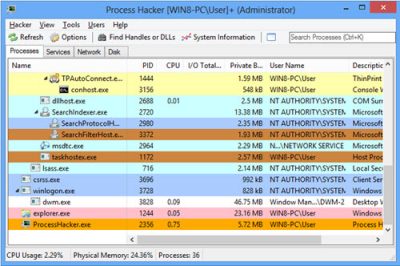
It also displays information in the form of graphs and statistics, which helps make the processes easier to understand. It displays components such as CPU usage, memory usage, GPU and disk utilization. Sometimes we are unable to delete or edit certain files. Process Hacker finds out the processes that are using these files, and you can terminate those processes. The tool also finds active network connections on your PC, and you can close them if necessary. Know more about Process Hacker here.
TIP: Take a look at Process Lasso.
10. Starter Startup Manager
Though it is called as ‘Startup Manager’, this tool is also a Task Manager alternative software for Windows. Besides, it is also a Service Manager. The tool lists all processes and information on memory usage, DLLs, priorities and thread count.
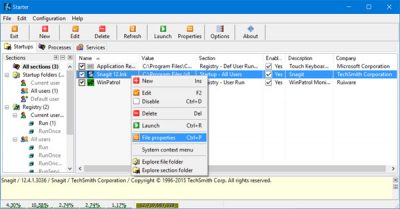
Starter Startup Manager while displaying its analysis; highlights the Startup folder items, hidden registry entries, and some of the initialization files. Since the information is categorized and easy to interpret, the user can modify them, create or delete the startup items, or disable them temporarily or permanently. The application lists all processes and provides the user with additional details about them. It also lets the user kill the processes.
11. Customized Task Manager
Download and use the Customized Task Manager from Microsoft Technet if you want more information about your running processes on your Windows system.
We have given you so many options to choose from. Try them and let us know your experience with these Task Manager alternative software.
