
The world is moving fast and one of the main ingredients in this mix is the Internet. From self-driving cars to playing games in real-time is possible because of the fast internet. However, if this ingredient becomes sluggish, we must take action. Therefore, in this article, we will explore some methods to increase your internet speed on a Windows 11 PC.
Increase the Internet Speed on your Windows 11 PC
Follow the following suggestions to improve your Internet Speed:
- Allow your Computer to receive more data
- Add a Default TTL
- Close conflicting applications
- TCP Extension for High Performance
- Scan for Virus & Malware
Let’s examine them in detail.
1] Allow your Computer to receive more data
In this section, we will discuss the I/O Request Packet Stack Size. If you want your computer to receive more data at a single time then you have to modify IRPStackSize. IRPStackSize (I/O Request Packet Stack Size) represents how many 36-byte Receive buffers your system can use simultaneously. This tweak will not be helpful if you have a very slow connection.
To modify IRPStackSize you need to be obedient to the steps that we have mentioned below:-
Hit Win + R, type “regedit” and click OK to launch Registry Editor.
Navigate using the following route:-
HKEY_LOCAL_MACHINE\SYSTEM\CurrentControlSet\Services\LanmanServer\Parameters
Right-click on Parameters> New> DWORD 32.
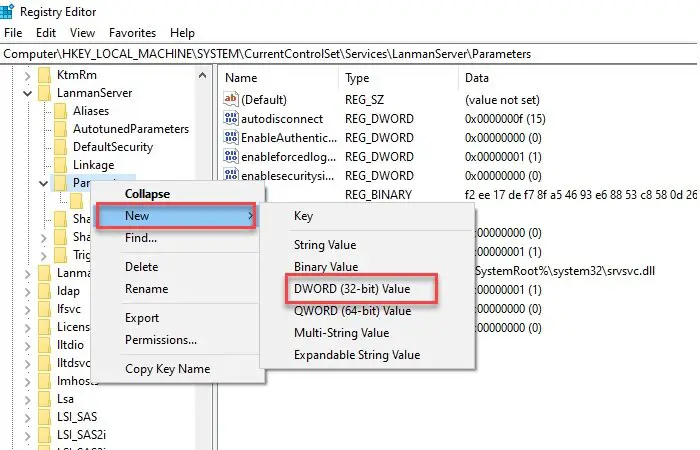
Name it “IRPStackSize” and change the value to 32 (Decimal).
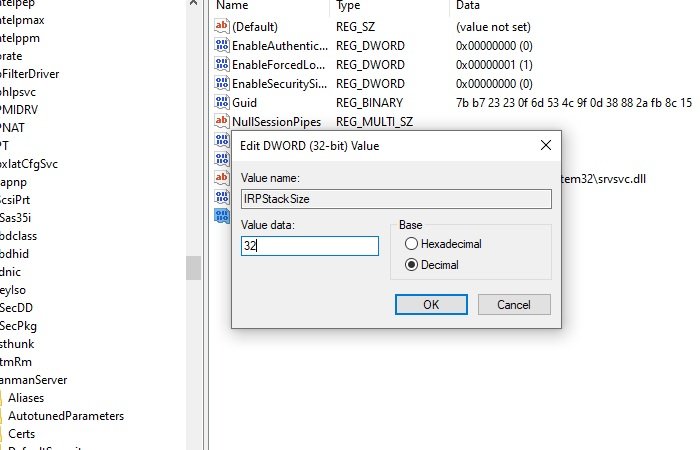
After setting this up, restart your computer to further enhance your internet speed.
Read: How to increase Download Speed in Google Chrome.
2] Add a Default TTL
TTL, or Time To Live, is a feature in Windows that defines the time assigned by your router to a packet to remain in the air. The default time assigned by Windows is 128 milliseconds.
This feature can cause your computer to lag as it waits for packets that it will never receive. Therefore, adding a default TTL can help in making your internet experience lag-free.
To add a default TTL you need to follow the prescribed steps:-
Hit Win + R, type “regedit” and click OK to launch Registry Editor.
Navigate using the following route:-
Computer\HKEY_LOCAL_MACHINE\SYSTEM\CurrentControlSet\Services\Tcpip\Parameters
Right-click on Parameters > New > DWORD (32-bit) Value, rename it to DefaultTTL.
Double-click on DefaultTTL and change its value to 64 (or any value between 1-255) Decimal.
After this, restart your computer and see if the issue persists.
Related: How to increase upload and download speed in Windows.
3] Close conflicting applications
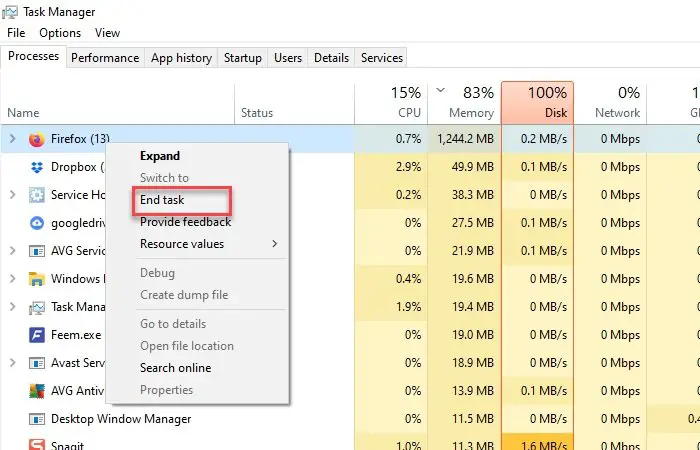
There are a lot of applications running in the background that can cause strain over your network connection. These applications can be stopped for a while. You need to check which of then could be using the internet connection and then stop them. Security software is, of course, to be excluded. Therefore, in this section, we are going to check the applications and then stop it for a temporary bump up in internet speed.
Hit Ctrl + Alt + Delete and select Task Manager from the security options.
Click the Memory tab> right-click on the task that is eating your memory> End Task.
This will end that task for a bit so that you will be able to enjoy fast internet for a bit. If that task is not important to you then you should uninstall that application.
To uninstall the application follow the prescribed steps:-
- Hit Win + X> Settings.
- Click on Apps.
- Search the app that is consuming your memory, select it, and then click Uninstall.
Read: How to improve network speed using SMB compression in Windows 11
4] TCP Extension for High Performance
Another thing you can do to improve your network speed is to modify the TCP1323Opts value. We will enable TCP Timespacing to achieve this.
To do that, you need to follow these steps:-
Navigate through the following route:-
Computer\HKEY_LOCAL_MACHINE\SYSTEM\CurrentControlSet\Services\Tcpip\Parameters
Now, there should be a DWORD Value, TCP1323Opts, if not, then create it. Right-click on Parameters> New> DWORD (32-bit) Value.
Double-click on it and change its value to 1.
Related read: Increase WiFi Speed and Signal strength and coverage area.
5] Scan for Virus & Malware
Viruses & Malware are notorious for causing problems to your computer, and making your internet connection slow is one of them. So, apart from making sure that you do not log in to any suspicious site or download anything malicious, one way to protect your computer is to scan it.
For this scan, we will use the built-in Windows Defender.
To do that you need to follow the prescribed steps:-
Step 1: Hit Win + X and select Settings.
Step 2: Click on Updates & Security.
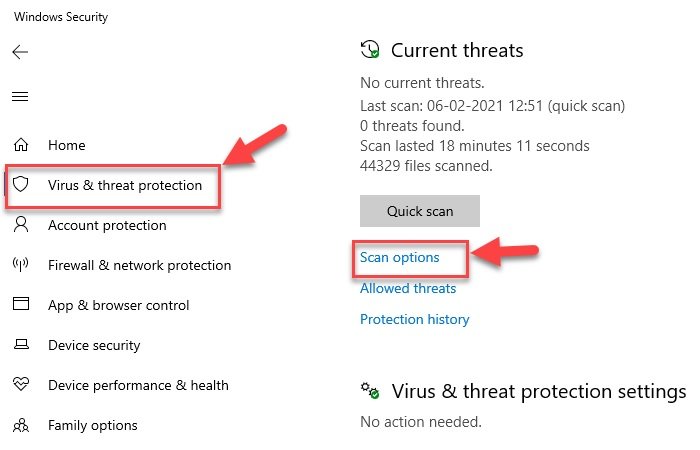
Step 3: Click on Windows Security(left panel)> Open Windows Security(right panel)
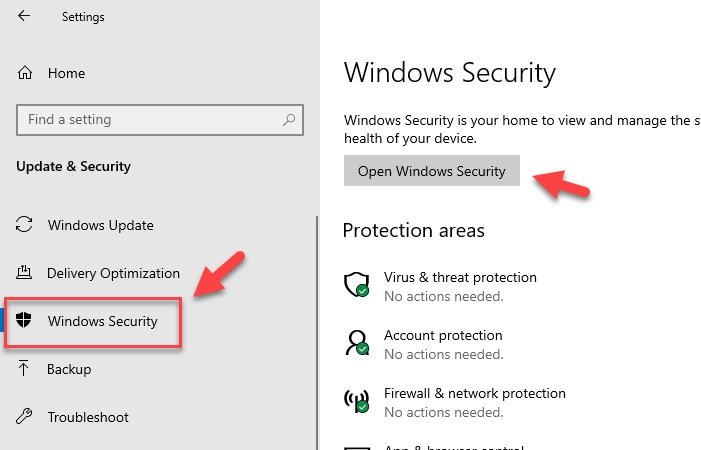
Step 4: Click on Virus & threat Protection(left panel)> Scan options(righ panel).
Step 5: Select Windows Defender Offline scan> Scan now
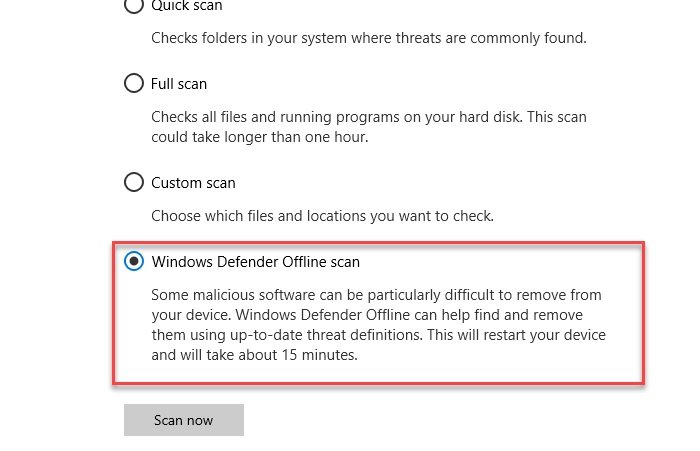
This will scan your Operating System for viruses and then delete any detected viruses or malware, making your computer virus-free. After completing the scanning process, restart your computer once to improve your internet speed.
Related:
Other suggestions that may be helpful when using a really slow internet connection:
- Compress while sending multiple files -In order to send more than one file via e-mail using a compression utility like 7-Zip so that it takes less space in your and recipients mailbox.
- Turn off graphics – Graphics enriches the Web Page looks but it too takes more time in loading so can be turned off for faster surfing. It can be disabled as follows:
Open Internet Options > Go to Advanced Tab > Scroll down to Multimedia section and uncheck the under given boxes > Finally Click on Apply. - Use distribution list for sending files – To send e-mails to more than one recipients rather than listing each recipient separately use a distribution list so that messages are sent efficiently and faster.
- Use Cached Exchange Mode in Outlook while you are offline – With the help of Cached Exchange Mode quick access to your mailbox is possible even if the connection is lost while working. The copy of the mailbox gets stored on the hard drive and is regularly updated with the mail server provided that you are using a Microsoft Exchange Server e-mail account.
- Simple e-mail signatures, reduced e-mail size – Instead of using images and other kinds of graphics in the e-mail signatures which takes time while sending messages create text-based distinctive e-mail signatures with a combination of colors, fonts, and type sizes. Such an e-mail signature looks professional and is quicker to transmit and receive.
- Save Web Pages to the local hard drive and browse offline.
- Increase your cache to load Web Pages faster – Temporary Internet files cache plays an important role in Browsing as some images will get cached on your computer and when the Web Page is revisited it will take less time to open.
We hope you found the post useful. There are more suggestions here that will help you fix slow Internet speeds.
