
Some web users have been encountering a specific error when trying to access certain websites. It’s an error that completely blocks users from gaining access to the website, so the question is, what is the cause, and can it be fixed? The error in question is: Your IP has been banned; There was Recaptcha.
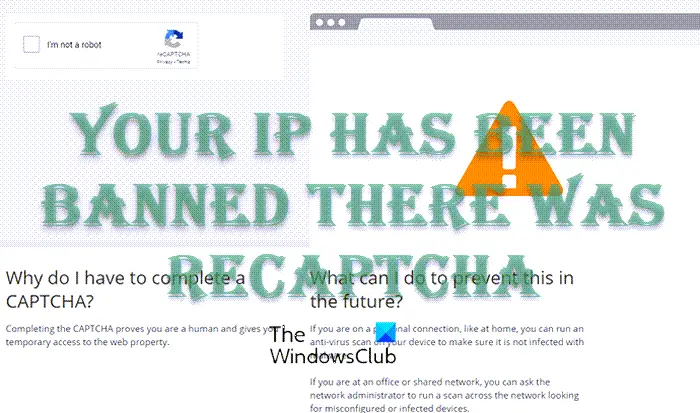
As the error suggests, your IP has been banned, which means, the administrator of the website decided that for some reason, they would go ahead and ban your IP from being able to view the page. Maybe you broke the website’s policy, or maybe you were blocked after multiple failed attempts to log into an account. There are many reasons this can happen, but unfortunately, your options for fixing it are limited.
Your IP has been banned; There was Recaptcha
Solving this issue is easier than you might think, so if you follow the steps below carefully, we’re sure you’ll be back to browsing the web normally.
- Renew your IP address
- Make use of a proxy server
- Use a VPN service
- Contact the website’s administrator
- Contact your Internet Service Provider
1] Renew your IP address
One of the best ways to fix the IP address blocked issue is to replace the current with another one. You can do this easily in Windows using Command Prompt.
- Go to the Taskbar and click on the Start Menu.
- Alternatively, you can choose to click on the Search icon instead.
- The next step is to type Command Prompt into the search bar.
- Right-click on Command Prompt from the search results.
- Select Run as administrator via the context menu.
- The Command Prompt tool should now be up and running.
- Type ipconfig /release, then press Enter.
- Finally, type ipconfig /renew and press the Enter key to complete.
Once the job is done, check whether the website is visible.
Read: How to change your IP address
2] Make use of a proxy server
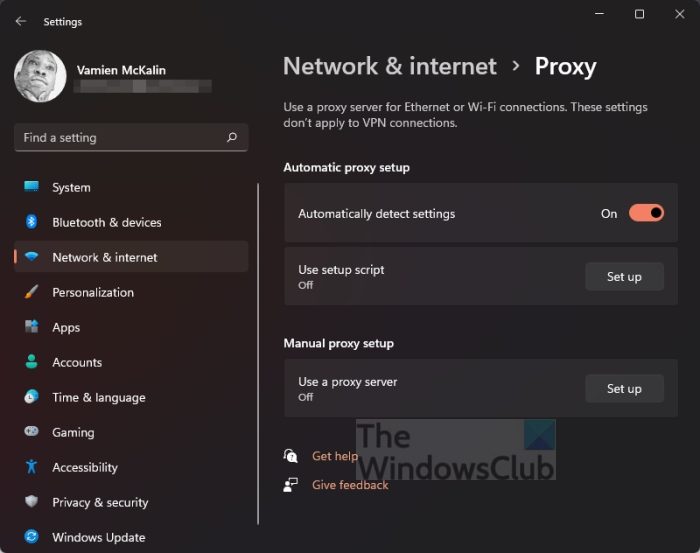
If you are still having problems with the “Your IP has been banned there was recaptcha” error, then chances are you will have to access the webpage through a proxy service provider.
You can add a proxy in Windows, so let’s go over how to do it.
- Press the Windows + I key to open the Settings menu.
- Look for Network & Internet from the left panel and select it.
- From there, click on the Proxy option.
- Under the Manual Proxy Setup section, please click the Set up button.
- From the Edit Proxy Server section, please toggle on Use a Proxy Server.
- Add a Proxy IP Address and Port numbers.
- Hit the Save button to complete the job.
If you don’t have a proxy IP address, consider using a proxy app. Many of them are available right now, so if you’re interested, then please read, Best free Proxy software for Windows 11.
3] Use a VPN service
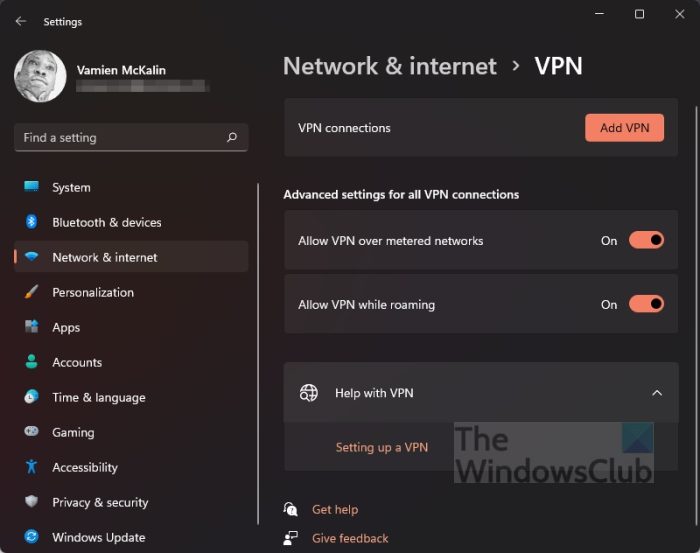
Another option is to use a Virtual Private Network service, or VPN for short. These services hide your network information from the website’s server, effectively letting you bypass the block.
You can either spend money on a good VPN service, which is the best option, or take advantage of what the Edge or Opera web browser has to offer.
4] Contact the website’s administrator
If you are still having problems with the “Your IP has been banned there was recaptcha” error, then how about making attempts to contact the website’s administrator? You can do so by their social media pages and email address. If they have a phone number, don’t be afraid to call directly.
Plea your case and maybe things will go in your direction. However, depending on the nature of the issue, you might not have much luck.
5] Contact your Internet Service Provider
Finally, if none of the above has helped, we suggest contacting your ISP. You can request that they change the IP address for your router in order to combat the error. Not every ISP will do this for you, but yours might, so give it a try and come back to tell us whether it worked.
Read: How to unblock and access Blocked or Restricted Websites
What does it mean when your IP is banned?
IP banning, or IP blocking, is when a website administrator configures a network service to block requests from hosts with certain IP addresses. Once this is done, the host can’t easily visit the website unless the ban is reversed.
How long do IP bans last?
The timeframe depends on what the administrator wants. Some might choose to ban IP for 24 hours, a week, a month or even forever. The length of the ban usually depends on the nature of the offense.
