
When Microsoft rolls out Windows Feature Updates, they do it in phases. It means that they are not available to everyone right away. While it is possible to force update Windows 11 or Windows 10, you should understand a few things. The rollout depends on many factors, including how many devices were successfully tested, confirmation of driver compatibility from the OEM, and hardware requirements.
There are two possibilities. One that your computer is eligible, and there is only a delay of one or two days or maybe a few hours. Secondly, there is an issue. However, since you have decided to update now, let’s find out how to force-update.
How to force update Windows 11
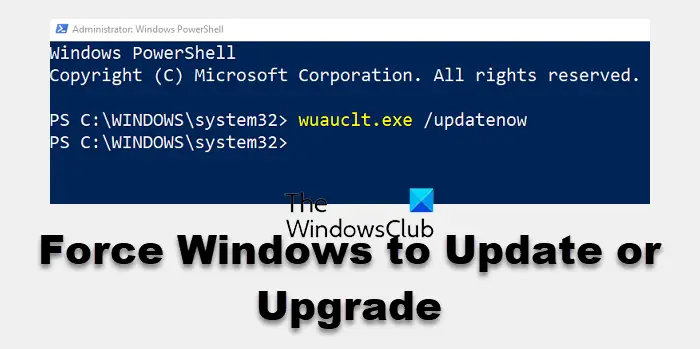
To force Windows to Update or Upgrade you can follow these steps:
Before doing this, make sure you create a system restore point. If there is a problem, you can always rollback to the earlier version.
Next, clear the Software distribution folder which is available at C:\Windows\SoftwareDistribution\Download. It is best that you rename it to something else.
Now, open Command Prompt with administrator privileges. We will use wuauclt.exe. This is the Windows Update Auto Update Client and it allows you control over the functioning of the Windows Update Agent.
Type the following command and hit Enter:
wuauclt.exe /updatenow
This command will force Windows Update to check for updates, and start downloading.
Now when you go to Settings > Update and Security > Windows Update, you should see that Windows Update has automatically triggered checking for a new update. This will help you get through the waiting list, and the download should start at any time.
That said, here is a small risk. There is a reason why Microsoft doesn’t let everyone download Windows Updates on demand. Sometimes the update is available only to computers that have not reported any issues. Sometimes, there are specific driver issues.
When you either follow this method or keep hitting the download button manually, it can even roll out beta updates for your computer. So be warned if you are going to force-update Windows 11/10.
You can also force Windows 11 to upgrade immediately using the following methods:
- Using Windows 11 Installation Assistant
- Download Windows 11 Disk Image (ISO) file from Microsoft
- Create Windows 11 bootable installation media using Media Creation Tool.
