
Are you getting error 1603 while installing the AMD software package? There are many reasons this error can occur, but most of the time it is due to graphics driver or software conflicts. Let’s learn about the possible reasons and the fixes for Error 1603, A General Error Has Occurred During the Installation of the AMD Software Package.
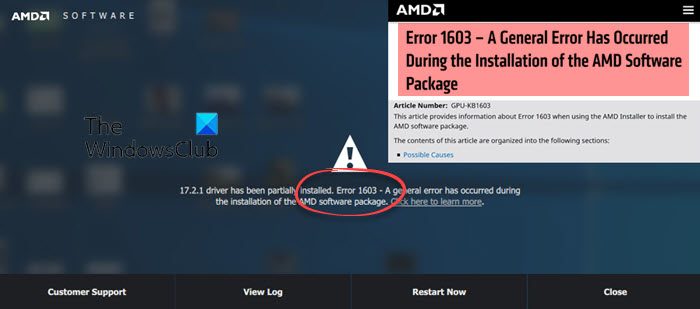
What causes AMD Error 1603
Usually, conflicts between the Graphics driver and software can result in this error. Other causes could be corrupted Microsoft Visual C++ Redistributable files, false positives by your antivirus software or a corrupted Windows OS installation.
How to fix AMD Error 1603 in Windows 11
Below are a few fixes you can try to resolve the AMD Error 1603 on your Windows 11/10 computer.
- Install the latest version of the Radeon Software package
- Update antivirus software and definitions
- Check the corrupted Microsoft Visual C++ Redistributable files and replace them
- Update Windows
- Repair corrupted registry keys and system files
- Install the AMD software in Clean Boot.
1] Install the latest version of the Radeon Software package
Outdated drivers often give errors so the first fix you should try is to download and install the latest and full version of the Radeon Software package. Also do remember to always download it from AMD.com. Select the most compatible AMD software package and install it on your computer. Follow the steps and instructions to install the package.
2] Update antivirus software and definitions
Sometimes the Antivirus software flags false positives, which may prevent the AMD software package from installing. Do check if your antivirus software is up to date. Another trick is to disable your antivirus software for a while, then try installing the AMD Software Package on your Windows computer and see if you still get error 1603.
Read: Radeon Settings and Driver versions do not match
3] Check the corrupted Microsoft Visual C++ Redistributable files and replace them
The corrupted Microsoft C++ files also cause this error. Go to the Programs and Features from your Control Panel and note down all the versions of the Microsoft Visual C++ Redistributable Package installed on your PC. Now go to microsoft.com and download a copy of the Microsoft Visual C++ Redistributable package. Remove all the currently installed versions and install the newly downloaded versions of the Visual C++ redistributable package.
4] Update Windows
As mentioned above, AMD Software works best with updated operating systems, thus updating your Windows would really be a good idea to avoid such errors while installing the AMD Software Package.
Read: How to disable the Radeon Software Press ALT+R to open Overlay
5] Repair corrupted registry keys and system files
The corrupted registry keys and system files can also be the reason for getting the 1603 error while installing AMD Software Package. The fix is to repair or replace the corrupted registry keys and system files.
You can run DISM (Deployment Image Servicing and Management) and SFC (System File Checker) to scan for and replace corrupted files.
To run DISM,
- Type CMD in the Windows Search option and Run it as administrator.
- Type DISM /Online /Cleanup-Image /RestoreHealth and hit Enter.
- This will take several minutes to scan and replace the corrupted files. Your PC may also perform a little slower during the scan.
To run SFC,
- Type CMD in the Windows Search option and Run it as administrator.
- Type SFC /SCANNOW and hit Enter.
- This may also take some time but will repair missing or corrupted system files.
Try installing the AMD Software package now and most probably you won’t see the error 1603 now.
6] Install the AMD software in Clean Boot
To avoid software conflicts, you may perform a Clean Boot and try to install the AMD software and see if that works.
The above-mentioned fixes should help you but if you are still getting Error 1603 while installing the AMD package, you can please contact AMD Customer Care and send them the AMD Software Installer log file located in C:\Program Files\AMD\CIM\Log\Install.log.
How do I reinstall my AMD graphics driver?
To reinstall the AMD graphics driver, you first need to uninstall it.
- Open Device Manager, go to Display adapters, then double-click to open the list.
- Right-click on the AMD graphics card and click on Uninstall device.
- Check on the box saying, Delete the driver software for this device and click on Uninstall.
- Now, when it is uninstalled, you can install the latest version.
- Go to AMD’s support website and find the driver update. Install it by following the on-screen instructions.
TIP: AMD Clean Uninstall Utility helps you remove AMD driver files completely.
How do I update my AMD Drivers?
To update AMD drivers, go to Radeon settings and click on the Updates. Go to Check for Updates and if a newer driver version is available, you will get the notification, and then you can update your drivers by following the given instructions and steps.
Now read: How to enable GPU Scaling in Radeon Software with the desired Scaling Mode.
