
Managing calendars in Outlook sounds simple and straightforward until it isn’t. Sometimes one wants to remove a single outdated meeting, and at other times, to clear an entire month, or a specific category of events. In this post, we will explore how to delete calendar items in Outlook and what to do if Outlook is automatically deleting all the calendar events.
How to delete Calendar items in Outlook?
Outlook offers several ways to remove appointments, meetings, and events. The best method depends on whether it is the MS Outlook desktop software, the new Outlook app or Outlook on the web, and whether the item is a one-time event or part of a recurring series.
To delete calendar items in Outlook, follow the methods given below:
- Using the ribbon or right-click
- Using Keyboard Shortcuts
- Delete multiple calendar items at once
- Delete calendar items in Outlook on the web
- Delete calendar items permanently
Let us talk about them in detail.
1] Using the ribbon or right-click

First, let us use the ribbon to remove Calendar items in Outlook. You can follow the steps mentioned below to do the same.
- Launch Outlook, click the Calendar icon, and locate the event to be removed.
- Right-click the event and select the Delete option. Alternatively, click on the event to select it, then click the Delete button in the Home tab of the ribbon. If you are the meeting organiser, attendees will automatically receive a cancellation notice.
- To delete a recurring calendar event, right-click the appointment or meeting and choose Open.
- Outlook will display a prompt stating Do you want to delete all occurrences or just this one? Select either This occurrence to delete only the selected instance or The series to delete every occurrence past and future. Click OK or Delete to confirm.
Now, let’s move to the next method.
2] Delete multiple calendar items at once
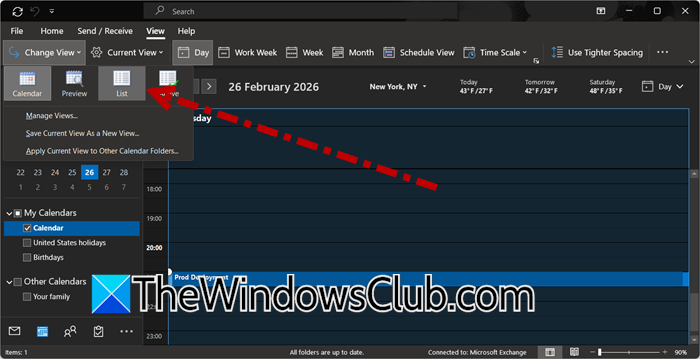
Clearing a batch of old events using the mouse or ribbon individually is quite inefficient. Outlook’s List View is handy for rapid bulk deletion. This method works in MS Outlook. Follow the steps mentioned below to do the same.
- Go to Calendar, click on the View tab, then select Change View and set it to List.
- In the left pane, ensure the correct calendar is selected, for example, the default calendar, a shared team calendar, or a group calendar, and then click Ctrl+Click to select each event you want to remove or Ctrl + A to select all visible items.
- Lastly, press the Delete key to confirm the deletion.
This method is ideal for cleaning up outdated entries before a new schedule cycle.
3] Delete calendar items in Outlook on the web
If you access Outlook through a browser, the deletion process is slightly different, so follow the steps mentioned below.
- Sign in to Outlook on the web, and click the Calendar icon on the left.
- In the left pane, select the calendar that contains the event:
- Primary calendar under My calendars
- Shared calendars under Shared calendars
- Microsoft 365 group calendars under Groups
Note: Deleting an event from a group calendar removes it for all members of that group.
- Click the event to open its details, then click the Delete icon. Alternatively, right-click the event directly on the grid and choose Delete.
- For recurring events, choose from the options available: This instance or the entire series.
So, if you are using Outlook Web, the aforementioned method is perfect for you.
4] Delete calendar items permanently
When you delete a calendar item using any of the above methods, it is moved to the Deleted Items folder. To erase it immediately or permanently, follow the steps given below.
- Switch from Calendar to Mail view, and locate the Deleted Items folder of the account that owns the calendar in the folder list.
- For shared or delegate calendars, deleted items go to the Owner’s Deleted Items folder. Find the calendar entry, right-click on it, and choose Delete.
- Alternatively, right-click the Deleted Items folder itself and select Empty Folder.
Once permanently deleted, calendar items cannot be recovered through normal means. To restore, it may require an Exchange administrator, a backup .pst file, or the Recover Deleted Items tool.
Read: Can’t delete Calendar Events in Outlook
MS Outlook Calendar deleting all events
It is quite alarming to open Outlook and find entire months of appointments simply gone. Fortunately, this is rarely random and almost always points to a specific cause. This usually stems from a specific trigger ranging from a sync error, an archiving rule or permission changes.
The first step is to check the Deleted Items and the Recoverable Items folder if you use an Exchange or Microsoft 365 account. Calendar events that have been moved can be recovered in seconds with a simple right-click and move. If those folders are empty, the culprit is often Outlook’s AutoArchive feature. It may be configured to permanently delete older calendars without warning. To fix this, go to File> Options > Advanced, and under AutoArchive, click AutoArchive settings.
To stop automatic deletion, uncheck Run AutoArchive every_days. Similarly, delegate permissions granted to colleagues can sometimes lead to unintentional mass deletions. To prevent this, reviewing and restricting access in the Account settings is a recommended solution.
Read: Outlook shared calendar disappeared after restart
Why can’t I delete items from a shared calendar in Outlook?
If you are unable to delete items from a shared calendar in Outlook, the direct answer is that you lack permission. Shared calendars require Editor or Delegate rights to delete items. With Reviewer (read-only) access, the Delete option is greyed out; therefore, one needs to contact the owner to adjust the access level.
Also Read: Turn off Outlook Calendar reminders and popup notifications.
