
If you want to create a RAM Drive or RAM Disk in Windows 11 or Windows 10, here is how to do it. To do that, you need to use a third-party program called ImDisk. This freeware helps you create a virtual hard drive made of your RAM or Memory. Whether you have 4GB, 8GB, 16GB, or more RAM, you can use this guide to turn part of it into a hard drive.
What is RAM Drive or RAM Disk?
Let’s assume you have 32GB of RAM installed on your computer, but you are running low on free storage because you suddenly started storing tons of files. In such situations, you can convert a portion of your RAM into a hard drive and temporarily store your files on it. It is called Ram Drive or RAM Disk.
Talking about the performance and speed of this converted hard drive, you will find it very fast. As you are converting high-end RAM into a hard drive, you cannot match the speed of this RAM with the SSD or HDD that is already installed on your computer.
As it is not possible to convert your RAM into a hard drive using in-built options, you need to use a third-party tool called ImDisk. For your information, there are plenty of other tools, but this one seems very easy to use, and it gets things done within moments. Therefore, to use this tool, you need to download it from sourceforge.net first. Following that, you can follow the guide.
How to create RAM Drive in Windows 11/10
To create a RAM drive in Windows 11/10, follow these steps:
- Extract the content and double-click on the batfile.
- Tick all the components checkboxes and click the Install button.
- Double-click on the RamDisk Configuration app.
- Enter the size of the allotted RAM size you want to convert.
- Tick the Allocate memory Dynamically checkbox.
- Choose a drive letter and file system.
- Click the OK button.
It is recommended to disable Fast Startup in Windows before heading to the steps.
First, extract the contents from the downloaded file, then double-click install.bat to start the installation process. During the installation, you need to tick all the checkboxes under the Components section.
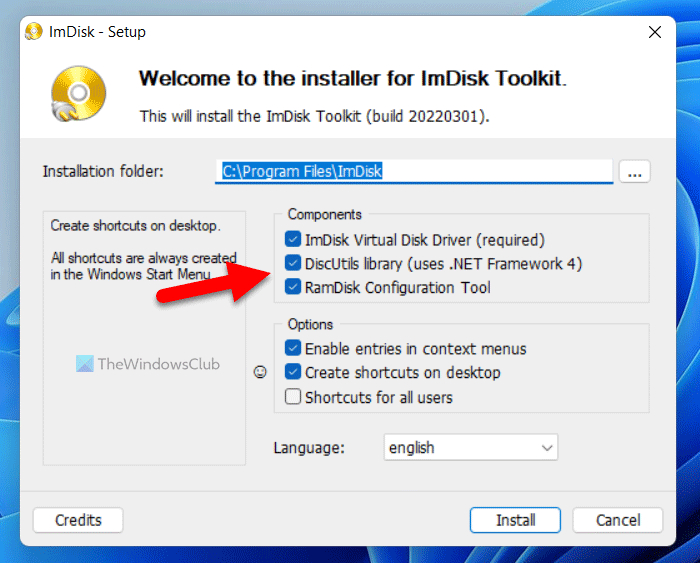
Once done, click the Install button to start the installation. It doesn’t take much time to finish the installation.
Once done, double-click on the RamDisk Configuration file visible on your desktop. Make sure that you are in the Basic tab.
Next, you need to specify a few things. First, enter the size of the RAM that you want to convert into a hard drive. It must be less than the total amount of RAM installed on your computer.
Then, tick the Allocate Memory Dynamically checkbox. Next, choose a drive letter from the Drive Letter drop-down list. Although it is not mandatory, since it automatically assigns a drive letter, you can set it according to your requirements.
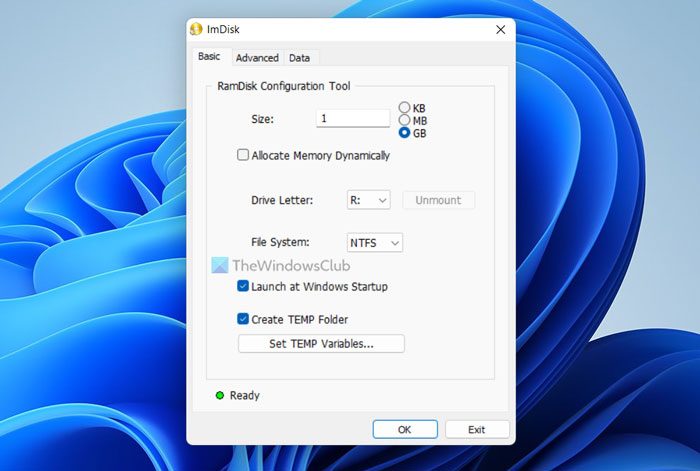
Then, you can select the File System from the respective drop-down menu and click the OK button.
Once you do that, you can find the storage in the File Explorer or This PC.
If you want to revert this change, open the same app and click the Unmount button.
That’s all! Hope it helped.
Read: How to Enable or Disable Memory Compression in Windows
How do I create a RAM disk in Windows 11?
To create a RAM disk, you need a third-party app. Since there is no built-in option to do this, a freeware tool is required. Although there are a few tools for converting your RAM into a hard drive, you can consider ImDisk.
Read: Your system is running low on virtual memory.
