
OneDrive’s backup feature protects important desktop, document, and picture folders by syncing them directly to the cloud. Understanding how to access these files and what to do when you encounter issues ensures you never lose critical data. In this guide, we will see how to restore or access OneDrive backup files or folders and what to do if you are not able to open Onedrive folder in backup.
Access OneDrive backup files or folders
OneDrive Backup (often called Folder Backup or Known Folder Move) automatically syncs the contents of your Windows Desktop, Documents, and Pictures folders to your OneDrive cloud storage. This provides a continuous backup, allowing you to access your files from any device and recover them if your local machine fails.
If you want to access or restore OneDrive backup files or folders, follow the methods below.
- Using OneDrive Web
- Using OneDrive App
- Using OneDrive Mobile App
Let us talk about them in detail.
1] Using OneDrive Web
The most straightforward method to access the backup folders and files is via the OneDrive website. To do so, you can follow the steps mentioned below.
- Navigate to onedrive.live.com and sign in with your Microsoft account.
- In the left-hand navigation pane, look for and click on the dedicated sections: Desktop, Documents, or Pictures.
- Here, you will see the exact folder structure from your PC. You can open, download, share, or delete files directly.
However, that is not the only method. Let us go ahead and check out the other method.
2] Using OneDrive App
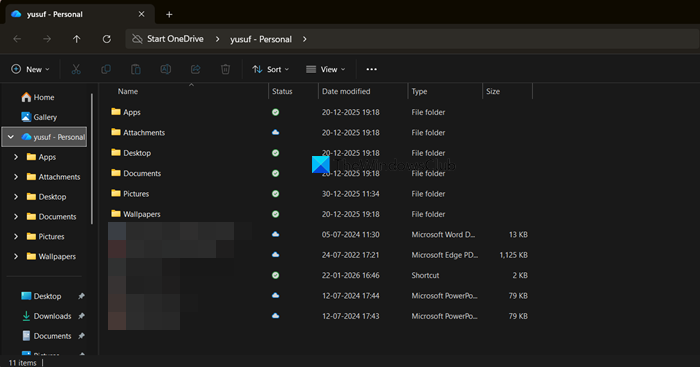
When the OneDrive sync app is running and configured on your PC, your backed-up files appear seamlessly in File Explorer.
- Open File Explorer.
- In the navigation pane, you should see OneDrive listed.
- Within your OneDrive folder, you will find your Desktop, Documents, and Pictures folders. Files with a green checkmark are synced locally and available offline. Files with a cloud icon are online-only and will download when you open them.
Read: OneDrive shared folders not showing in File Explorer
3] Using OneDrive Mobile App
Use the OneDrive mobile app to access your backups anywhere. The app is available on both iOS and Android devices. To access it, follow the steps below.
- Install and sign into the OneDrive app on your iOS or Android device.
- Tap the Menu icon (usually three lines or your profile picture).
- Tap on Files and then navigate to the Desktop, Documents, or Pictures backup folders to view your content.
You can download the file locally as well.
Restore deleted items
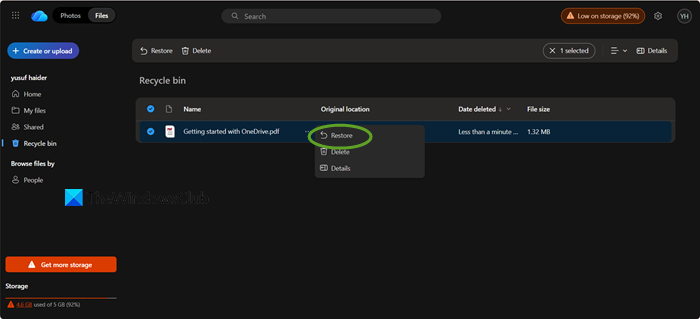
On the OneDrive website, you can restore deleted files by going to the Recycle bin in the left sidebar, where all removed items are stored. Once inside the Recycle bin, you can scroll through the list and select the files or folders you want to recover. After making your selection, you simply click the Restore button at the top of the page, and the chosen items will be returned to their original location in your OneDrive. This process is straightforward and ensures that important documents or photos can be quickly retrieved if they were accidentally deleted.
That’s it!
Unable to Open OneDrive Folder in Backup
The most frequent reason is that the file is set to “Online-only” (shows a cloud icon). Double-clicking it triggers a download, which can fail if you have no internet connection, low disk space, or sync is paused. However, there are other reasons that and solutions that we are going to talk about.
We recommend you follow the troubleshooting steps mentioned if you are unable to open OneDrive folder in Backup.
- Check your Internet Connection: Use a free Internet Speed tester to check your bandwidth.
- Ensure OneDrive is Running: Look for the OneDrive cloud icon in your system tray. If it’s not there, search for “OneDrive” and start the app.
- Resume Syncing: Click the OneDrive system tray icon. If you see a Resume syncing alert, click it.
- Free Up Disk Space: If your local drive is full, OneDrive cannot download online-only files. Clear space and try again.
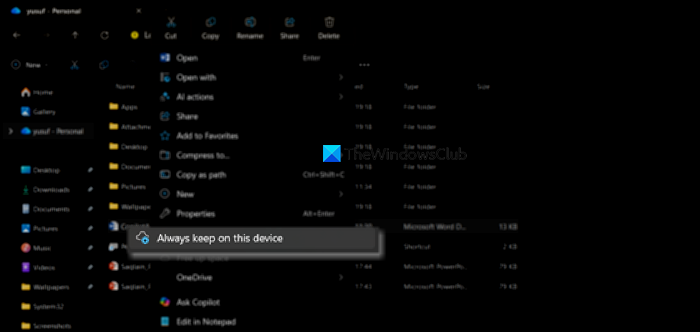
- Change File Status to “Always Keep on This Device”: Right-click the problematic file or folder and select Always keep on this device. This will download it locally.
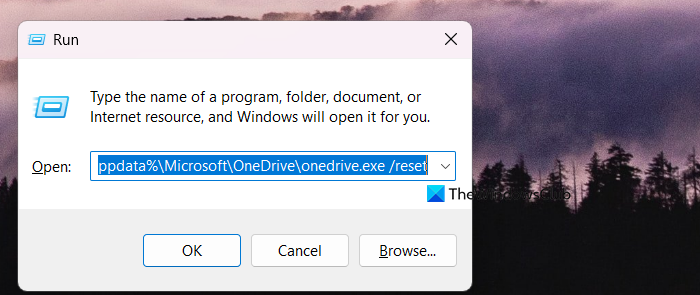
- Reset OneDrive: As a last resort, reset the OneDrive app without losing your data. Press Win + R, type %localappdata%\Microsoft\OneDrive\onedrive.exe /reset, and press Enter. Restart OneDrive.
Hopefully, with the help of these solutions, your issue will be resolved.
Read: Add OneDrive shortcut to the ‘Send to’ menu in Windows 11/10
How do I see what is backed up on OneDrive?
To see your backed-up folders, click the OneDrive cloud icon in your system tray (notification area), then go to Help & Settings > Settings > Sync and backup > Manage backup. This will show you the backup status of your Desktop, Documents, and Pictures folders. A checkmark or a note indicates which ones are currently being protected.
Read: How to add OneDrive sync settings in Local Group Policy Editor
What is the difference between OneDrive Sync and OneDrive backup?
There is no separate backup functionality in OneDrive; backup is a form of sync. The Backup feature specifically and automatically syncs your PC’s Desktop, Documents, and Pictures folders to the cloud. In contrast, general Sync lets you manually choose other folders in OneDrive to mirror across your devices and the cloud.
