
Grammarly is one of the powerful editing tools that helps to fix issues with written words, especially grammar. The service is offered in various ways, including extensions. However, like any other software, it can have issues. So if Grammarly has stopped working in Chrome, Firefox, Edge, Word, Outlook, Excel, or PowerPoint, here are some suggestions that have helped many.
Grammarly can stop working in Windows 11 or in browsers like Chrome or Edge for a few common reasons: Outdated extensions or app versions, conflicts with other add‑ons, corrupted cache/cookies, or disabled background services.
What does Grammarly has stopped working error mean?
It can mean many things. Either the extension has crashed or is not working for a particular website or application. The issue could be related to the app account not working or to the extension itself.
Grammarly has stopped working on PC
If Grammarly is not working in Chrome, Edge, Word, Outlook, Excel, or PowerPoint, here are some suggestions that may help you:
- Reinstall the Grammarly Extension
- Sign In Again
- Check if enabled for certain websites
- Repair the browser or app
You don’t need an admin account for most of them except when preparing the Office apps. Before you begin, check if the Grammarly Servers are down.
1] Reinstall the Grammarly Extension
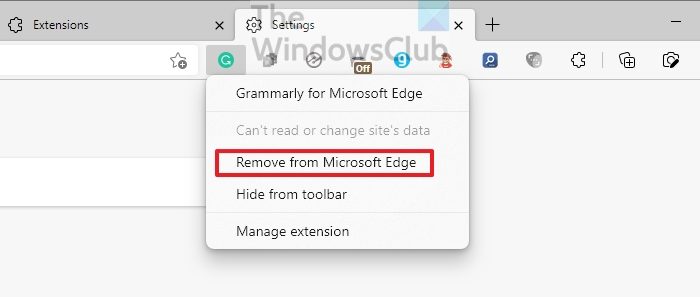
Grammarly offers extensions for browsers, Microsoft Office apps, and anywhere where an add-on is possible. If the add-on is misconfigured or doesn’t launch with the application, it will stop working.
So the best approach to resolve this is to first disable and then enable the Grammarly extension to see if it helps; if it doesn’t, uninstall it.
While browsers offer a direct way to uninstall, for others, you will have to locate the extension section and then uninstall it.
During reinstallation, the app will automatically run the latest version, which can fix any issues caused by the outdated version.
2] Sign In Again
Grammarly only works when you sign in to the account. If there is a billing or password change conflict with your account, it will stop working. The first step is to check if an update is required with your account. If that is correct, you can sign out of Grammarly from the extensions and then sign back to check if the issue is resolved.
3] Check if enabled for certain websites
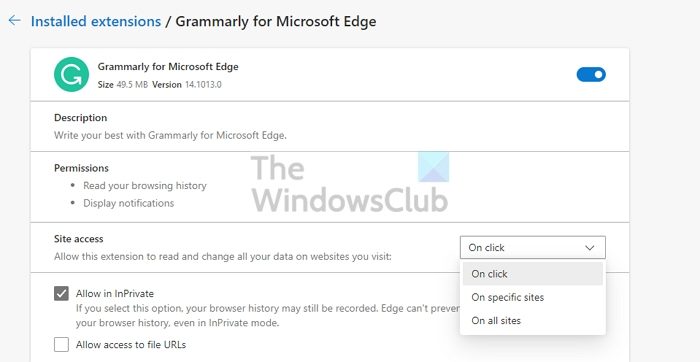
The Grammarly extension for browsers allows users to enable or disable it for specific websites. For example, if you don’t need corrections when writing native content, you can disable them. It is possible that you have disabled it for a specific website and are only now realizing it.
Please right-click on the Grammarly extension icon on any browser and then choose to manage it. Under Site access, you can check whether any sites have been added to the extension. If the site is not working, remove it from the block list and try it out.
4] Repair the browser or app
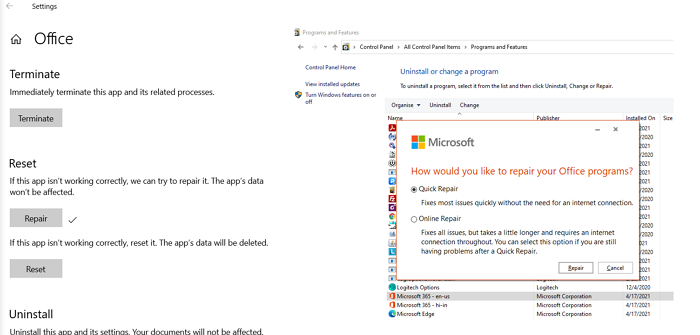
Last on the list is to repair the browser or the app. The best approach is to reset the app when it comes to the browsers. Please read our guide on how to reset Chrome, Microsoft Edge, and Firefox. Once done, you will need to set it up and then install the extension.
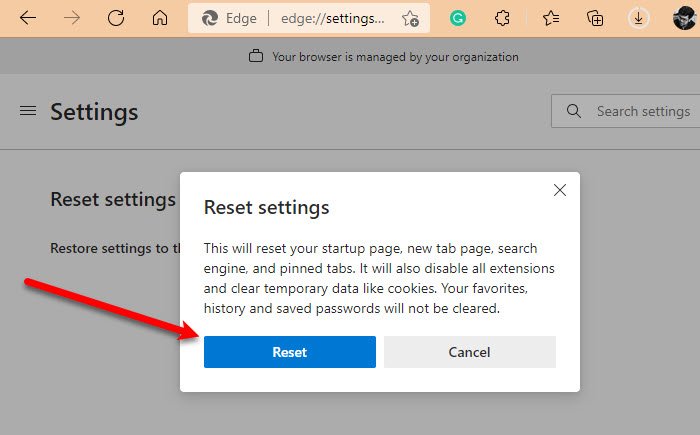
If the problem is with the app, look for a reset or repair option. As an example, Microsoft Office allows repairing the application in case there is a problem in any of the core files. So if that is the problem, it will resolve automatically.
That’s about it. I hope the post was easy to follow, and you were able to resolve the Grammarly has stopped working issue.
Why is Grammarly not working in Word or Excel, or PowerPoint?
You can fix this by running the Office app in compatibility mode. Go to File > Options > General. Under the User Interface Options section, select Optimize for compatibility. Restart the application and check if Grammarly is working as expected.
The Grammarly Editor interface turns black
The problem is with the dark mode setting in both Mac and Chrome. The best way to resolve this is to turn off dark mode for the OS, the App or the browser, and it should start showing the text in the editor.
