
Some users cannot boot into Windows because of the “GPT header corruption has been detected, please check SATA mode setting in BIOS Setup” error on system startup. This error prevents users from booting into Windows, and they cannot use their computers. If you encounter this error, this article will help.
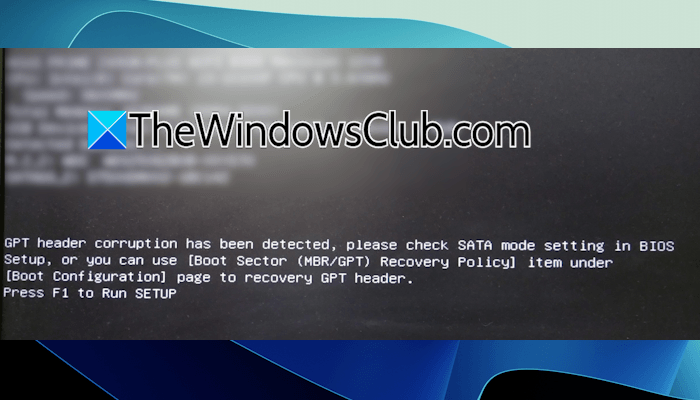
Some users reported that they could manage booting into Windows through the BIOS. However, the error occurs again after restarting the computer.
The complete error message is:
GPT header corruption has been detected, please check SATA mode setting in BIOS Setup, or you can use [Boot Sector (MBR/GPT) Recovery Policy] item under [Boot Configuration] page to recovery GPT header.
GPT header corruption has been detected
Use the following fixes for the “GPT header corruption has been detected, please check SATA mode setting in BIOS Setup” error on your Windows PC:
- Check the boot order
- Check the SATA mode
- Disconnect all external storage devices
- Repair boot files
- Update BIOS
- Perform the clean installation of Windows
- Replace your hard drive
All these fixes are explained in detail below.
1] Check the boot order
This is the first step to follow. On startup, the system checks the selected boot device for a valid GPT structure and bootloader. If an incorrect boot device is selected, the system may read a non-bootable GPT layout, assuming the GPT partition table is corrupted. In this case, even with a healthy hard drive, your system may still trigger this error.
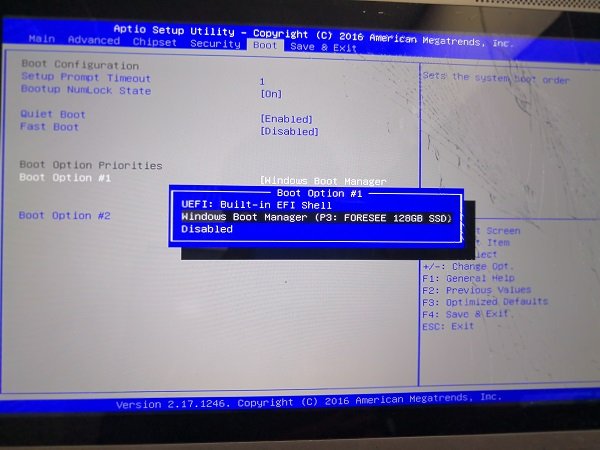
Enter your system’s BIOS and check the boot order. If the wrong device is selected as the boot device, change it to the correct one.
2] Check the SATA mode
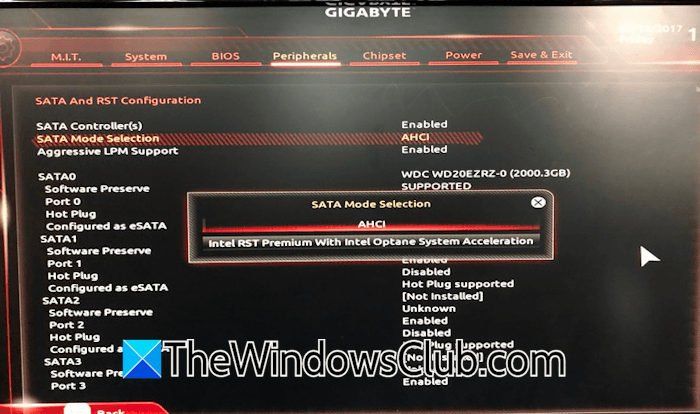
The error message suggests users check the SATA Mode setting in BIOS. This means that incorrect SATA mode configuration in BIOS can also trigger this error. Enter your system’s BIOS and check the SATA mode. The SATA mode should be set to AHCI unless you are using RAID. The steps to access this setting in the BIOS vary by motherboard. Therefore, refer to your system’s user manual for the correct instructions.
3] Disconnect all external storage devices
If the error persists, disconnect all the external storage devices connected to your computer. If this fixes the error and you can boot into Windows, this means that Windows tries to boot from the external storage device when it is connected to your system. Now, in this case, you have to load the BIOS to the defaults.
4] Repair boot files
Corrupted boot files trigger several boot issues, including this error. The boot files on your system might have been corrupted. To fix this, you can try rebuilding the BCD file. For this, you need to enter the Windows Recovery Environment. If your computer is unbootable, you cannot use Windows Settings to boot into WinRE. In this case, you have to interrupt Windows’ normal boot process.
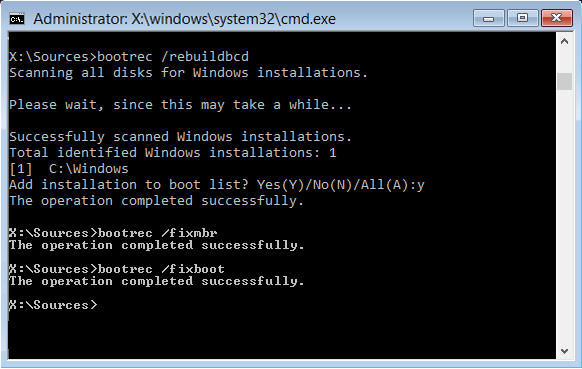
Force shut down your system and turn it ON again. When you see the manufacturer’s or Microsoft logo, immediately press and hold the power button to force shut down your computer. Repeat this process until you see the Preparing Automatic Repair message on your screen. Once you are in Windows Recovery Environment, select Troubleshoot > Advanced Options > Command Prompt. Now, you can execute the required commands to rebuild BCD.
5] Update BIOS
If the issue persists, you can also check for a BIOS update. Open System Information and check the currently installed BIOS version on your system. Now, visit your computer manufacturer’s official website and check the available BIOS version. If the latest BIOS version is available, download and install it.
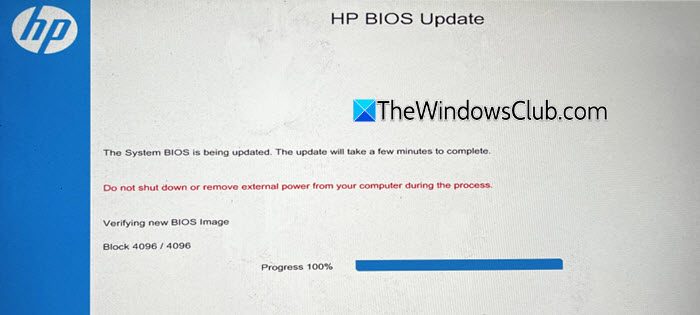
During a BIOS update, you need to provide a continuous power supply to your system. If the power supply is interrupted during the update process, your motherboard could be damaged. Therefore, if you use a laptop, connect the charger even if the laptop is fully charged.
6] Perform the clean installation of Windows
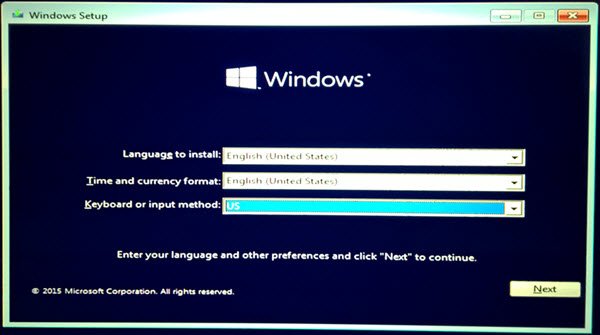
If the issue persists, you can perform a clean installation of Windows. This fix will work if the issue occurred due to the damaged partition table or bootloader. Prepare a bootable USB flash drive with Windows installation media on a working computer, and use it to install Windows from scratch on your system.

Before proceeding, you can try backing up your important files through the Windows Recovery Environment.
This fix will not work if the issue occurred due to a hardware fault.
7] Replace your hard drive
If the issue persists even after applying all the above-mentioned fixes, the problem may be with your hard drive. Take your computer to a professional computer repair shop for further assistance. You may need to replace your hard drive.
I hope this helps.
Can I convert GPT to MBR without formatting?
Yes, you can convert GPT to MBR without data loss. Many third-party tools offer both MBR to GPT and GPT to MBR conversions without data loss. You can use any of these tools.
How to repair the EFI bootloader on GPT?
To repair the EFI bootloader on GPT, you need to enter Windows Recovery Environment and then execute the required commands in the Command Prompt Window. If you cannot enter WinRE, you can use a bootable USB with Windows installation media to repair the EFI bootloader.
Read next: Couldn’t connect to the network. Keep your device on.
