
If you are looking for a safe and good free Windows optimization software that will offer you good clean-up options, including a 1-click clean-up button you might want to check out Glary Utilities Free. We will see its features, explain the procedure to use it and review the software in this post.
Glary Utilities Free Windows Optimization software
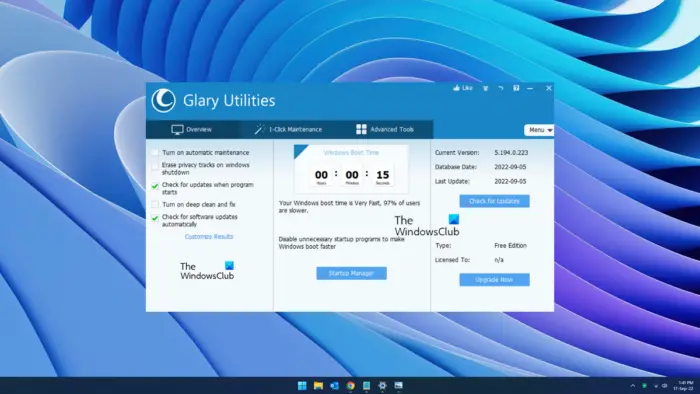
Glary Utilities 5 offers many options to run procedures and manage the system in a single interface. Else, you would have to use Windows Settings, Control Panel, Task Manager, etc for the much-needed jobs. We will discuss each element of the software individually as follows:
- Overview checks
- Boot status and manager
- Windows Update
- 1-Click maintenance
- Registry Repair
- Disk Cleanup
- Context Menu Manager
- Process Manager
- Uninstall Manager
- Tracks Eraser
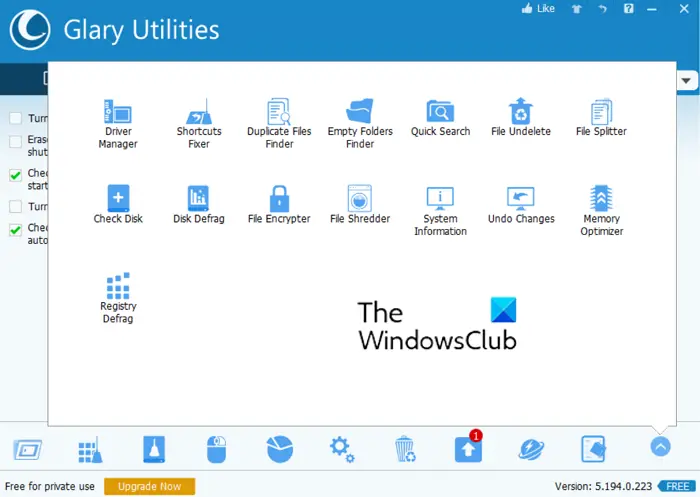
- Driver Manager
- Shortcuts Fixer
- Duplicate Files Finder
- Empty Folders Finder
- File Undelete
- File Splitter
- Check Disk
- Disk Defrag
- File Encrypter
- File Shredder
- System Information
- Undo Changes
- Memory Optimizer
- Registry Defrag
1] Overview checks
Once you install Glary Utilities and allow it to manage your system, it will automatically start performing two checks periodically. These two checks look for software updates and update a program upon launch.
You can turn on automatic maintenance, deep clean, and erase privacy tracks.
2] Boot status and manager
As soon as you launch Glary Utilities, it displays the boot time on the interface. The tool also provides a comparative review of boot time.
In addition, you will see a Startup Manager. You can use this tool to enable/disable startup programs.
3] Windows Update
Once an update Windows through Windows Settings. However, if you have Glary Utilities, all you need to do is click on the option to Check for updates on the front page of the tool. It will start updating your Windows system automatically.
4] 1-Click maintenance
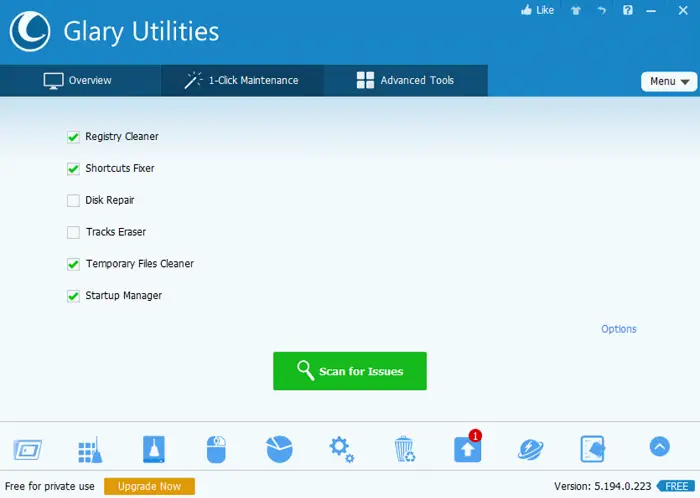
You can scan the system for issues and fix those issues. For example, you can manage temporary files, startup, etc., using the 1-Click Maintenance page. Just check the box for the tool you want to use. Then click on Scan for Issues.
5] Registry Repair
It is common for third-party tools to make changes to the Registry Editor tool on your computer. These changes can be harmful or, in most cases, redundant. You can use a registry repair tool to fix this issue. Simply click on the option in the bottom menu.
Read: Are Registry Cleaners good or bad?
6] Disk Cleanup
If your disk is full of junk files, it will bloat the system and you will not be able to use that space for necessary storage. In this case, it is important to clean the disk of temporary useless files from time to time. All you need to do is select the Disk Cleanup tool with Glary in the bottom menu.
7] Context Menu Manager
Changing Context Menu options can be tedious. At times, it involves Registry Level tweaks. With Glary 5 Utilities, you can manage Context Menus at the click of a button. Use the Context Manager option from the bottom menu. In this tool, you can add or remove options from Context Menus using the checkboxes.
8] Process Manager
The Process Manager is usually a part of the Task Manager. It is a separate window with Glary Utilities. In this case, you can easily change task priority and kill them. You can also block processes entirely and easily see the rating of each task.
9] Uninstall Manager
Remember when you had to open the Programs and Features window through the Control panel every time to uninstall applications on your system? Not anymore with Glary Utilities. Another advantage is that the Programs and Features window doesn’t allow you to uninstall all programs, while the Glary 5 tool allows much more.
10] Tracks Eraser
Websites and applications track your activity using cache and temporary files. Deleting them from time to time is important. While the Disk Cleanup tool exists on systems, it doesn’t specifically remove tracks. In this case, you can use Glary’s Tracks Eraser tool to remove the tracks.
11] Driver Manager
The Device Manager in the Windows system might not be present for long. All you can do is update drivers through Windows Updates or download them directly from the manufacturer’s website, Intel’s website, or AMD’s website. However, the Glary Driver Manager toll will always be there for help. You will be able to use it for a long time.
12] Shortcuts Fixer
At times you might delete files and the same from the Recycle Bin. However, their shortcuts remain in your system. In this case, you can delete the shortcuts using the Glary Shortcut Manager tool. When deleted, it would save a lot of space on the system.
13] Duplicate Files Finder
The Disk Cleanup tool can recognize temporary files and delete them, but it will not delete duplicate files which seem genuine. However, such files can take a lot of space on your system. In this case, you can use the Duplicate Files Finder tool to find duplicate files. After that, you can delete these files if you don’t need them. It will help save space.
14] Empty Folders Finder
The Empty Folders Finder tool searches for empty folders in the system and allows you to remove them. Empty folders don’t take up much space but can still bloat your system’s memory. When you search using the Windows Search bar, these empty folders create many false negatives. Other than this, it is anyway important to remove clutter from your system.
15] File Undelete
The File Undelete tool is like the Recycle Bin of the system. The use is to restore deleted files in an easy manner. You can also sort the results folder-wise. This makes it even easier to find the files you need to restore.
16] File Splitter
The File Splitter tool is a tool that allow splitting and joining of files in a system. To split a file, specify the file path and the destination for the split file. To join files, go to the next tab and reverse the process.
17] Check Disk
Remember the CHKDSK Scan you use through the elevated Command Prompt window. The command needs to be entered each time to run the scan. An easier way to run this scan is using Glary Utilities. All you need to do is click a button.
18] Disk Defrag
The Disk Defragmenter tool in your system has a replica in Glary Utilities. It isn’t much different from the option Windows provides you, but it is available along with other tools at the same interface. This tool rearranges defragmented data so you can use your drives more efficiently.
19] File Encrypter
Encryption changes the language of a file so it cannot be understood until you use a key to decrypt it. The File Encrypter tool helps ensure that certain files on your system can be accessed only by you. It also includes a Decrypter.
20] File Shredder
When you delete a file in Windows, then it simply releases the space on your system. A few recovery tools can help in retrieving the information later. If you wish to remove a sensitive file in a manner that it cannot be retrieved, then use the File Shredder tool. It changes the format of the file permanently so you cannot get it back no matter what. Basically, it is used to remove sensitive information permanently.
21] System Information
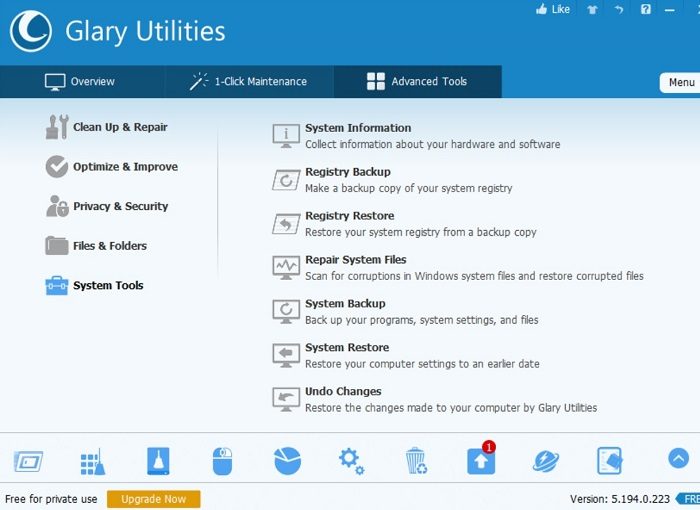
With time, Microsoft made it easier to find the System Information through Windows Settings, but still, it needs half a dozen clicks. With the Glary 5 utility, you need only one click and the System information is in front of you.
22] Undo Changes
The Undo Changes tool is a replica of the System Restore tool. Actually, it invokes the same as a third-party utility. You can use it when your system becomes problematic to return to a time when the system was working properly. You can also use this tool to create more system restore points.
23] Memory Optimizer
The Memory Optimizer tool helps while trying to fix problems with high CPU/memory usage. You can check the memory usage. If it is not up to par, click the Optimize button. You can also clear the clipboard to free a part of the memory.
Read: Do Memory Optimizer works?
24] Registry Defrag
The Registry Defragmentation tool helps reduce fragmentation and fix structural errors in the Registry Editor. You can also use it to recover unused memory space. It reduces system clutter and improves system efficiency.
Read: Should you defragment Registry?
Pros of Glary Utilities Free
Glary Utilities Free tool brings a lot of utilities to one place and the interface has improved. The utilities are flawless and usually always work. It covers almost every function available in a Windows system. Since the software is free for private use, we could easily perform all the mentioned functions without paying for anything.
Cons of Glary Utilities Free
There are no Cons, really! The only con is that the graphics are average. However, for someone who wants to use the application on a personal computer, this can be overlooked.
Conclusion
As a home user, you may find that Glary Utilities Free meets your requirements completely, and you really do not need its Pro version. The Pro version offers automatic care in the background and free support and is shareware. You no longer need to download and install separate tools for cleaning junk files, finding empty folders, recovering deleted files, and more. Glary Utilities Free has them all! We recommend that you download the portable version of Glary Utilities Free HERE. It is probably the best and the most feature-rich freeware optimizer for Windows, in my opinion.
If you have had any experiences while using this program – good or bad – do share them below in the comments.
Does Windows have utility software products?
Windows has quite a few utility applications like for System Restore and Disk Cleanup. However, a lot of options are available only through the Registry Editor. Using the Registry Editor isn’t easy. Furthermore, all utilities aren’t present in the same menu.
Read: FixWin is the best PC Repair software
Does Windows have something like CCleaner?
Yes, Windows offers a built-in utility that can delete non-essential files, including temporary files, clear download folders, and remove installed Windows updates. It is called Storage Sense which scans the PC for installed apps, other folders, other people, desktops, and temporary files. You can view each section, find the biggest file and then delete it if it is not required.
