
If you are using a Gigabyte motherboard or laptop, you already know how important the Gigabyte Control Center (GCC) is, as it lets you manage your system more effectively by controlling RGB lighting, fan speed, performance profiles, and driver updates. But what if Gigabyte Control Center is not working in Windows 11?
This would mean that updates to your drivers stop, preventing you from managing your computer. Fortunately, there are a couple of ways to fix the issue, which we will discuss below.
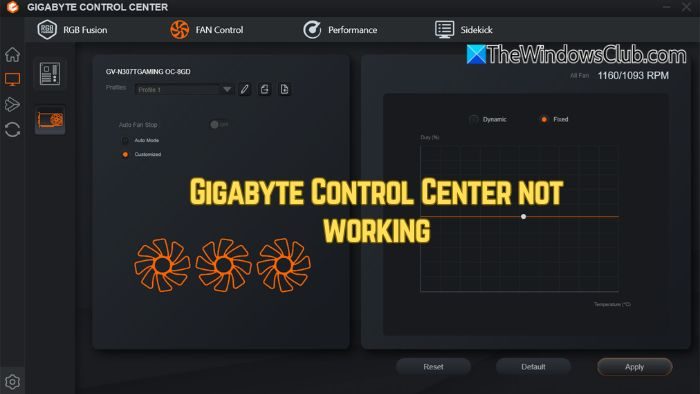
Gigabyte Control Center not working in Windows 11
If your Gigabyte Control Center is not working, not opening, not responding at all, or not showing anything in Windows 11, follow these solutions to fix the issue.
- Reinstall Gigabyte Control Center
- Enable the Windows services GCC depends on
- Disable conflicting software
1] Reinstall Gigabyte Control Center
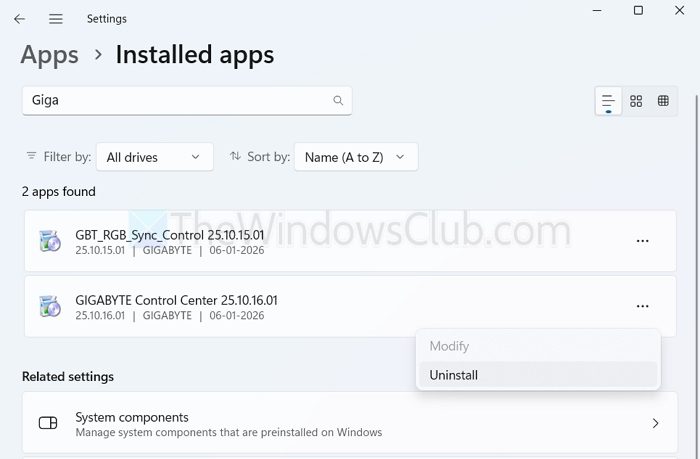
By completely removing Gigabyte Control Center, you ensure you are running the latest version of the app or that any bug causing the issue is removed.
- Press Windows Key + I to open Settings.
- Go to Apps > Installed Apps.
- Search for Gigabyte Control Center, click on the three dots icon, and select Uninstall.
- Once removed, open File Manager and check for and delete the following folders if they exist:
- C:\Program Files\GIGABYTE\
- C:\Program Files (x86)\GIGABYTE\
- C:\ProgramData\GIGABYTE\
- After that, download the latest version of the app from Gigabyte’s website.
- Once downloaded, install it by following the on-screen instructions, then run it and check if it works.
2] Enable the Windows services GCC depends on
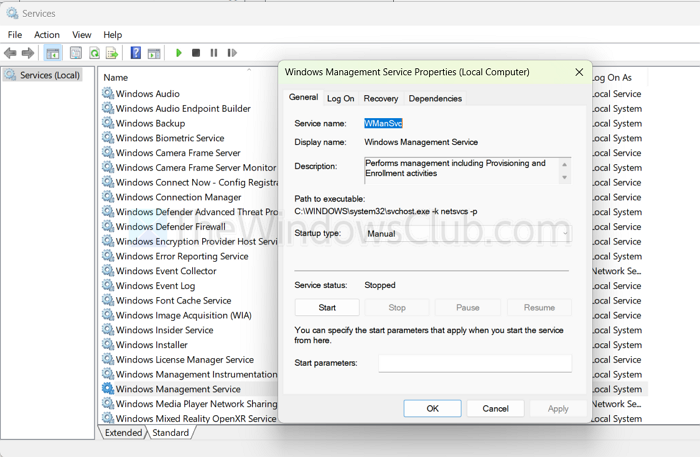
If required services aren’t running, GCC silently fails. WMI being broken is a very common cause.
- Press Win + R, type services.msc and pres the Enter key.
- Make sure these are running and set to automatic:
- Gigabyte Control Center Service
- Windows Management Instrumentation (WMI)
- Windows Event Log
- If any are stopped, start them
- Restart your PC
Read: Windows Event Log Service not starting or is unavailable
3] Disable conflicting software
If you have other similar apps, they might be preventing Gigabyte Control Center from functioning properly. Simply uninstall or disable apps such as antivirus programs, MSI Center, ASUS utilities, or any other system utility tools. Then restart your PC and check if it works.
So, those were a few ways to make Gigabyte Control Center work again on your PC. Even after these fixes, if you still encounter the same error, consider updating your BIOS. However, before doing so, you must understand the risks involved.
Read: Gigabyte RGB Fusion not working or detecting anything
Does Gigabyte Control Center support all Gigabyte motherboards and laptops?
No, Gigabyte Control Center does not support every Gigabyte product. GCC is mainly designed for newer Gigabyte motherboards (Intel 600/700 series, AMD 500/600 series) and recent Gigabyte/AORUS laptops. Older models may still rely on legacy tools like APP Center instead of GCC. If your hardware isn’t officially supported, GCC may install but fail to launch or work incorrectly. Always check your motherboard or laptop’s support page to confirm compatibility.
Read: The Driver can’t release to failure GIGABYTE
Why does Gigabyte Control Center open but show a blank screen or missing modules?
This usually happens when GCC modules fail to download or install properly. Common causes include Corrupted internet cache or firewall restrictions, Disabled Windows services like WMI and Incomplete installation after a Windows update
