
ASUS provides software to its users that allows them to control fans. As of late, a lot of users have reported that when the AsusFanControlService.exe has stopped working on their computer. This issue is not rare and needs an immediate fix. So, if ASUS Motherboard Fan Control Service has stopped working on your computer, check out the solutions mentioned in this article.
What is AsusFanControlService.exe?
Asus gives its users software that allows them to control their computers. AsusFanControlService.exe is an Asus Fan Control executable used to control the fan on your motherboard. One can use the app to make the fan run fast or slow. Basically, it allows you to control the RPM (Revolutions Per Minute) of your Fan, which can improve your computer’s performance.
However, many users are reporting that the executable is crashing on their systems. Hereinafter, we will address the issue using simple solutions.
Fix ASUS Motherboard Fan Control Service stopped working
If ASUS Motherboard Fan Control Service has stopped working on your Windows 11/10 computer, then try the prescribed solutions to resolve the issue.
- Restart AsusFanControlService
- Edit the Registry
- Reinstall AI Suite
- Scan for viruses and malware
Let us talk about them in detail.
1] Restart AsusFanControlService
This solution may not be for everyone but if you don’t use the Asus app to control Fan then you can try to stop AsusFanControlService and see if that works. But before that, we are going to give it a try by restarting and see if there is a glitch; if that doesn’t work, we will stop it. To do that, follow the steps below.
- Open Services app from the Start Menu.
- Look for AsusFanControlService.
- Right-click on it and click Restart.
If that doesn’t work, then again right-click on the service and click Stop.
Hopefully, after stopping the service, you will not see the pop up.
2] Edit the Registry
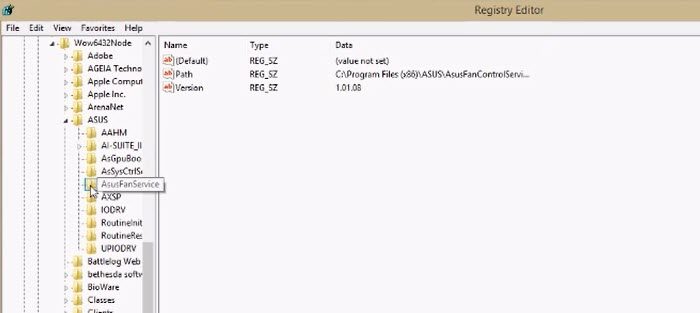
If stopping the service is to no avail then we have to reinstall Asus Fan Expert and edit the registry. To do that, first, go ahead and uninstall ASUS Fan Expert, it is not a separate program so you will have to a different approach. Go to Windows Settings > Apps > Search “Asus AI Suite” > Uninstall. Then just tick Fan Expert and click Uninstall. Once, you have installed the tool, stop AsusFanControlService (steps are mentioned in the first solution). Then open File Explorer and go to ASUS program files, more often than not, they are stored in the following location.
C:\Program Files (x86)\ASUS
Then delete the AsusFanControlService. Now, open Registry Editor from the following location and navigate to the following location.
Computer\HKEY_LOCAL_MACHINE\SOFTWARE\WOW6432Node\ASUS
Then delete the AsusFanService folder. And restart your computer
Then we have to reinstall ASUS Fan Expert. Go to the ASUS AI Suite Setup file, and install the Fan Expert. Finally, reboot your computer and your issue will be resolved.
3] Reinstall AI Suite
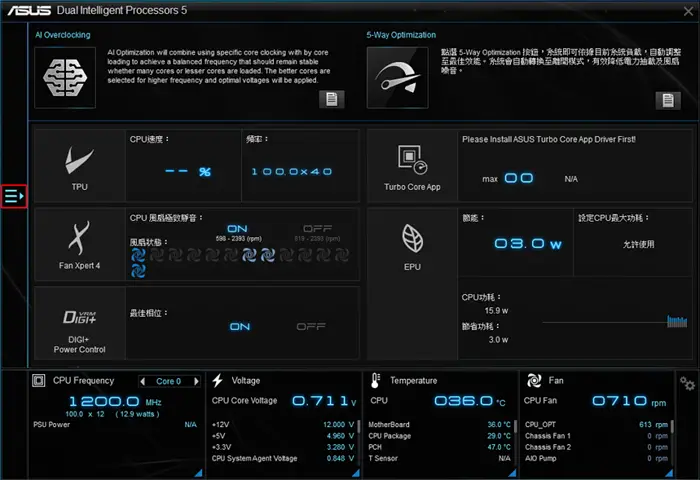
AI Suite 3 is an all-in-one interface that integrates several ASUS utilities and lets users launch and run them simultaneously.
The issue can occur if the AI Suite is corrupted. There are many reasons that can make the app corrupted, such as improper shutdown, etc. However, we are not going into details of it; we are just going to see how you can fix it. The best way to resolve the issue, in this case, is to uninstall the AI Suite from your computer, then download its latest version from asus.com. Then you can install it on your computer and you will be good to go.
4] Scan for viruses and malware
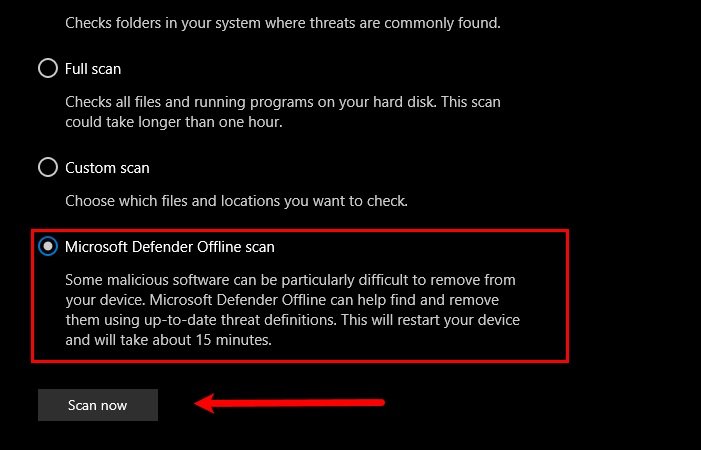
You should also check for viruses and malware, as they can also cause the issue. If you have a third-party antivirus, run it to remove any viruses. If you don’t have a third-party antivirus, we can use Windows Defender to handle the task. The following steps show how to use Windows Defender to scan for viruses and malware.
- Open Windows Security by searching it out of the Start Menu.
- Go to the Virus & threat protection tab.
- Click on Scan options.
- Select Microsoft Defender Offline scan.
- Click Scan now.
Let the process complete and check if the issue persists.
Read: How to prevent or fix Overheating and Noisy Laptop Fan issues.
How do I adjust the fan speed on my ASUS motherboard?
To adjust the speed of your Fan, ASUS provides you with the AI Suite. In that, you have the ASUS Fan Control Service, which can be used to adjust your fan speed. If you can’t find that app, then you should check out our guide to see how you can control Fan Speed on your computer. We have three methods, so you can choose the one that floats your board and control the speed of your Fan.
Also read: CPU fan runs at full speed all the time.
