
In this guide, we will see an easy method to generate an SSH key in Windows 11 or Windows 10. SSH, or Secure Shell, is a cryptographic network protocol that establishes a secure tunnel over an unsecured network, allowing your data to be transferred between the server and clients in an encrypted form.
For example, suppose I have a home network that’s not secure. In this case, If I have to transfer data from a source to a destination, then it can be attacked by cybercriminals using the Man in the middle (MITM) approach. However, if I use the SSH protocol to perform the same task, then the communication would remain secured using cryptographic technology.
How to generate an SSH key in Windows 11
In order to generate the SSH key in Windows 11/10, you need to first ensure that you have installed the OpenSSH Client feature on your device. OpenSSH supports all SSH protocol versions and provides secure tunneling capabilities. It encrypts all your traffic and avoids the risks of hijacking.
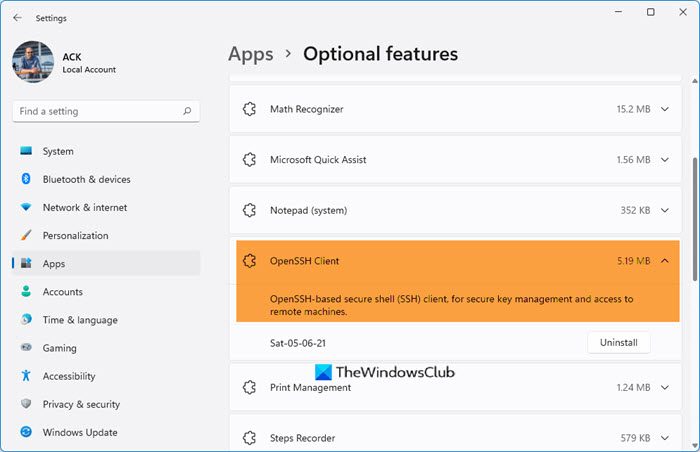
So, open the Windows Settings and navigate to Apps > Apps & features. In the right pane, click on the Optional features link.
Windows 11
Windows 10
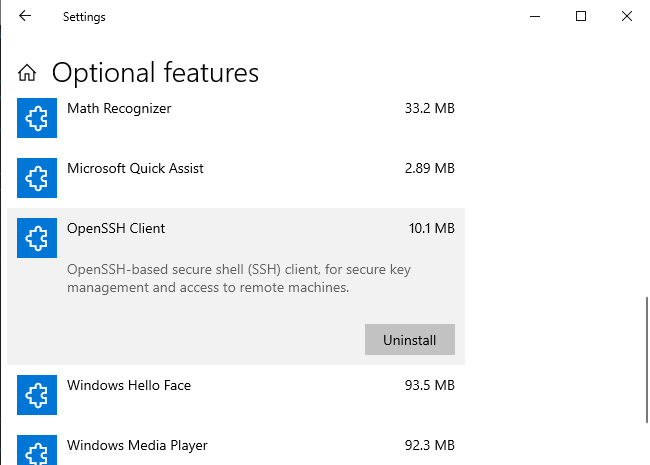
Now, check whether the OpenSSH Client is available on the list.
If it is not available on the list then click on the Add a feature button. Select OpenSSH Client from the list and then install it.
After the installation is complete, restart your computer to be sure.
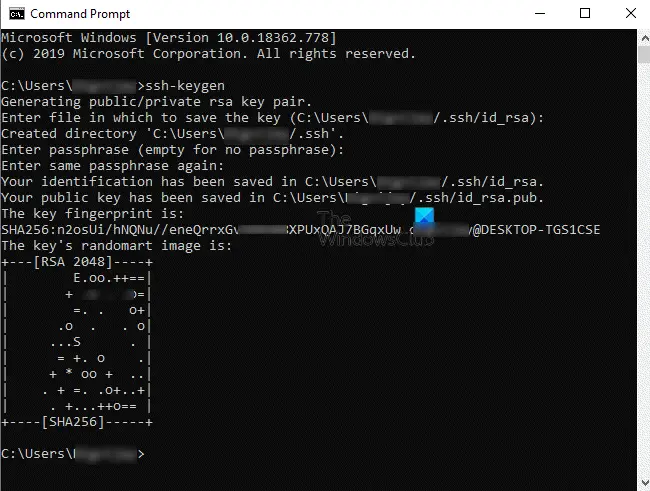
In the next step, open Command Prompt. Once it opens, type the following command line and hit Enter.
ssh-keygen
At this time, the system will ask you to save the default location. You can do it by pressing the Enter key. You can also change the path as needed. However, by default, it offers the location in the following form:
C:\users\<yourusername>\.ssh\id_rsa
After that, the system asks you to set a password (passphrase). While typing the password, you will not see anything but it gets recorded there. Next, enter the same password to confirm it.
If you want, you can continue without setting a password. To do so, just hit the Enter key; otherwise, type the passphrase there.
As you press the Enter key, the fingerprint for your key and SHA256 will appear. The default algorithm is RSA 2048.
The public key will be saved to the id_rsa.pub file. By default, it is located in the following form:
C:\users\<yourusername>\.ssh\id_rsa.pub
We recommend you not share the private SSH key (id_rsa) for obvious reasons.
TIP: You can also use the following command in PowerShell:
ssh-keygen -t ed25519 -C "[email protected]"
Here:
-t ed25519is the modern, secure algorithm (you can usersaif needed).-Cadds a label (usually your email).
I hope this guide will be helpful in generating SSH keys for your system.
