
Some gamers cannot play Forza Horizon 6/5 because it gets stuck on the loading screen whenever they launch the game. This issue occurs randomly and won’t go away by restarting the game and the Windows computer. There are many possible causes. The primary cause is unsupported hardware. Therefore, check the hardware requirements for an app or game before you purchase it. However, even with supported hardware, some users still experience this issue. In this article, we will see what you can do if Forza Horizon gets stuck on the Loading screen.
Forza Horizon stuck on the Loading screen on Windows PC
As described above, unsupported hardware can cause several problems while playing. Therefore, we suggest you check the hardware requirements for Forza Horizon. If your system does not have minimum hardware requirements, you should upgrade your hardware. Some users fixed the problem by repeatedly pressing certain keyboard keys and key combinations. You can also try this solution. These keys and key combinations are:
- Windows key.
- Overlay shortcut in Steam.
- Alt + Tab. Press this key combination to switch to another window and then return to Forza Horizon by pressing the Alt + Tab keys again. See if this helps.
- Win + G.
Try the above fixes and see if Forza Horizon loads. But this is a temporary fix. If you experience the issue again, you can try the solutions provided below:
- Power cycle your WiFi router
- Turn on VSync
- Make your Xbox offline
- Verify the integrity of the game files
- Limit the frame rate
- Uninstall and reinstall the game
Let’s see all these fixes in detail.
1] Power cycle your WiFi router
Internet issues are one cause of these problems. You can resolve the internet issues by power cycling your WiFi router. The following steps will guide you on this:
- Turn off your WiFi router
- Disconnect it from the power socket.
- Wait a few minutes, then reconnect it to the power socket.
- Turn it on.
Now, launch Forza Horizon and see if it fixes the problem.
2] Turn on VSync
VSync or Vertical Sync is a technology that syncs the game frame rate with the monitor’s refresh rate. If the monitor’s refresh rate and the game frame rate are not synchronized, you may experience a tearing effect in your games. Sometimes, VSync causes other issues in games. For this reason, gamers turn this feature off. If you have VSync off, turn it on, then launch Forza Horizon. Below, we have explained the steps to turn on VSync in both NVIDIA and AMD.
How to turn on VSync in NVIDIA
Follow the steps written below:
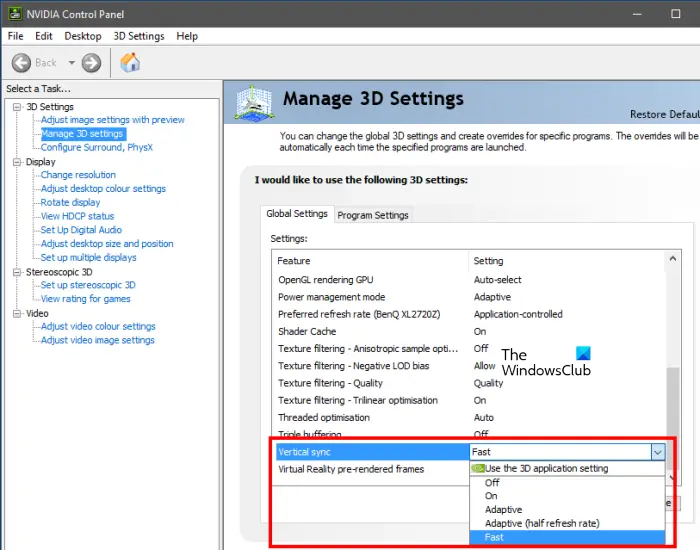
- Open NVIDIA Control Panel.
- Expand the 3D Settings node from the left side.
- Click Manage 3D Settings.
- Select the Global Settings tab and then click on the drop-down next to Vertical Sync.
- Select On.
- Click Apply to save the settings.
How to turn on VSync in AMD
Follow the steps written below:
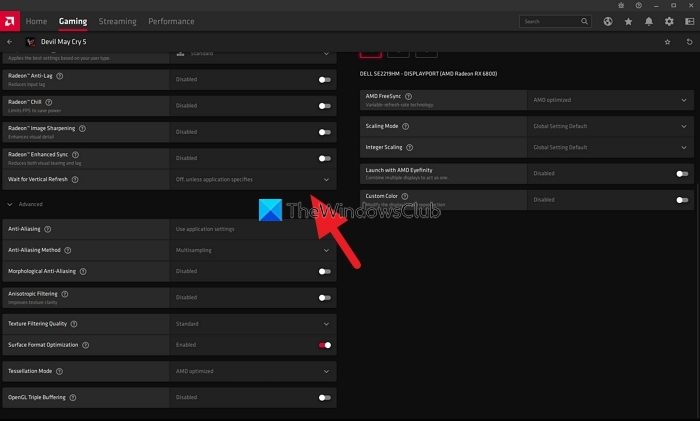
- Open the AMD Radeon Settings.
- Select the Games tab and look for the Wait for Vertical Refresh option.
- Select Always on to turn on VSync.
3] Make your Xbox offline
This solution is for Xbox users. If you play Forza Horizon 5 on Xbox and the game gets stuck on the loading screen, make your Xbox offline, then restart the game. The following steps will guide you on this:
- Press the Xbox button on your Controller to open the Guide.
- Go to “Profile & system > Settings > General > Network settings.”
- Select the Go Offline option.
- Close the Forza Horizon game if it is already running.
- Turn off your Xbox. Wait for a few minutes and turn it back on.
- Launch Forza Horizon 5 and make your Xbox online.
The game should load this time.
4] Verify the integrity of the game files
Sometimes issues occur when game files become corrupted. To fix this, repair the corrupted game files. You can do this by verifying the integrity of the game files. Follow the steps below:
- Open Steam.
- Go to your game library and right-click on Forza Horizon.
- Select the LOCAL FILES option from the left side and then click on the Verify integrity of game files option.
After this, Steam will repair the corrupted game files. When Steam completes the task, close the Steam Client and restart your computer.
5] Limit the frame rate
This solution has worked for some users. Try this if the solutions above didn’t fix your issue. Limit the maximum frame rate for your game and see if it helps. The procedure to limit the frame rate is explained below.
How to limit frame rate in NVIDIA
Follow the steps below:
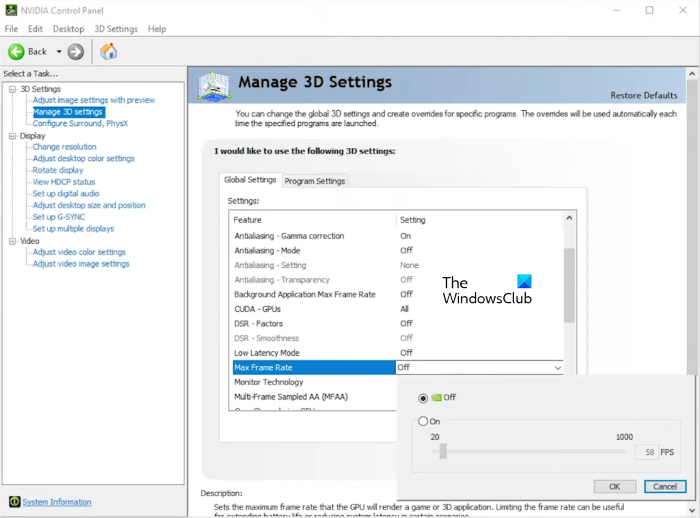
- Open NVIDIA Control Panel.
- Expand the 3D Settings node on the left side.
- Select the Manage 3D Settings option.
- Select the Global Settings tab, scroll down, and locate the Max Frame Rate option.
- Click the drop-down next to it and select On.
- Move the slider to limit the frame rate.
The above steps will limit the frame rate in all games. To limit the frame rate for a specific game, follow the first three steps above and select the Program Settings tab. After that, click on the Add button. Now, add your game. The selected game will appear in the drop-down. If not, select it in the drop-down. Now, scroll down and locate the Max Frame Rate option. Turn it on and set a custom frame rate by moving the slider.
How to limit frame rate in AMD
Follow the steps below:
- Open the Radeon software.
- Select the Gaming tab.
- Click on the three vertical dots on the top right side and select Add a game.
- After adding your game, select it and enable the Radeon Chill option.
- Move the sliders to set the minimum and maximum frame rates.
6] Uninstall and reinstall the game
If none of the above solutions fix the issue, uninstall Forza Horizon and reinstall it.
Read: Fix Forza Horizon multiplayer mode not working
How do I fix Forza Horizon 5 intro crash?
If Forza Horizon is crashing after launching, it might be due to the unsupported hardware. Check if your system fulfills the hardware requirements for the game or not. Another cause is corrupted Microsoft Visual C++ Redistributables. Forza Horizon game requires Microsoft Visual C++ Redistributables to run. If these packages become corrupted, you may experience several issues with Forza Horizon, including crashes. Repairing the Visual C++ Redistributables can help.
In some cases, antivirus software flags a program as a false positive and blocks it from functioning properly. This might be the case with you. You can check this by temporarily disabling your antivirus. Some users have reported that the issue occurs with Comodo antivirus. If this step fixes the issue, you have to add the FH exe file as an exclusion to your antivirus. Contact your antivirus support if you do not know how to do this.
You should also check if the problem is occurring due to the startup app. For this, you have to troubleshoot your computer in the Clean Boot state.
Why can’t I load Forza?
If you can’t load Forza Horizon, check if your system has hardware requirements. You can check this on the game developer’s official website. Internet connectivity issues also cause Forza Horizon to fail to load. You can also try limiting the frame rate in Forza Horizon and see if it helps. This article lists solutions to fix this issue.
Forza Horizon 6 recommended requirements
The official recommended system requirements for Forza Horizon 6 on PC are:
• Operating System: Windows 11/10 (64-bit)
• Processor (CPU): Intel Core i5-12400F or AMD Ryzen 5 5600X
• Memory (RAM): 16 GB RAM
• Graphics (GPU): NVIDIA GeForce RTX 3060 Ti, AMD Radeon RX 6700 XT, or Intel Arc A580
• Dedicated Video RAM (VRAM): 8192 MB (8 GB)
• Shader Model Version: 6.0
• Storage: 167 GB available space (SSD required)
• DirectX: Version 12.
Read next: Can’t Install Forza Horizon on Windows PC.
