
Many users are complaining that Forza Horizon keeps crashing or freezing on startup. According to them, the game crashes immediately after they launch it, whereas some users have said that the game crashes after 5 to 10 minutes of launching. There could be several causes of this problem, such as a false positive flag from antivirus programs or permission issues that prevent the game from running. Here, we will discuss the potential solutions to this problem in detail. If you are experiencing this issue on your computer, this post may help resolve it.
Why does Forza crash when I open it?
In most cases, a game crashes if the user’s computer does not meet the system requirements. Therefore, before buying a game, it is mandatory to read all the system requirements. Apart from this, there are other causes of the issue. We are writing some of these possible causes below:
- Antivirus program: Sometimes antivirus generates a false positive flag and gives warnings to the user about the legit software. Such types of warnings are avoided. But when the antivirus program considers the legit software a threat, it prevents it from running. Due to this, a user experiences freezing or crashing issues with that program.
- A conflicting software: You might experience freezing or crashing issues with a particular software if another software is conflicting with it. Such types of problematic programs can be identified by troubleshooting the computer in the Clean Boot state. To fix such types of problems, you have to uninstall the faulty program.
- Permission issues: Some programs require administrative privileges. You cannot run such types of programs if you do not have administrative rights.
- Windows or a third-party Firewall: Sometimes, Windows or a third-party Firewall blocks some programs. In this case, the user is not able to use that program. If such a thing happens to you, you can solve it by whitelisting that program in Windows Firewall or your third-party Firewall.
Forza Horizon crashing on launch or freezing on startup
Many users have disconnected their systems from the internet, and the issue was fixed. Since Forza Horizon 6/5 also comes with an offline mode, you can try this trick. But this is not a permanent solution. Below, we have listed some fixes that you can try to resolve this issue on your Windows 11 or Windows 10 PC.
- Run Forza Horizon as an administrator.
- Close other running programs
- Terminate the Xbox app.
- Turn off your antivirus temporarily.
- Add FH.exe process to Comodo antivirus software (solution only for Comodo antivirus software users).
- Disable Nahimic Service.
- Disable the in-game overlay in the GeForce Experience (solution only for NVIDIA graphics card users).
- Install the latest version of Visual C++ Redistributable.
- Reset Forza Horizon from Windows Settings
- Reinstall the game.
Let’s discuss these solutions in detail.
1] Run Forza Horizon as an administrator
One possible cause of the problem is the permission issues with Forza Horizon game. We suggest you launch Forza Horizon as an administrator and see if it helps. To do this, simply right-click on the game icon on your desktop or FH executable file and select Run as administrator. Click Yes if you receive the UAC prompt. If this trick works for you, you can make Forza Horizon program always launch as an administrator.
2] Close other running programs
Sometimes the problem occurs due to a software conflict. If you have opened other programs in parallel to Forza Horizon, close them and then see if the issue occurs. Many users have confirmed that the problem was occurring due to a conflict with another program and Forza Horizon.
The following are some of the conflicting programs reported by the users:
- Steelseries Engine software
- Virtual surround sound card program
- FPSMonitor
- Game recording software
If you have installed any of the above programs on your system, close them if you are using them in parallel to Forza Horizon. If this does not work, uninstalling these programs can fix the issue.
2] Terminate the Xbox app
Some users have reported that the Xbox app conflicts with Forza Horizon, causing the game to crash. This might be the case with you if you have installed the Xbox app on your system. To check this, terminate the Xbox app on your system.
Below, we explain the procedure for terminating the Xbox app on both Windows 10 and Windows 11 computers.
Windows 11
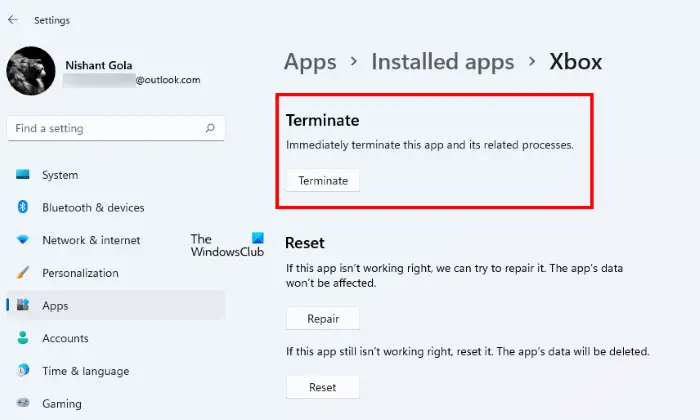
The following instructions are for Windows 11 users:
- Click on the Search icon and type Settings. Select the Settings app from the search results.
- In the Settings app, go to “Apps > Installed apps.”
- Scroll down the list of installed apps and locate the Xbox app.
- Once you find it, click on the three vertical dots next to it and select Advanced options.
- Scroll down and click on the Terminate button.
Windows 10
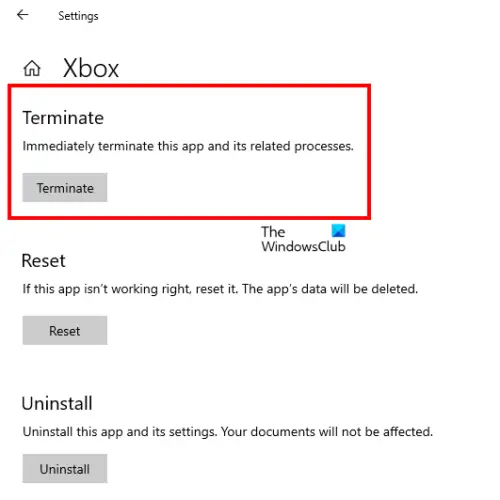
Windows 10 users have to follow the below instructions:
- Right-click on the Start Menu and click Settings.
- Go to “Apps > Apps & features.”
- Scroll down the list of installed apps on the right pane and locate the Xbox app.
- Once you find it, select it and click on the Advanced options link.
- In the Advanced options window, scroll down and click on the Terminate button.
3] Turn off your antivirus temporarily
Sometimes, antivirus software generates a false positive flag for certain software and games. Due to this, the antivirus prevents that program from launching. We recommend disabling or temporarily turning off your antivirus software and then launching the game. If this method helps you, you have to disable your antivirus software every time you play the game. After playing the game, you can enable the antivirus again.
4] Add FH.exe process to Comodo antivirus software (solution only for Comodo antivirus users)
If you are using the Comodo antivirus software, it might be preventing the Forza Horizon game from launching. To fix this issue, you have to add the FH5.exe process to Comodo antivirus.
The steps to do this are listed below:
- Launch Comodo antivirus.
- Go to “Advanced Settings > Advanced Protection > Miscellaneous.”
- Now, click These applications.
- Click Add Processes and add the FH5.exe process to the Comodo antivirus. If you don’t see the FH5.exe process, launch Forza Horizon game.
5] Stop the Nahimic Service
Some users have found Nahimic Service the culprit of the problem. You will find this service on your system if you have installed Nahimic Audio software. The instructions to stop this service are explained below:
- Lunch the Run command box by pressing Win + R keys.
- Type
services.mscand click OK. This will launch the Services app on your Windows PC. - In the Services app, you will see all the services running on your system. Scroll down the list of services and locate the Nahimic service.
- Once you find it, right-click on it and select Stop.
Now, launch the Forza Horizon game and see if it crashes or not. If the game still crashes, you have to uninstall the Nahimic Audio software from your computer.
6] Disable the in-game overlay in the GeForce Experience (solution only for NVIDIA graphics card users)
This solution is only for NVIDIA graphics card users. Disable the in-game overlay in the GeForce Experience.
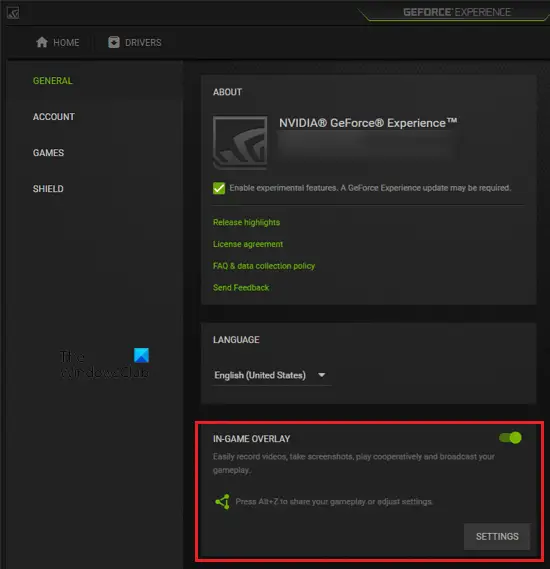
Follow the instructions mentioned below:
- In the system tray, right-click on the NVIDIA icon and select NVIDIA GeForce Experience.
- Sign in to your NVIDIA account.
- Click on the Settings icon on the top right corner.
- Select the GENERAL category from the left side.
- Turn off the IN-GAME OVERLAY button.
After disabling the In-game Overlay in NVIDIA settings, check if you are able to launch the Forza Horizon or not.
7] Install the latest version of Visual C++
Microsoft Visual C++ Redistributable is a runtime library that is required by many applications or software to function properly. If the Microsoft Visual C++ Redistributable is not up to date, some software may not work properly. New programs require the latest version of Visual C++. Therefore, we recommend installing the latest version of the Visual C++ Redistributable on your system, which can be downloaded from microsoft.com.
4] Reset Forza Horizon from Windows Settings
Some users have fixed the problem by reinstalling the game. But this is a time-consuming process. Therefore, if the problem still exists. You can try resetting the game instead of reinstalling it. The steps to reset Forza Horizon game in Windows 11 and Windows 10 are written below:
Windows 11
Windows 11 users have to follow the steps to reset Forza Horizon:
- Right-click on Start and select Settings.
- Got to “Apps > Apps & features.”
- Scroll down the list of installed apps and programs and locate Forza Horizon.
- Once you find it, click on the three horizontal dots and select Advanced options.
- Scroll down and click on the Reset button.
Windows 10
Follow the following steps if your system is running on Windows 10:
- Press Win + X keys and select Settings.
- Go to “Apps > Apps & features.”
- Locate Forza Horizon and select it.
- Now click Advanced options.
- Now, click Reset.
After performing the above steps, open the Xbox app and find Forza Horizon. Now, click Install. After that, the game will start downloading the updates.
5] Reinstall the game
If none of the above solutions fixed your problem, the last option is to uninstall and reinstall the game.
We hope this article has helped you solve the problem.
Read: Forza Horizon Syncing data stuck at 0% on Windows PC.
Why does my game keep closing when I open it?
There are many reasons your games keep crashing, like:
- Your computer does not meet the game specifications.
- Your game’s settings are wrong.
- Your device’s operating system requires an update.
- Your graphics card drivers are corrupted or outdated.
- Another software or service is running in the background causing the problem.
- Your computer does not have enough RAM.
- The game is not compatible with the version of the operating system you have installed on your machine.
- Antivirus or Firewall is preventing the game from getting launched.
How do I fix Forza Horizon on PC?
If Forza Horizon keeps crashing or freezing on your PC or you are experiencing some other issues with the game, you can try some fixes to get rid of the problem, like launching the game as an administrator. In some cases, antivirus software prevents some software or games from working correctly. If this is the case for you, disabling your antivirus temporarily will resolve the issue.
Sometimes, the crash occurs due to a conflict with third-party software. To check this, you can troubleshoot your computer in a Clean Boot state. One cause of this problem is corrupted Microsoft Visual C++ Redistributable packages. If the Visual C++ Redistributable packages get corrupted, the programs that depend on these packages do not work. In such cases, repairing Visual C++ resolves the issue.
Why can I not play Forza Horizon?
If you are unable to play Forza Horizon, first check if your system has the required supported hardware. If your computer does not meet the hardware requirements, you will experience several issues with the game, such as crashes and freezes. If your system has the supported hardware for the game, but you still cannot play it, check the server status for Forza Horizon. If the issue persists, try some alternative solutions, such as temporarily disabling your antivirus, launching the game as an administrator, or repairing the Microsoft Visual C++ Redistributable packages.
Read next: Call of Duty Vanguard keeps freezing or crashing.
