
In this post, we will show how you can fix Installer encountered an error 0x800f0905 on Windows 11 or Windows 10. This error can occur when running Windows Update or using its Windows Update Standalone Installer.
When updating Windows, if you receive error 0x800f0905, it’s because Windows files are misconfigured or corrupt. It can be the update file or any system file. When files are corrupt, installations can fail, downloads can get stuck, and the process may need to be restarted. It takes a while for Windows to achieve this, but the end user can do it manually.
Fix Installer encountered an error 0x800f0905
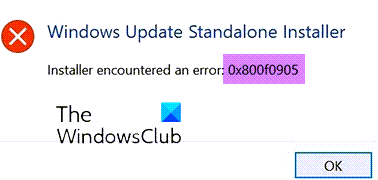
Follow these suggestions to fix Installer encountered an error 0x800f0905, while running the Windows Update Standalone Installer on your Windows 11/10 computer:
- Let Windows Update Itself
- Run Windows Update Troubleshooter
- Refresh Windows Update Services
- Repair Corrupt System Files
- Peform an In-Place Upgrade
You will need admin permission to resolve this.
1] Let Windows Update Itself
If you have slow hardware, especially an HDD, then downloading and installing Windows Update may take longer than itself. In fact, at times, it results in a timeout, and Windows itself throws an error. The point is that you may have to wait for this and try a couple of times. Windows Updates work better compared to previous, but they still share their own set of problems.
Make sure to disable all sleep mode; in fact, Power Toys offer this feature without changing the core settings. Let it run overnight, and see if it gets resolved.
2] Run Windows Update Troubleshooter
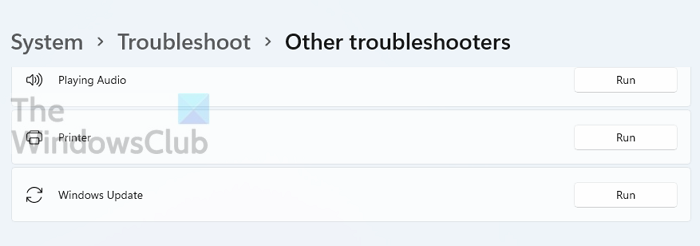
Windows offers a built-in troubleshooter that can help you resolve Windows Update. It’s an automated solution that restarts many services, clears the Update cache, and so on.
Go to Windows 11 Settings > System > Troubleshoot > Other troubleshooter. If you are using Windows 10, then it is available under Update and Security instead of System.
Read: Fix 0x800f0845 Windows Update Error
3] Refresh Windows Update Services
The best way to reset Windows Update Service is to restart them, delete any downloaded files, and reset WINSOCK for network issues.
Open PowerShell or Windows Terminal or Command Prompt with admin permission, and execute the commands one after another:
net stop bits
net stop wuauserv
net stop appidsvc
net stop cryptsvc
Del "%ALLUSERSPROFILE%\Application Data\Microsoft\Network\Downloader\*.*"
rmdir %systemroot%\SoftwareDistribution /S /Q
rmdir %systemroot%\system32\catroot2 /S /Q
regsvr32.exe /s atl.dll
regsvr32.exe /s urlmon.dll
regsvr32.exe /s mshtml.dll
netsh winsock reset
netsh winsock reset proxy
net start bits
net start wuauserv
net start appidsvc
net start cryptsvc
Once done, you can restart Windows PC and then manually initiate the download once you log in again. This will remove any chance of errors caused by any of these services and files.
4] Repair Corrupt System Files
System File Checker (SFC) and DISM are built-in tools that can fix any corrupt system file by replacing them with a new copy.
Open an elevated PowerShell or Command Prompt or Windows Terminal, and execute the following commands. First run the SFC command, and second DISM.
sfc /scannow
DISM /Online /Cleanup-Image /RestoreHealth
If any of these find a corrupted file system, they will be replaced. Once done, restart the PC, and then check for updates again or try installing it.
Related: How to uninstall Windows Updates in Windows 11
5] Peform an In-Place Upgrade
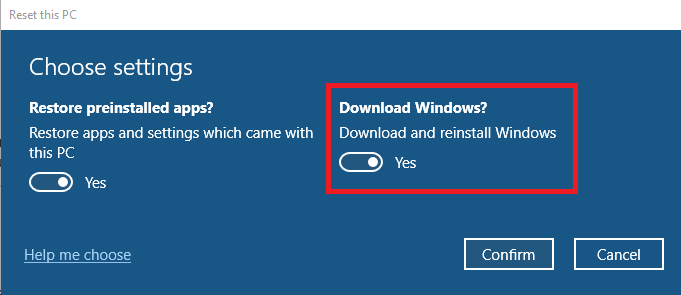
This method is a bit overkill, but if you cannot update and it’s a major one, you can choose an in-place upgrade that will not remove anything from the system. The method is also called Refresh your PC. It can fix many software and system file issues by reinstalling the OS while preserving user data.
During the process, the wizard also offers to download the latest version of Windows from the cloud, and then upgrade.
- The option is available in Settings > Recovery > Reset this PC in Windows 11.
- If you are on Windows 10, navigate to Settings > Update and Security > Recovery > Reset this PC.
I hope the post was easy to follow, and you were able to resolve the Windows Update Error 0x800f0905.
Related:
- Windows Update Standalone Installer Error 0x8007000d
- Windows Update Standalone Installer Error 0x80096002
How Do I Know if My Windows Update Is Corrupted?
If you are unable to install a Windows update or download it, the update keeps failing in between, then it’s a hint that Windows Update is corrupted. The best way to restart the process is to delete everything in the Software Distribution folder and redownload everything.
Will Resetting PC Fix Corrupted Files?
It helps when you do not have any other option, and should be used when you are unable to next major update. You can use the Reset this PC option, then download the latest version of Windows using the cloud option.
Is It Better to Reset or Reinstall Windows?
Reset is a better option because it will save a lot of time, and also ensure the data on the PC is wiped clean. While both are eventually the same process, Reset option doesn’t need you to be around.
How Do I Fix a Corrupted Windows Update?
The best fix is using the Troubleshooter tool available in Windows along with DISM and SFC tools. They will replace everything that is corrupted. You can also follow the manual method, but that will involve deleting files from System Folders so make sure you clearly understand before doing it.
